Give Every Group One Simple Link
Put the events you choose on one shareable page, so families, members and volunteers always know where to find them.
Included with SameTeam Pro · Up to 5 Event Hubs · No guest accounts or apps
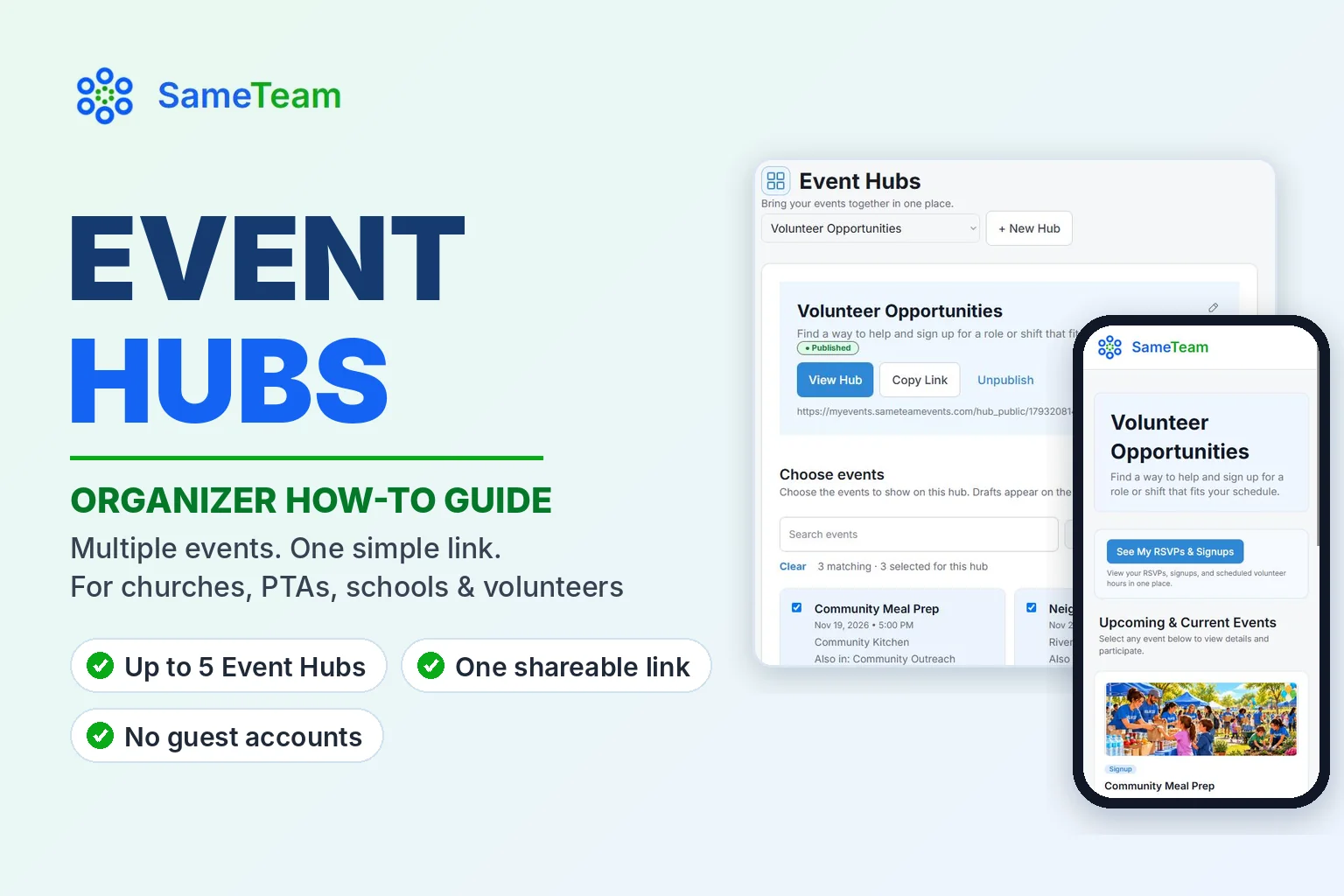
If your church, PTA or volunteer group runs more than one event at a time, you’ve probably sent the same people three or four different links. An Event Hub fixes that. It’s one shareable page that lists the events you choose, so you can organize multiple events with one link.
This guide walks you through creating an Event Hub in SameTeam Events, adding events to it, sharing it, and keeping it up to date. It takes about five minutes.
Quick answer: To create an Event Hub, sign in to SameTeam Events, select Event Hubs in the top menu, give your hub a name and select Save & Continue. Check the events you want on the hub and select Save Changes. Then select Publish Hub and Copy Link to share it. Event Hubs are included with SameTeam Pro, which includes up to 5 hubs.
What is an Event Hub?
An Event Hub is a public page with its own link. It shows the upcoming and current events you’ve added to it, each with its date, location and whether it’s an RSVP, a signup or both. Guests select an event to see the details and respond. They don’t need an account, a password or an app.
Because each hub has its own link, you can give different groups their own page. For example:
- Churches: a hub for Kids Ministry and another for Volunteer Teams.
- PTAs and PTOs: a Family Events hub for parents and a Volunteer Opportunities hub for helpers.
- Nonprofits and community groups: a Community Outreach hub that lists every service project this season.
An Event Hub is a page that lists your events. It doesn’t copy, repeat or schedule events for you, and every event keeps working on its own link too.
Before you start: plan requirements and limits
| What | Details |
|---|---|
| Plan | Event Hubs are included with SameTeam Pro (monthly or annual). See plans and pricing. |
| Number of hubs | Up to 5 Event Hubs per account. When you reach the limit, the Event Hubs page shows “5 of 5 hubs.” |
| Events | Choose which of your events appear on each hub. One event can appear on more than one hub. |
| Who can manage hubs | You, plus any Admins you’ve invited on Pro. |
| Guests | No account, password or app needed. |
If you’re new to SameTeam Events, your first event is free. You can upgrade to Pro when you’re ready to create Event Hubs.
How to create an Event Hub
1. Open Event Hubs
Sign in to SameTeam Events and select Event Hubs in the top menu. If this is your first hub, you’ll see Set up your Event Hub. If you already have one, select + New Hub.
2. Name your hub and add a short description
Enter a Hub name, like “PTA Events” or “Kids Ministry.” The Description is optional and appears at the top of your public hub, so keep it to one friendly sentence. Select Save & Continue. No events are added automatically, so you stay in control of what appears.

3. Choose the events for this hub
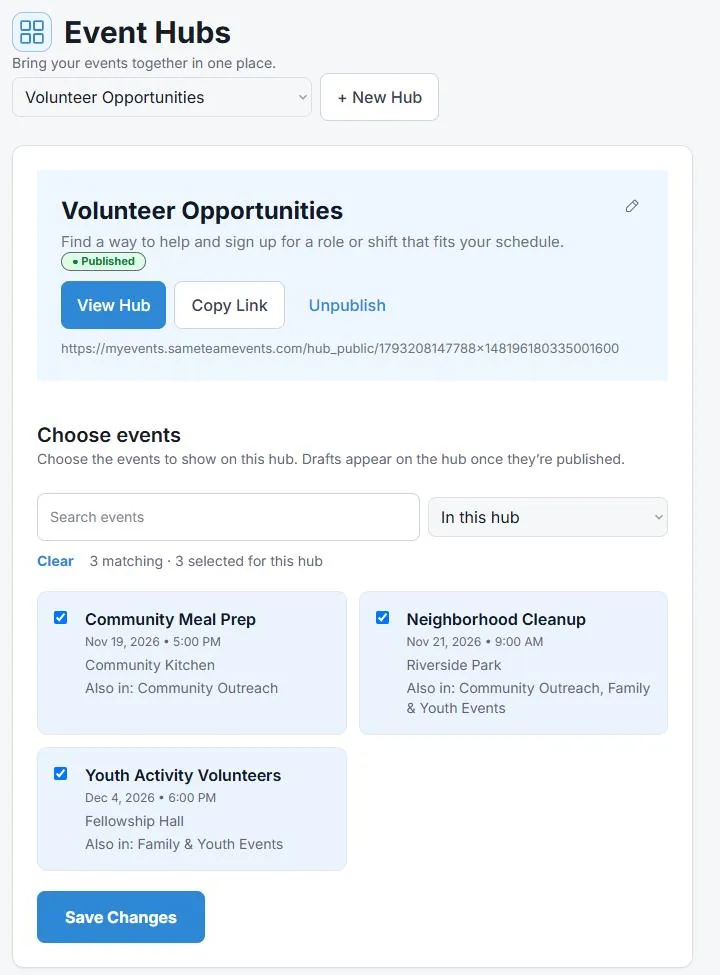
Under Choose events, check each event you want on the hub, then select Save Changes. Have a lot of events? Use Search events, the filter menu (All events, In this hub, Not in this hub or Drafts), or Select all and Clear. You can include drafts, too. They’ll appear on the hub once you publish them.
4. Publish your hub
Select Publish Hub. Your hub needs at least one event before you can publish it. Once it’s published, you’ll see a green Published label, and guests can open the hub’s link.
5. Copy the link and share it
Select Copy Link and paste it anywhere your group already looks: an email, newsletter, church bulletin, class update, website or group chat. Select View Hub anytime to see exactly what guests see.
Tip: Your hub’s link stays the same as you add and remove events, so you can share it once and keep using it all season.
How to add new or existing events to a hub
Add a new event while you create it
When you create or edit an event, scroll to the Event Hubs section near the bottom of the form and check one or more hubs. A hub that isn’t published yet is marked “(hub not published).” The event appears on the public hub once the event is published.
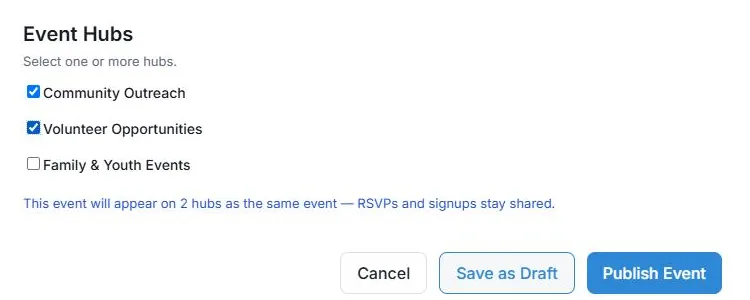
Add an existing event
You have two options. Open Event Hubs, choose the hub from the menu at the top, check the event under Choose events and select Save Changes. Or open the event, select Edit Event, check the hub in the Event Hubs section and save the event.
How to add an event to multiple hubs
Some events belong in more than one place, like a fall festival that needs both families and volunteers. Just check more than one hub for that event. It’s still one event, not a copy, so every RSVP, signup and available spot stays together no matter which hub a guest uses.
If you add an event from the Event Hubs page and it’s already on another hub, SameTeam asks you to confirm. Select Add to This Hub to continue. On the event list, “Also in” shows the other hubs each event is on.
How to edit, unpublish or delete a hub
- Switch between hubs: use the hub menu at the top of the Event Hubs page.
- Change the name or description: select the pencil icon on the hub, make your changes and select Save Changes.
- Remove an event from a hub: uncheck it under Choose events and select Save Changes. The event itself isn’t deleted, and it stays on any other hubs.
- Unpublish a hub: select Unpublish, then Yes, unpublish. This hides the hub’s link from guests. Your events, RSVPs and signups stay as they are, and you can publish the hub again anytime.
- Delete a hub: select the pencil icon, then Delete this hub, and confirm with Delete Hub. The hub and its link are removed. Your events, RSVPs and signups aren’t affected, and events stay on your other hubs. If you might use the hub again, unpublishing is the safer choice.
Events only show on a hub while they’re published. If you move an event back to Drafts, it disappears from your hubs, and it reappears on any hubs it’s listed on when you publish it again. Events drop off a hub automatically after they end.
How guests use your Event Hub
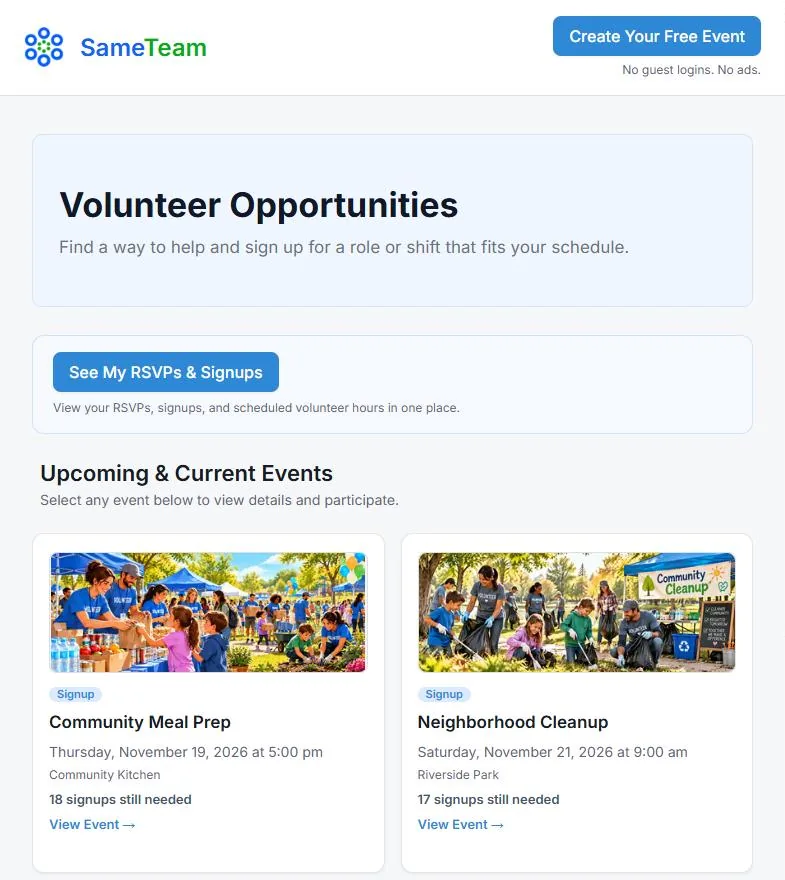
Here’s what families and volunteers see when they open your hub’s link:
- Your hub name and description at the top.
- Upcoming & Current Events, each with its date, location and an RSVP, Signup or RSVP + Signup label. Signup events also show how many signups are still needed.
- View Event → on each card. It opens the event page, where guests RSVP or sign up, with a link back to your hub.
- See My RSVPs & Signups, which lets guests view and update everything they’ve signed up for with you. Share our My Signups guide for guests if anyone has questions.
Tips for churches, PTAs and volunteer groups
- Make one hub per audience. Parents and volunteers often want different things. Two focused hubs are easier to scan than one long list.
- Put the link where people already look. Add it to your website, weekly newsletter, bulletin or class email so families can bookmark it.
- Add events early. You can add drafts to a hub, and they appear as soon as you publish them.
- Share the work. On Pro, Admins can help manage your events and Event Hubs.
- Keep it going after a leadership change. If a new president or coordinator takes over, transferring ownership moves your Event Hubs too, and their links keep working.
For more ideas on setting up the events themselves, see our guides to volunteer signup sheets and signup sheets with time slots.
Bring your events together in one place
Event Hubs are included with SameTeam Pro. Your first event is free, so you can try SameTeam before you upgrade.
Create Your First Event Free →
No guest accounts · No app downloads · No ads
Frequently asked questions about Event Hubs
How many Event Hubs can I create?
SameTeam Pro includes up to 5 Event Hubs, each with its own name, description and link.
Can the same event be on more than one hub?
Yes. It’s still one event, so RSVPs, signups and available spots are shared across every hub it appears on. There are no duplicate events to manage.
Do guests need an account or an app?
No. Guests open your hub’s link in any browser, choose an event and respond. No account, password or app download is needed.
Will drafts or past events show on my hub?
No. Drafts appear only after you publish them, and events drop off the hub automatically after they end. Your hub shows upcoming and current events.
Do I need to share a new link when I add events?
No. Your hub’s link stays the same. New events show up on the hub as soon as you add them and they’re published.
What happens if I unpublish or delete a hub?
Guests can no longer open that hub’s link. Your events, RSVPs and signups aren’t affected, and events stay on your other hubs. You can publish an unpublished hub again anytime.
Can my Admins manage Event Hubs?
Yes. On Pro, the Admins you invite can manage your events, responses, signups, reminders and Event Hubs.
What happens to my hubs if my Pro plan ends?
Your hubs and their settings are saved. After the grace period, they’re paused for guests. Hubs that were paused this way reopen automatically when you resubscribe to Pro. Taking a break on a monthly plan? You can also pause your subscription between events.
Is an Event Hub the same as a recurring event?
No. An Event Hub is a page that lists events you’ve already created. It doesn’t create, copy or repeat events.
Bottom line: an Event Hub gives each group one link to every event that matters to them, and gives you one place to keep it current.
Want a quick overview first? Visit our Event Hubs feature page, or browse more guides in the SameTeam Events Help Center.