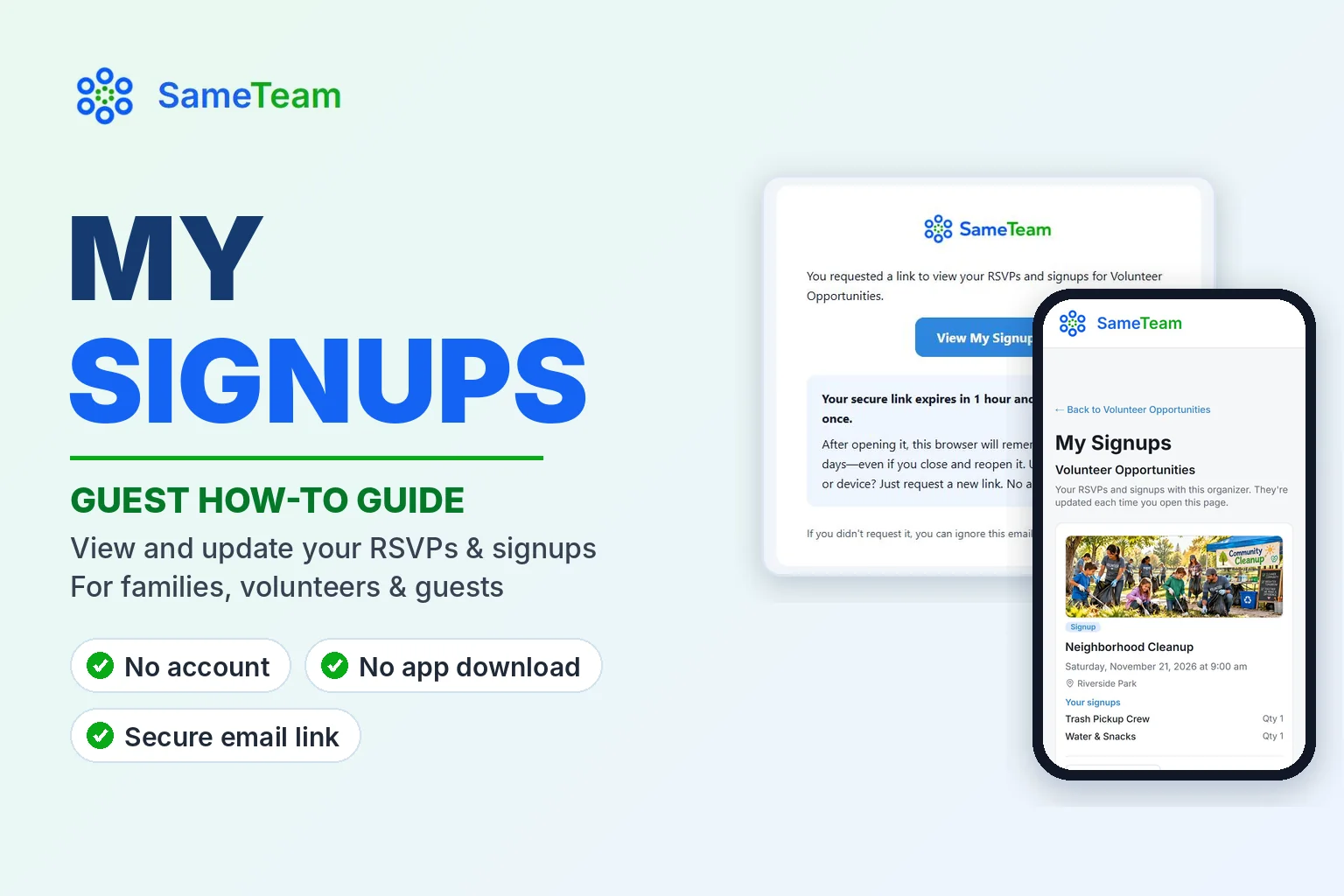
All Your Signups, One Secure Link
See your RSVPs and volunteer commitments with an organizer in one place, and update them when plans change. No account, no password, no app.
For parents · volunteers · church members · guests
Signed up to bring snacks, help at the cleanup and RSVP’d for family night, and now you can’t remember which is which? If the organizer uses SameTeam Events, My Signups lets you view your volunteer signups and RSVPs with that organizer on one page, then change them if you need to.
You don’t need to create an account, remember a password or download an app. A secure link sent to your email is all it takes.
Quick answer: Open the organizer’s Event Hub and select See My RSVPs & Signups. Enter the email you used to sign up and select Email me my link. Open the email, select View My Signups, then select View My Signups again on the page that opens. You’ll see your RSVPs and signups with that organizer. Select View / Update on any event to change it.
How to open My Signups with your email
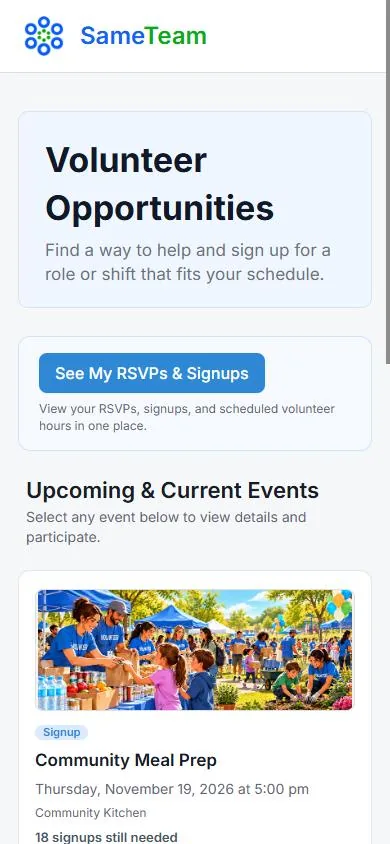
My Signups lives on the organizer’s Event Hub, the page that lists their upcoming events. Look for the See My RSVPs & Signups button near the top. It’s available when the organizer uses SameTeam Pro and has shared an Event Hub. If you don’t see the button, use the personal link in your confirmation email instead, or ask the organizer for their Event Hub link.
1. Select “See My RSVPs & Signups”
Open the organizer’s Event Hub link and select See My RSVPs & Signups.
2. Enter your email and request a link
Type the same email address you used when you RSVP’d or signed up, then select Email me my link.

3. Check your email
You’ll see Check your email! on the screen. Look for an email from SameTeam Events with the subject “Your signups for” followed by the organizer’s hub name. For your privacy, the email is only sent if we find RSVPs or signups for that address.
4. Open the link and confirm
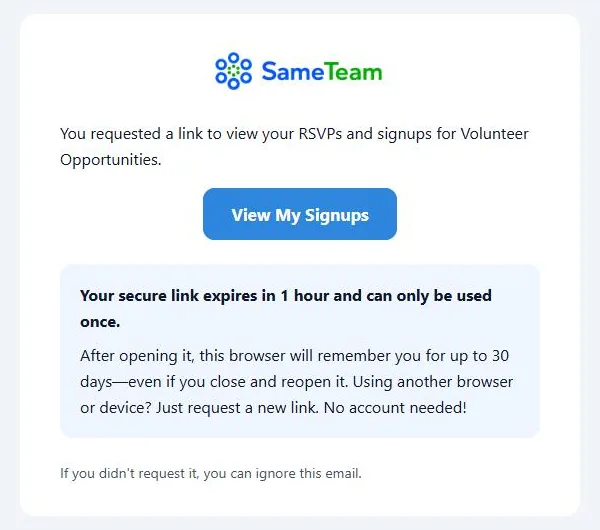
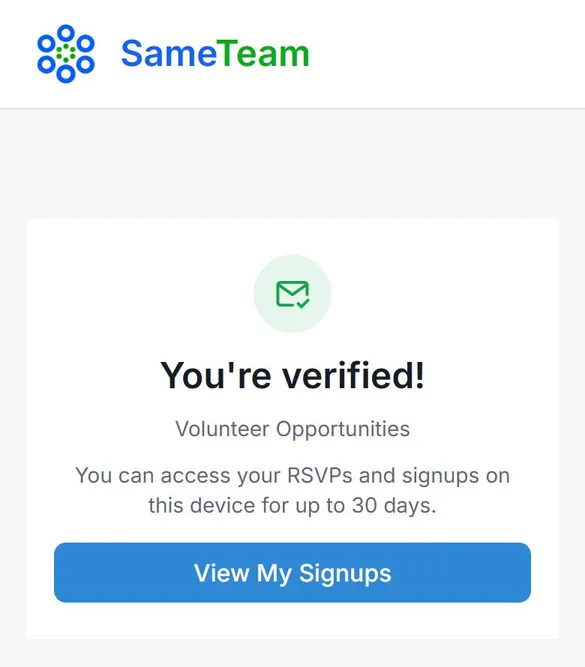
Select View My Signups in the email. On the You’re verified! page, select View My Signups again. Open it on the phone or computer where you want to see your signups. (Here’s how the link and your browser work together.)
Your email link vs. your remembered browser
My Signups uses two different things to keep your information private without an account. It helps to know which is which:
| The email link | Your remembered browser | |
|---|---|---|
| What it is | The View My Signups button in your email | The browser where you opened that link and verified |
| How long it lasts | 1 hour after it’s sent | Up to 30 days after you verify |
| How many times it works | Once. After you use it, it stops working. | As often as you like during those 30 days |
| Where it works | On whichever device you open it | Only in that browser, on that device |
| When it runs out | Request a new link | Request a new link from the Event Hub |
- You don’t need to keep the email. After you verify, come back anytime through the organizer’s Event Hub: select See My RSVPs & Signups, and your list opens without another email. The old email link won’t work again, and that’s expected.
- The 30 days don’t restart when you visit. They count from when you verified. Some browsers clear saved data sooner, so you may occasionally need a new link.
- Another phone, computer or browser? Each one needs its own email link.
- On a shared computer? Select Forget this device at the bottom of My Signups when you’re done.
What is My Signups?
My Signups is a personal page that lists your RSVPs and signups for one organizer’s events. For each event, you’ll see:
- The event name, date and location
- Your RSVP and party size, if the event collects RSVPs
- The items, roles or shifts you signed up for, and how many
- A View / Update button to open the event and make changes
The page refreshes each time you open it, so it always reflects your latest changes. It only shows your signups with that one organizer, never anyone else’s, and never signups with other organizations.
Only need to change one event? You don’t need My Signups for that. The confirmation email you received from SameTeam Events when you signed up includes a personal link to your response. Open it anytime to view or update that event.
How to view your RSVPs and volunteer signups
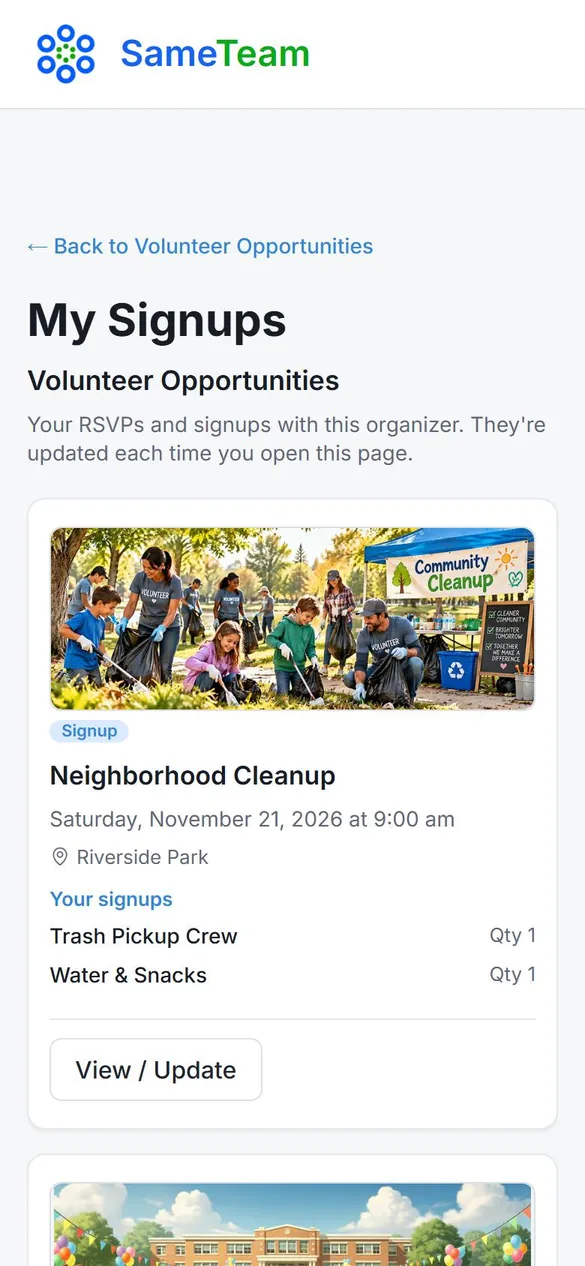
Once you’re in, My Signups lists your upcoming and current events with that organizer. Each card shows the event details, Your RSVP (if the event collects RSVPs) and Your signups, with the quantity for each item.
- Past Signups: events that have ended move to a collapsed Past Signups section. Tap it to expand, and select View Details to look back at what you signed up for. Past events are view-only.
- Canceled events are marked Cancelled with a note that the organizer canceled the event.
- My Volunteer Hours: if you signed up for shifts with a start and end time, they appear here with their scheduled hours. Select shifts to see a total, which is handy for service-hour forms. These are scheduled hours from the shift times, not a record of attendance.
How to change or cancel your RSVP or signup
Select View / Update on any event. It opens your personal page for that event, with ← Back to My Signups at the top. From there:
- Change your RSVP: under Will you attend?, choose a new answer, update your party size or note if needed, and select Save Changes.
- Can’t attend anymore? Change your RSVP to No and save. If you’d signed up for items, changing to No removes those signups, and you’ll see a reminder before you save.
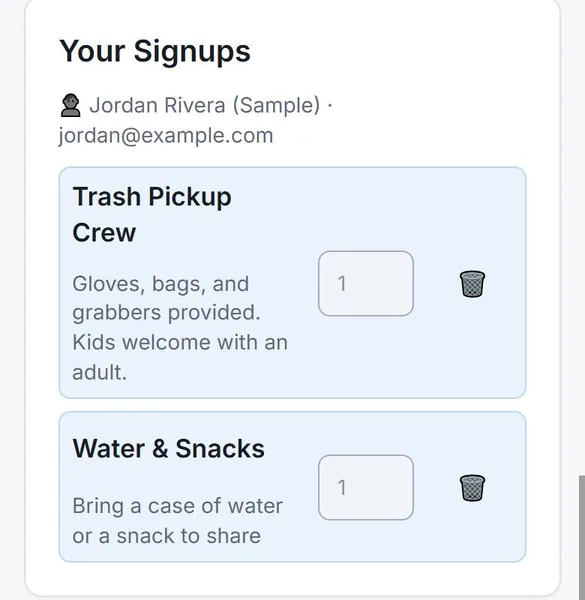
- Remove a signup: in Your Signups, select the trash icon next to the item. It’s removed right away, and the spot opens up for someone else.
- Sign up for something else: in the Signup List, select Sign Up next to an item, role or shift. You’ll see Confirming… and then Added ✓. Changes are saved automatically.
Go back to My Signups to see your updated list.
When changes aren’t available
Organizers can set a response deadline, and responses close when an event ends. After that, your page is view-only. You’ll see a message like “The response deadline has passed. If you need to make a change, please contact the organizer” or “This event has ended, so responses are closed.” If an item shows Full, all its spots are taken. If you need a change after that, the organizer can update your response for you.
What happens when an event closes or is canceled
| Situation | What you’ll see |
|---|---|
| The response deadline has passed | You can still view the event and your signups, but you can’t change them. Contact the organizer for changes. |
| The event has ended | It moves to Past Signups, where it’s view-only. |
| The organizer canceled the event | It’s labeled Cancelled, and you can no longer RSVP or sign up. Your earlier response is kept. |
| The organizer’s Event Hub is unpublished or removed | You’ll see “This link is no longer available.” Contact the organizer for help. |
Troubleshooting
The email didn’t arrive
- Wait a couple of minutes, then check your spam, junk or promotions folder. Search your inbox for “SameTeam.”
- Make sure you entered the same email you used to sign up. If you might have used another address, select Use a different email and try it.
- The email is only sent if we find RSVPs or signups for that address with this organizer.
- To prevent spam, a new link won’t be sent if you just requested one. Wait about five minutes before trying again.
- Still nothing? Contact the organizer to confirm the email they have for you.
The link expired or was already used
You’ll see “This link has expired or has already been used.” Enter your email on that page to get a new one. Links work once and expire after 1 hour.
I opened the link on the wrong device
The link remembers the browser where you open it. If you opened it on your phone but want to use your laptop, request a new link on your laptop.
Something is missing
- My Signups only shows events with this organizer, for the email you entered. Select Request another link to try a different email.
- Events that have ended are under Past Signups.
- If the organizer moved an event back to drafts or removed it, it won’t appear. Reach out to them with questions.
I see “This link is no longer available”
The organizer’s Event Hub may have been unpublished or removed. Please contact the organizer for help.
Frequently asked questions about My Signups
Do I need an account or an app?
No. My Signups works in any web browser, on your phone or computer. You only need access to your email.
Does it cost anything?
No. Guests never pay to RSVP, sign up or use My Signups.
Why don’t I see a “See My RSVPs & Signups” button?
My Signups is available on an organizer’s Event Hub. If the organizer doesn’t use one, use the personal link in your confirmation email to view or update each event.
Can I see signups with other organizations?
No. Each organizer’s My Signups page only shows your RSVPs and signups with them.
How long can I use My Signups without a new email?
Up to 30 days on the same browser after you verify. On a new device or browser, request a new link.
How do I cancel my RSVP?
Select View / Update, change your answer to No and select Save Changes. For signups, select the trash icon next to each item you can’t do.
Who can see my information?
Your contact details and responses are visible only to the organizer and any Admins they’ve invited, never shown publicly. SameTeam doesn’t sell guest information or send guests promotional emails.
Organizers: want to give your families and volunteers a My Signups page? Learn how to create an Event Hub, or browse more guides in the SameTeam Events Help Center.
Planning something of your own? Create your first SameTeam event free →