Ask Your Guests the Questions You Need
Collect T-shirt sizes, allergies, meal choices and more right in your RSVP or signup form.
For schools · churches · nonprofits · clubs
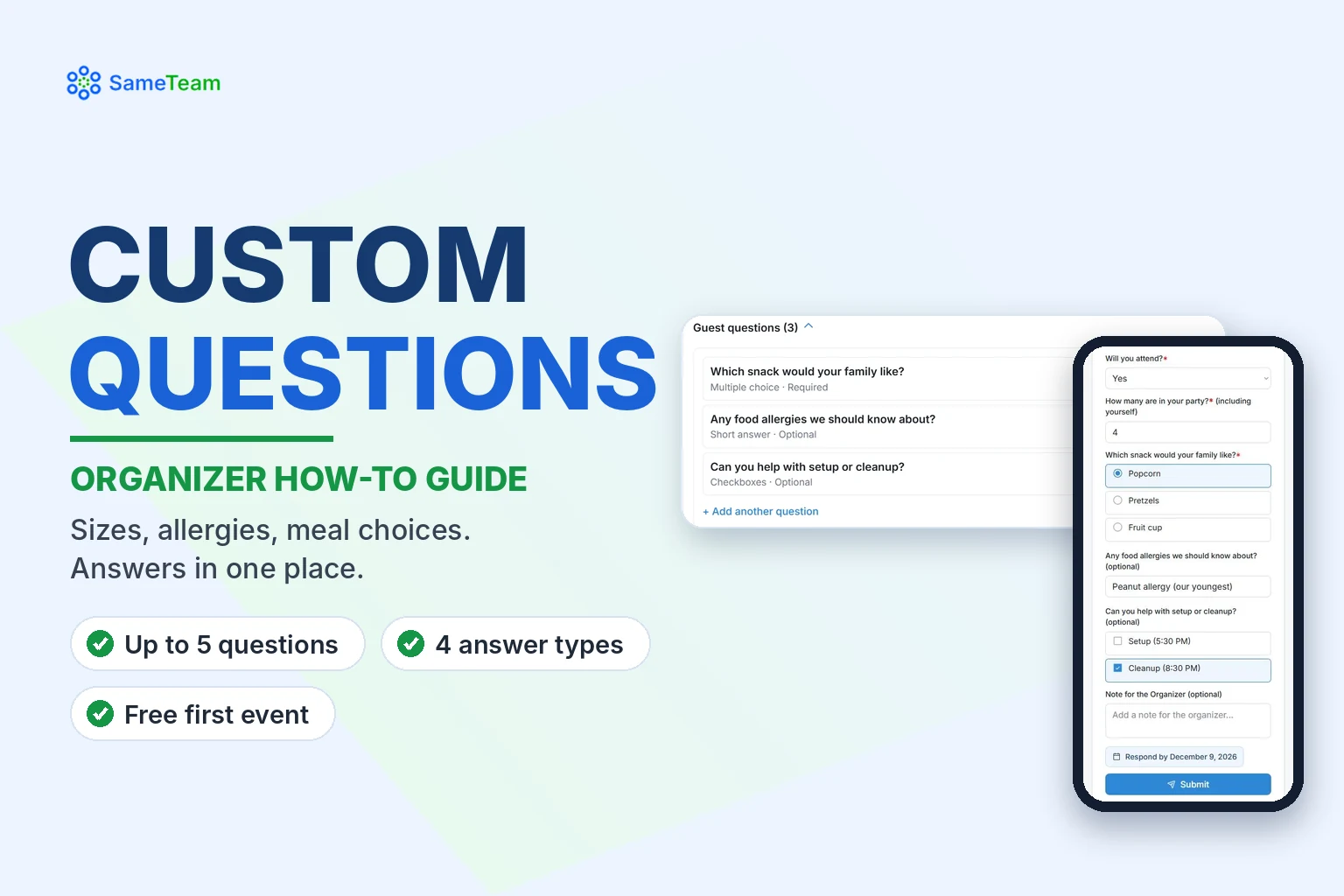
Instead of asking guests to type answers into a notes box, add up to five custom questions to any event. Guests answer them when they respond, and you see every answer in one place. Custom questions are included with your free first event.
Quick answer: In Create Event or Edit Event, select + Add questions (optional). Type your question, choose an answer type (Short answer, Long answer, Multiple choice or Checkboxes), check Required if needed, and select Save Question. You can add up to 5 per event. View answers in Guest Details on the Responses page, or export them with Download Spreadsheet.
Answer types
| Type | Guests can | Example |
|---|---|---|
| Short answer | Type a brief answer | Any food allergies we should know about? |
| Long answer | Type a longer answer | Anything else we should know? |
| Multiple choice | Pick one option | Which snack would your family like? |
| Checkboxes | Pick all that apply | Can you help with setup or cleanup? |
How to add a custom question
1. Open Create Event or Edit Event
Questions work on RSVP, signup and combined events.
2. Select “+ Add questions (optional)”
It’s below the reminder setting.
3. Type your question
Keep it short and clear.
4. Choose an answer type
For Multiple choice or Checkboxes, enter your choices with one choice per line.
5. Choose Required or optional
Check Required if every guest must answer.
6. Select “Save Question”
Select + Add another question to add more, up to 5.
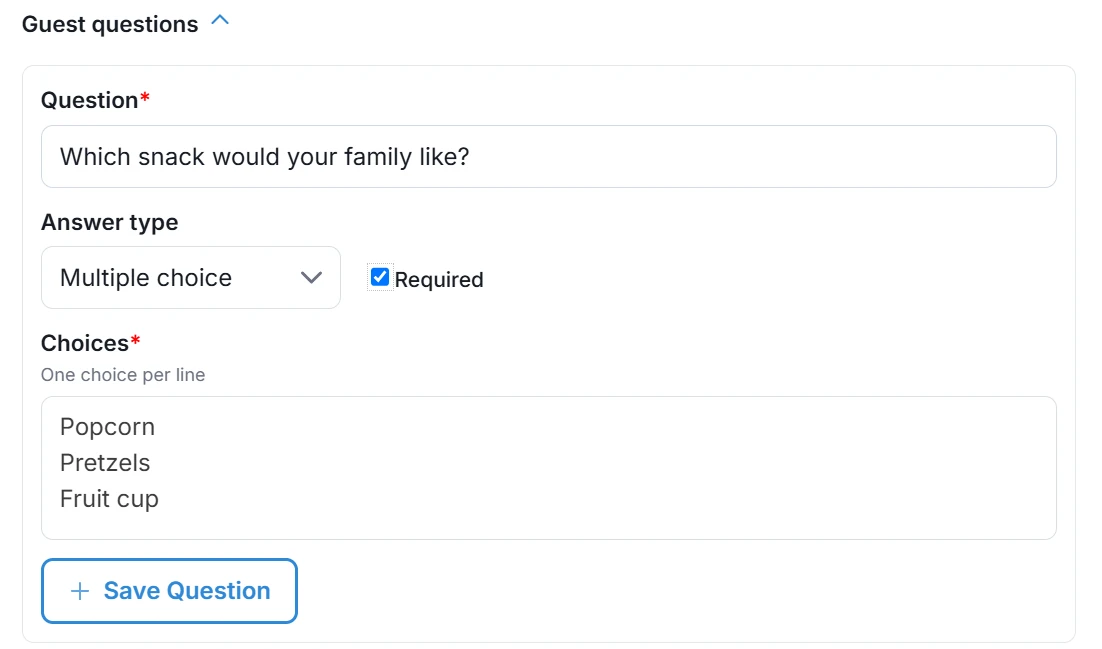
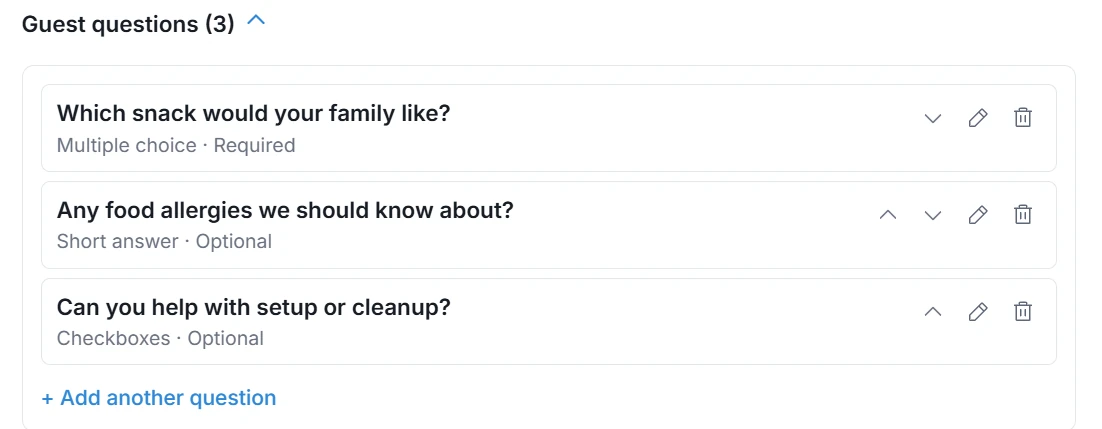
Saved questions appear as a list. Use the arrows to reorder them, the pencil to edit or the trash can to delete.
How guests answer
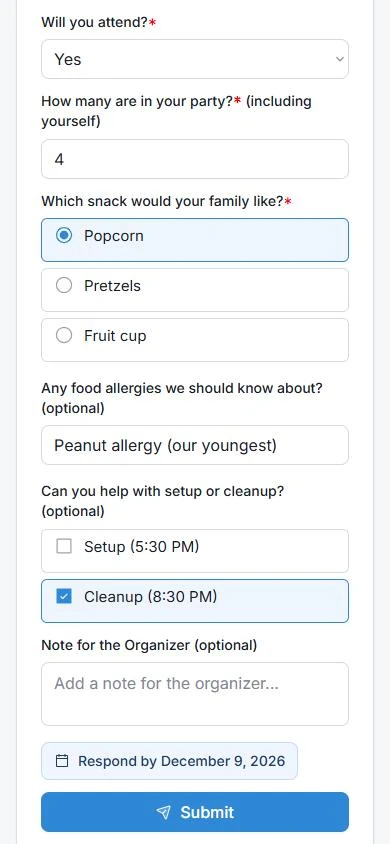
Guests see your questions in the same form as their RSVP or signup. Required questions are marked, and optional ones say “(optional).” A few things to know:
- Guests who RSVP No aren’t asked the questions.
- Guests can update their answers later from their personal link with Save Answers.
- If you add a new required question after someone responded, they won’t be forced to answer it just to keep their RSVP or signup.
Where to view and export answers
1. Open Guest Details
On the Responses page, select the eye icon next to a guest. Their answers appear under Custom Questions, with “Not answered” for any optional question they skipped.
2. Edit an answer if needed
Select Edit answers, make your change and select Save Answers. You can’t clear an existing answer to a required question.
3. Download every answer
Select Download Spreadsheet to get a CSV file with a column for each question.
Answers are private. Only you, your Admins and the guest can see them.
Example questions
- Schools and PTAs: “What grade is your child in?” (Multiple choice) · “T-shirt size” (Multiple choice) · “Any allergies?” (Short answer)
- Churches: “Which service do you usually attend?” (Multiple choice) · “Will you need childcare?” (Multiple choice) · “Prayer requests” (Long answer)
- Nonprofits: “Is this your first time volunteering with us?” (Multiple choice) · “Which skills can you share?” (Checkboxes) · “Emergency contact” (Short answer)
Frequently asked questions
How many questions can I add?
Up to 5 per event.
Are custom questions free?
Yes. They’re included with your free first event and with every plan.
Can I add follow-up questions that depend on an answer, or let guests upload files?
Not right now. SameTeam keeps questions simple, with no branching or file uploads.
What happens to answers if I edit or delete a question?
SameTeam is designed to keep guests’ previous answers when you edit questions, so you don’t lose information you’ve already collected.
Collecting RSVPs by phone or in person? Learn how to add guests yourself. Browse more guides in the SameTeam Events Help Center.