Volunteer Shifts Made Simple
Set up time slots for every job, from setup to cleanup, and let volunteers pick their shifts from one link.
For PTA volunteer chairs · school events · church and nonprofit teams
Planning a school carnival, a field day or a community service project? In SameTeam Events, every job is a signup item. Add a start and end time and it becomes a volunteer shift. Group shifts into categories, set how many people you need, and share one link. Volunteers choose their shifts without creating an account.
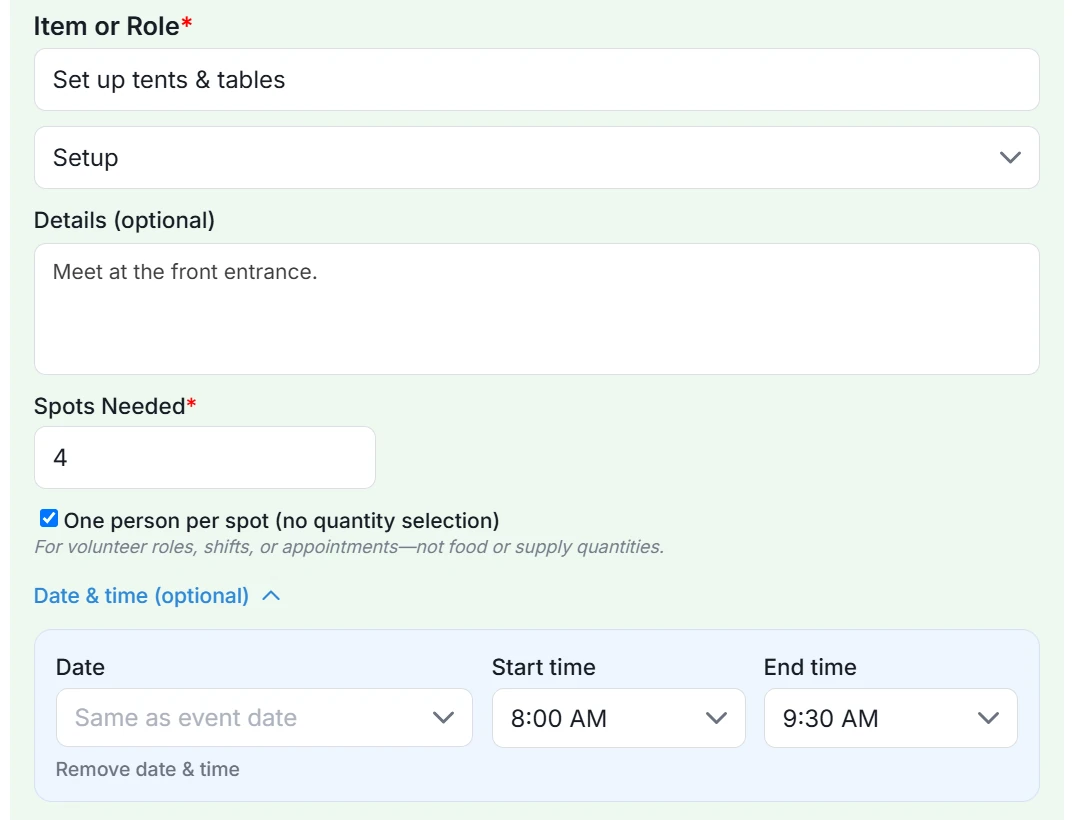
Quick answer: Create an event with Add a signup list checked. In the Signup Items section, add categories such as Setup and Cleanup, then add each shift: name it, pick its category, check One person per spot, enter how many Spots Needed, and open Date & time (optional) to set the start and end time. Select Add Item for each one, then save.
Example: a spring school carnival
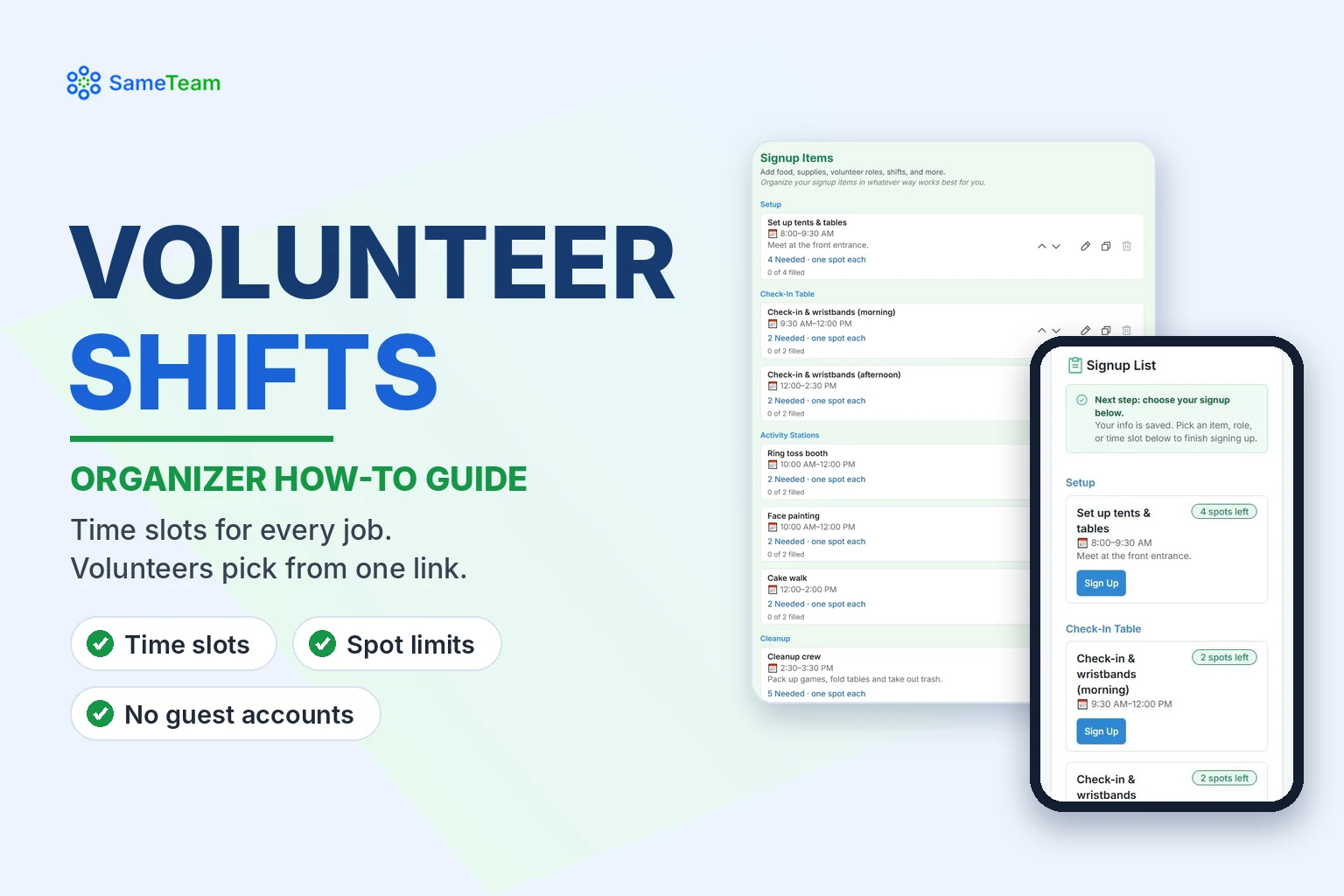
Here’s how a PTA might organize a carnival from 8:00 AM to 3:00 PM:
| Category | Shift | Time | Spots |
|---|---|---|---|
| Setup | Set up tents & tables | 8:00–9:30 AM | 4 |
| Check-In Table | Check-in & wristbands (morning) | 9:30 AM–12:00 PM | 2 |
| Check-In Table | Check-in & wristbands (afternoon) | 12:00–2:30 PM | 2 |
| Activity Stations | Ring toss booth | 10:00 AM–12:00 PM | 2 |
| Activity Stations | Face painting | 10:00 AM–12:00 PM | 2 |
| Activity Stations | Cake walk | 12:00–2:00 PM | 2 |
| Cleanup | Cleanup crew | 2:30–3:30 PM | 5 |
Step 1: Create your event with a signup list
1. Select “Create Event”
Add your title, description, location and the event’s date and start and end times.
2. Check “Add a signup list”
Under What do you need?, check Add a signup list. You can also check Collect RSVPs if you want both.
3. Save, then add your signup items
Select Publish Event or Save as Draft. In the next popup, select Add Signup Items, or add them anytime with Edit Event.
Step 2: Add categories (optional)
Categories keep a long list easy to scan. Select + Add categories (optional), type a name like “Setup” and select + Add Category. Use the arrows to put categories in order. Some organizers use time blocks as categories instead, like “9:00–11:00 AM”, with the jobs listed underneath. Both work.
Step 3: Add each shift
1. Name the job
Type it in Item or Role, for example “Set up tents & tables.”
2. Choose its category
Pick the category from the dropdown below the name.
3. Add details (optional)
Use Details for instructions, like “Meet at the front entrance.”
4. Check “One person per spot”
Use it for volunteer roles, shifts and appointments. Each volunteer takes one spot, and the label changes to Spots Needed.
5. Set the time
Open Date & time (optional) and choose a start and end time. The date matches your event unless you pick a different one, which is handy for multi-day events.
6. Select “Add Item”
Repeat for each shift. To add a similar shift quickly, use the copy icon next to an item and edit the copy.
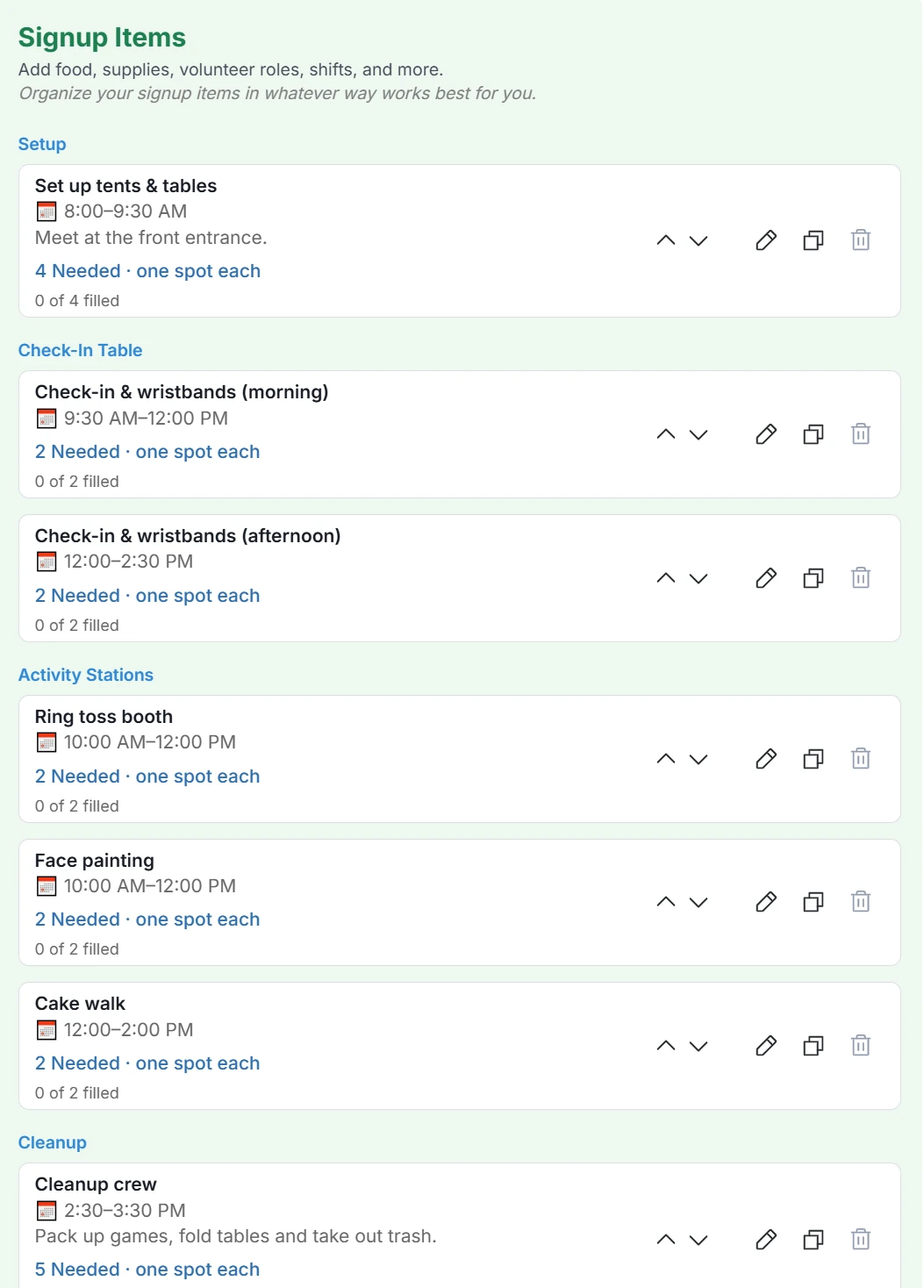
Your shifts appear grouped by category. Use the arrows to reorder them, the pencil to edit, the copy icon to duplicate or the trash can to delete. Then select Save Changes.
How volunteers choose their shifts
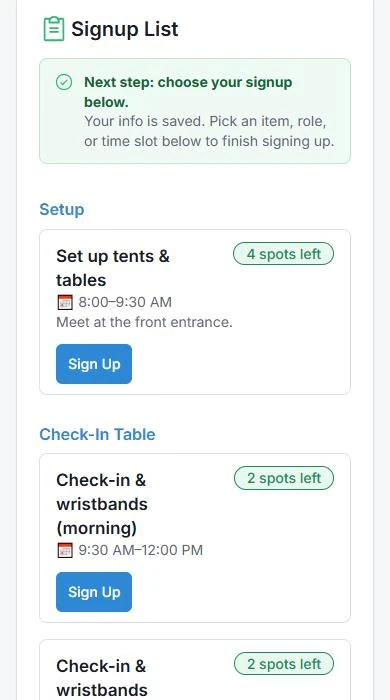
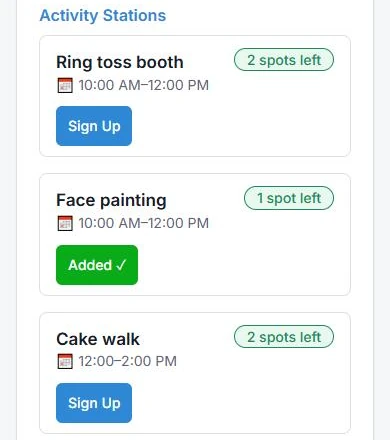
Share your event link by email, text, social media or a printable flyer with a QR code. Volunteers open the link, enter their name and email, and select Sign Up on the shifts they want. Each shift shows how many spots are left, and SameTeam prevents overbooking when several people sign up at once.
Volunteers get a confirmation email with their personal link and Add to Calendar options. They can come back to change or remove a shift until your response deadline or the event ends. On Pro, they can also see all their signups with your organization in My Signups.
Track who signed up
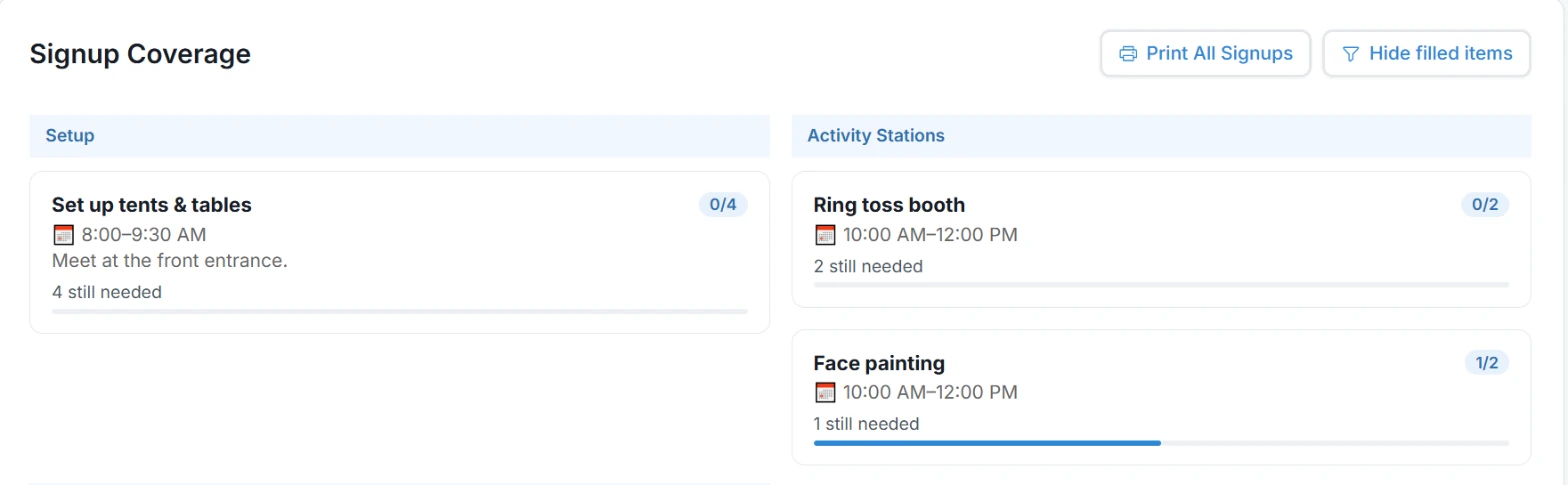
On the Responses page, Signup Coverage shows each shift’s filled and open spots at a glance. Select Print All Signups for a printable list grouped by category, or Hide filled items to see what’s still needed. Select any item to see who signed up.
Signup items vs. time slots: quick reference
| Setting | What it does |
|---|---|
| Item or Role | The job, shift or thing you need |
| Category | Groups items under a heading, like “Setup” or “Saturday” |
| Spots / Number Needed | How many people (or items) you need. The item closes when it’s full |
| One person per spot | Each volunteer takes one spot. Use it for shifts and roles, not food or supplies |
| Date & time | Optional start and end time, which turns an item into a timed shift |
Frequently asked questions
Can volunteers sign up for more than one shift?
Yes. Volunteers can sign up for as many items as they like while spots remain.
Do volunteers need an account?
No. They sign up from your link with just their name and email, with no app, password or ads.
Can I schedule shifts on different days?
Yes. Choose a different date in each item’s Date & time section.
What if I change a shift’s time after people sign up?
SameTeam asks you to confirm, because volunteers aren’t notified automatically. Let them know with a reminder email (Organizer and Pro).
Can SameTeam track volunteer hours?
Yes. SameTeam calculates scheduled hours from your shift times. See how to track volunteer hours.
Planning food instead? See how to create a potluck signup sheet. For more ideas, read our guide to sign-up sheets with time slots. Browse more guides in the SameTeam Events Help Center.