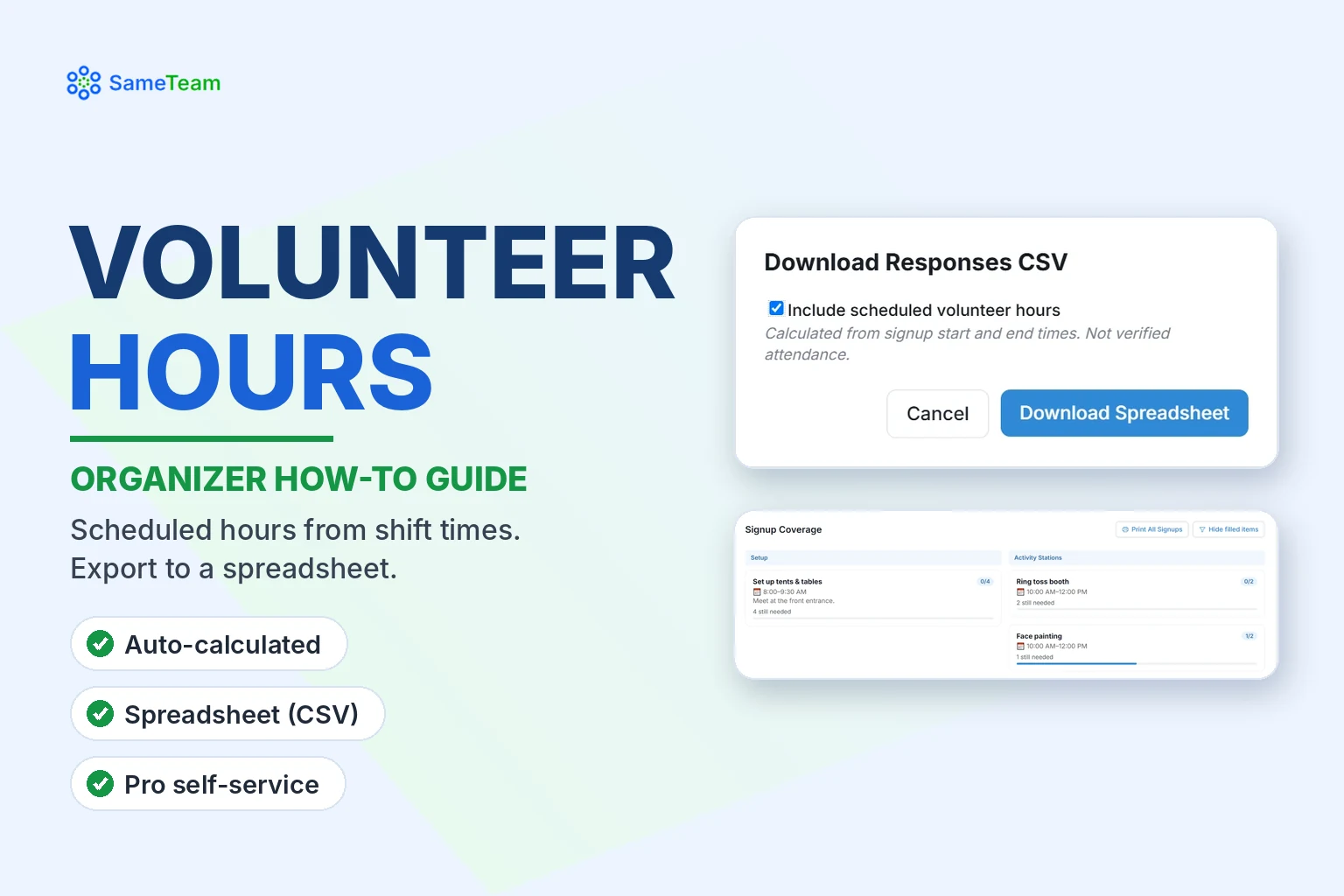
Scheduled Volunteer Hours, Calculated for You
Add times to your shifts and SameTeam totals the hours in your spreadsheet download. No timesheets or math.
For PTA volunteer chairs · schools · churches · nonprofits
Many PTAs, schools and nonprofits report volunteer hours for grants, recognition or service requirements. SameTeam Events calculates scheduled volunteer hours from the start and end times on your signup items, so you can export them in a spreadsheet instead of adding them up by hand.
Quick answer: Give your volunteer shifts a start and end time. On the Responses page, select Download Spreadsheet, check Include scheduled volunteer hours, and select Download Spreadsheet again. The CSV file includes each volunteer’s scheduled hours. Hours are based on the shifts people signed up for, not verified attendance. Available on Organizer and Pro plans.
How SameTeam calculates hours
- Hours come only from signup items that have both a start and an end time. Items without times, like potluck dishes, don’t count.
- Each volunteer gets the length of each shift they signed up for. A 2-hour shift is 2 hours for each person who signed up.
- Total volunteer-hours add everyone together: a 2-hour shift with 2 volunteers is 4 volunteer-hours.
- Hours never come from category names. A category called “9:00–11:00 AM” doesn’t add hours, but an item with those times does.
| Shift | Time | Volunteers | Hours each | Volunteer-hours |
|---|---|---|---|---|
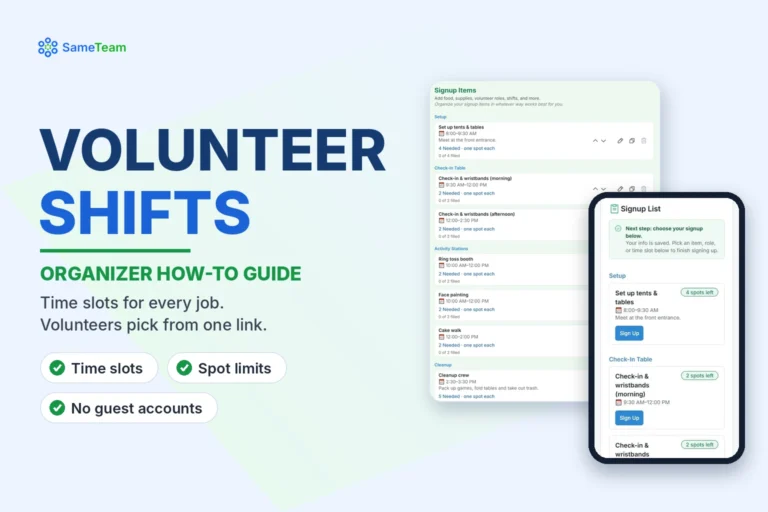
| Set up tents & tables | 8:00–9:30 AM | 4 | 1.5 | 6 |
| Face painting | 10:00 AM–12:00 PM | 2 | 2 | 4 |
| Cleanup crew | 2:30–3:30 PM | 5 | 1 | 5 |
Important: These are scheduled hours, based on what volunteers signed up for. SameTeam doesn’t track check-ins or verify attendance. If your program needs verified hours, confirm attendance separately.
Step 1: Add times to your shifts
In Create Event or Edit Event, open each volunteer item’s Date & time (optional) section and choose a start and end time. See how to set up volunteer shifts.
Step 2: Download hours in a spreadsheet
1. Open the Responses page
Select Responses next to your event.
2. Select “Download Spreadsheet”
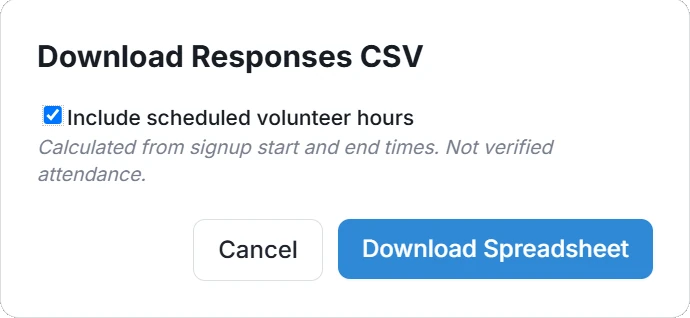
A small popup opens.
3. Check “Include scheduled volunteer hours”
It’s unchecked by default, so your regular spreadsheet stays simple when you don’t need hours.
4. Select “Download Spreadsheet”
Your browser downloads a CSV file that opens in Excel, Google Sheets or Numbers.
Where else to see shifts
- Signups on the Responses page lists each volunteer with their shifts and times.
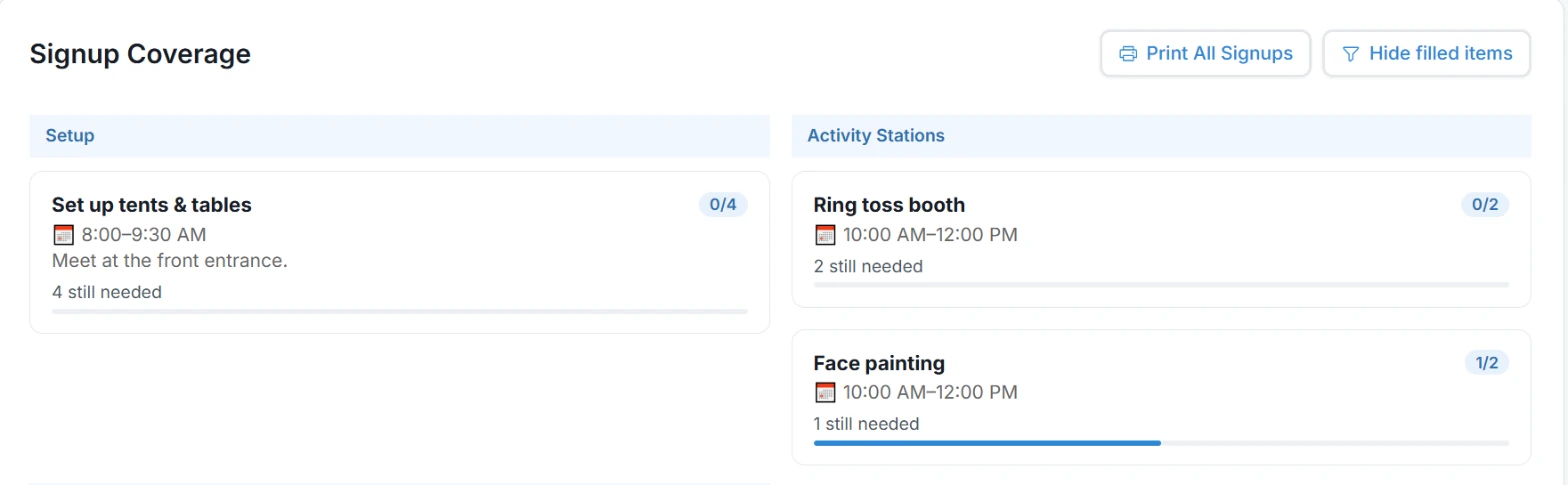
- Signup Coverage shows filled and open spots for every shift. Select an item to see who signed up.
- Print All Signups creates a printable list grouped by category, which is handy as a day-of check-in sheet.
Volunteer self-service hours (Pro)
On Pro, volunteers can see their own scheduled hours too. From your Event Hub, they open My Signups, choose the shifts that count as volunteer service, and print or save a report of their selected scheduled hours. Volunteers can’t edit their hours or mark attendance as verified.
Which plans include volunteer hours
| Free first event | Organizer | Pro | |
|---|---|---|---|
| Shift times on signup items | Yes | Yes | Yes |
| Scheduled hours in the spreadsheet | No | Yes | Yes |
| Volunteer self-service hours report (My Signups) | No | No | Yes |
Frequently asked questions
Does SameTeam track when volunteers actually arrive?
No. SameTeam calculates scheduled hours from signup times. It doesn’t offer check-in or attendance verification.
Why are some signups missing hours?
Only items with both a start and an end time count. Add times in Edit Event, then download again.
Can I get hours across all my events at once?
Hours are included in each event’s spreadsheet download. On Pro, volunteers can see their own hours across your organization’s events in My Signups.
Do hours count for guests who RSVP’d “No”?
No. Hours come from signup items, so only volunteers who signed up for timed shifts have scheduled hours.
Need to fix a signup before exporting? Learn how to edit or remove guest responses. Browse more guides in the SameTeam Events Help Center.