A Potluck Sign-Up Sheet Everyone Can Use
Organize dishes by category, set how many of each you need, and see who’s bringing what, all from one link.
For church dinners · teacher appreciation · class parties · team meals
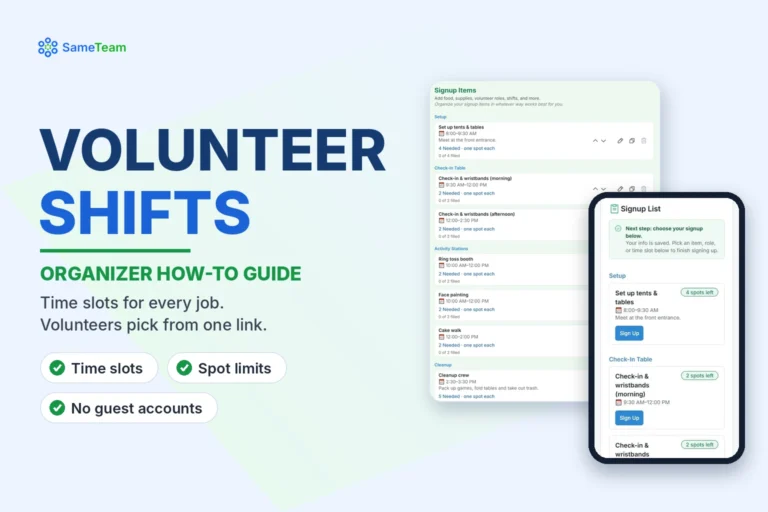
No more three mac-and-cheese casseroles and zero desserts. With SameTeam Events, you list what you need, guests claim what they’ll bring, and everyone can see what’s still open. Guests don’t need an account or an app.
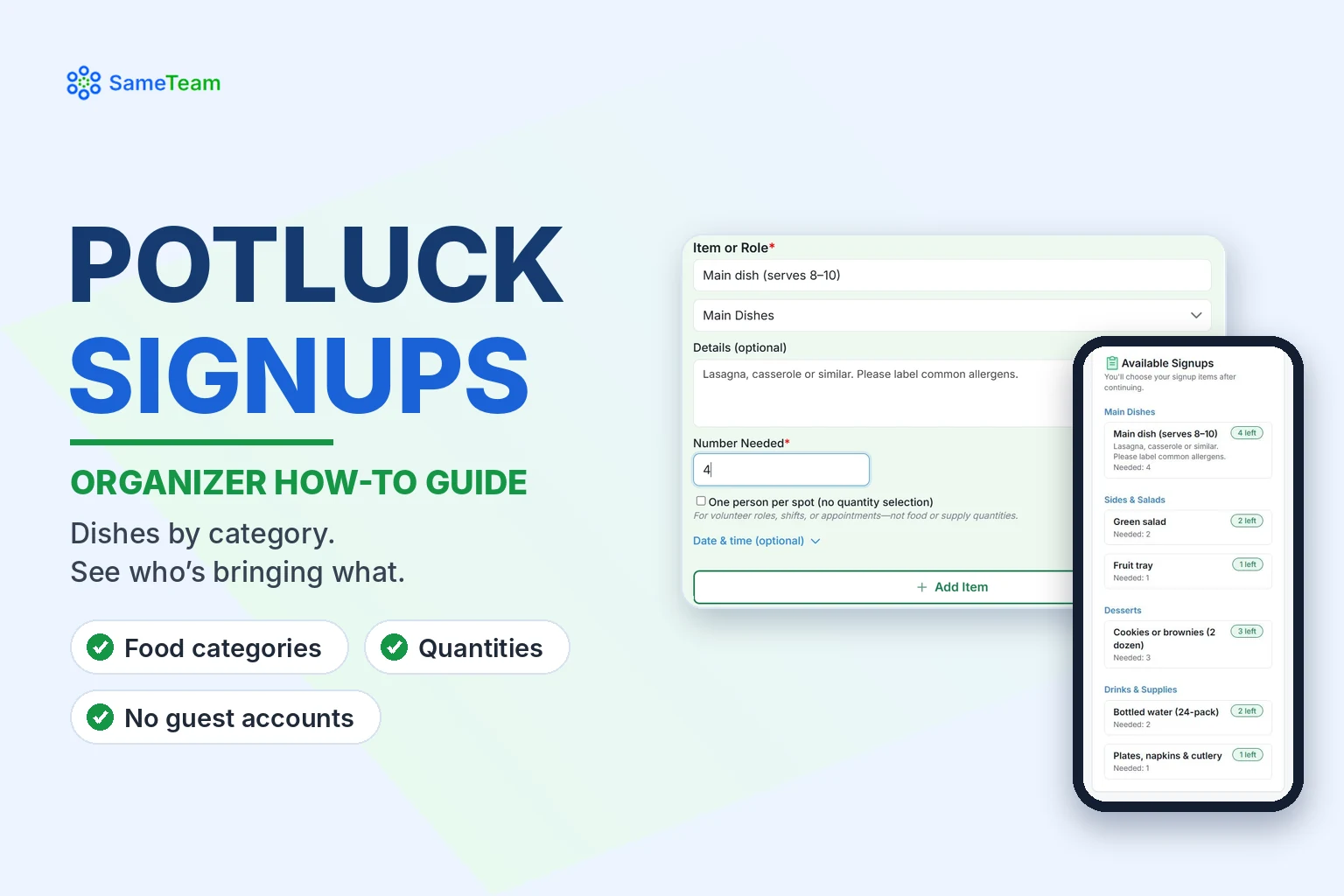
Quick answer: Create an event and check Add a signup list. Add categories such as Main Dishes, Sides & Salads, Desserts and Drinks & Supplies. Then add each item with a Number Needed, for example “Main dish (serves 8–10)” with 4 needed. Leave One person per spot unchecked for food and supplies. Share your link, and track contributions in Signup Coverage on the Responses page.
Example: a teacher appreciation luncheon
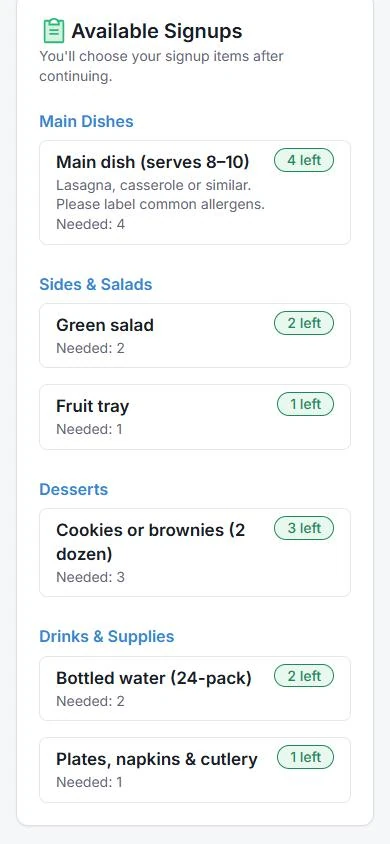
| Category | Item | Number needed |
|---|---|---|
| Main Dishes | Main dish (serves 8–10) | 4 |
| Sides & Salads | Green salad | 2 |
| Sides & Salads | Fruit tray | 1 |
| Desserts | Cookies or brownies (2 dozen) | 3 |
| Drinks & Supplies | Bottled water (24-pack) | 2 |
| Drinks & Supplies | Plates, napkins & cutlery | 1 |
The same setup works for a church fellowship dinner, a Thanksgiving potluck or a team end-of-season party.
Step 1: Create your event
1. Select “Create Event”
Add a title, a description with drop-off instructions, the location, and the date and time.
2. Check “Add a signup list”
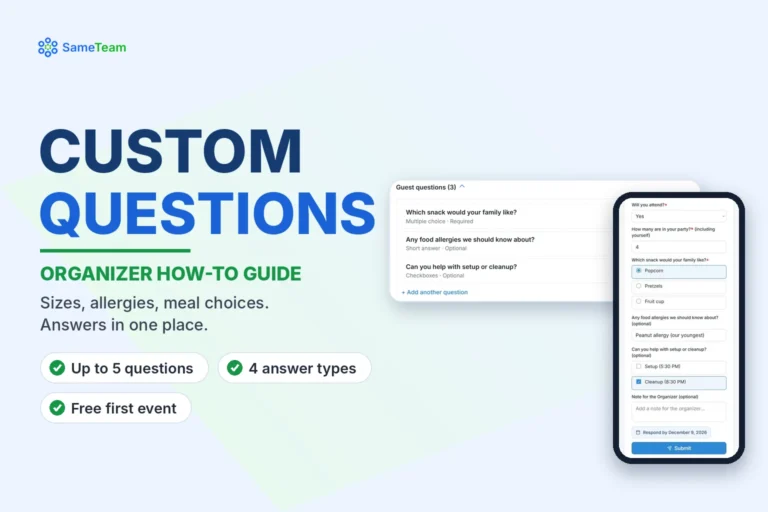
Under What do you need?, check Add a signup list. Check Collect RSVPs too if you also want a head count.
3. Publish or save as a draft
Then select Add Signup Items, or add items anytime from Edit Event.
Step 2: Add food categories
Select + Add categories (optional), type a category name and select + Add Category. Common potluck categories are Main Dishes, Sides & Salads, Desserts and Drinks & Supplies. Use the arrows to put them in order.
Step 3: Add each item and how many you need
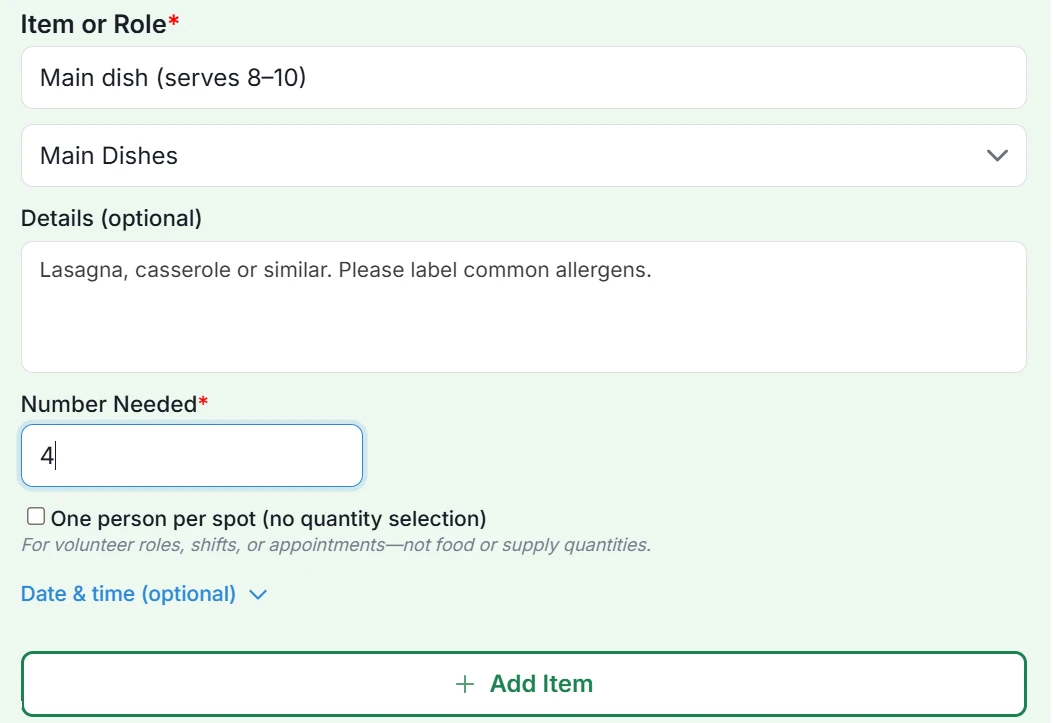
1. Name the item
Be specific about size so you get the right amount, like “Cookies or brownies (2 dozen).”
2. Choose a category
Pick it from the dropdown below the name.
3. Add details (optional)
For example, “Please label common allergens” or “Gluten-free welcome.”
4. Enter the Number Needed
This is how many of that item you need. Leave One person per spot unchecked, so a guest can bring more than one if they like.
5. Select “Add Item”
Repeat for each dish or supply, then select Save Changes.
Tip: Add a dish that serves a crowd as one item with a higher number needed, instead of listing every recipe separately. Guests can name their dish in the note to the organizer.
How guests choose what to bring
Guests open your link and see every category with how many of each item are still needed. They enter their name and email, choose what they’ll bring, and get a confirmation email with a personal link to change or remove their signup later. Items close automatically when they’re full, so you won’t end up with too much of one thing.
How to monitor contributions
- Signup Coverage on the Responses page shows each item’s filled and needed count, grouped by category.
- Select an item to see who signed up and how many they’re bringing.
- Hide filled items shows only what’s still open, which is handy for a last-call message.
- Print All Signups creates a printable list for the serving table.
- Download Spreadsheet exports every response to a spreadsheet (CSV).
Someone tells you in person that they’ll bring a dish? Use Add Guest to sign them up yourself.
Frequently asked questions
Can guests sign up for more than one item?
Yes. Guests can sign up for as many items as they like while spots remain.
Can I see who is bringing what?
Yes. Select any item in Signup Coverage, or look at the Signups column on the Responses page. Guest details are visible only to you and any Admins you invite.
Can I add a potluck to an RSVP event?
Yes. Check both Collect RSVPs and Add a signup list to get a head count and a dish list from one link.
Can I reuse my potluck next year?
Yes. Use Duplicate Event to copy your categories and items into a new draft.
Looking for menu ideas and planning tips? Read our church potluck sign-up sheet guide or the potluck signup guide. Browse more guides in the SameTeam Events Help Center.