Keep Every Response Accurate
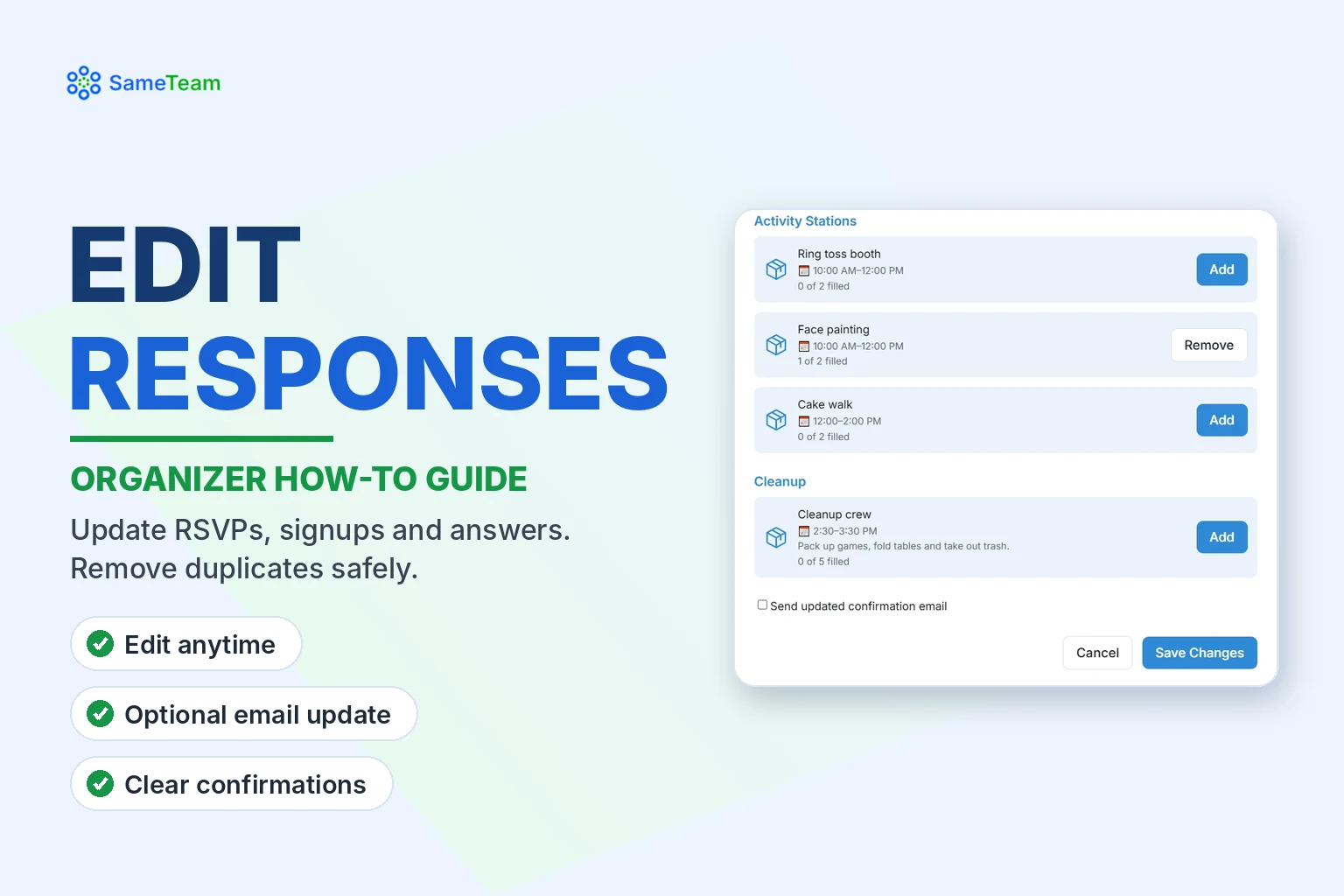
Update a guest’s RSVP, party size, signups or answers, or remove a response entirely, right from your Responses page.
For organizers of every kind of event
Plans change. A volunteer swaps shifts, a family adds a grandparent, or someone RSVP’d twice. On the Responses page, every guest row has three tools: the pencil to edit, the eye to view details and custom question answers, and the trash can to remove the response.
Quick answer: To edit, select the pencil next to a guest to open Edit Guest Response. Change their name, note, RSVP or party size, or select Add or Remove next to signup items, then select Save Changes. To change custom question answers, select the eye icon and choose Edit answers. To delete the whole response, select the trash can and confirm Remove Response. This can’t be undone.

Edit a guest’s RSVP, party size or signups
1. Select the pencil icon
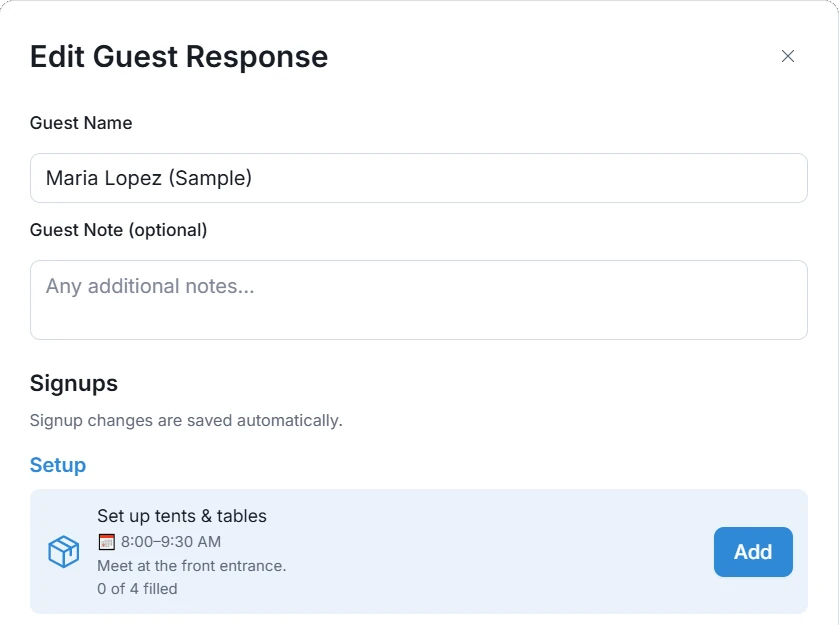
Edit Guest Response opens.
2. Update their details
Change the guest name, guest note, RSVP status or party size as needed. RSVP and party size appear on events that collect RSVPs.
3. Change their signups
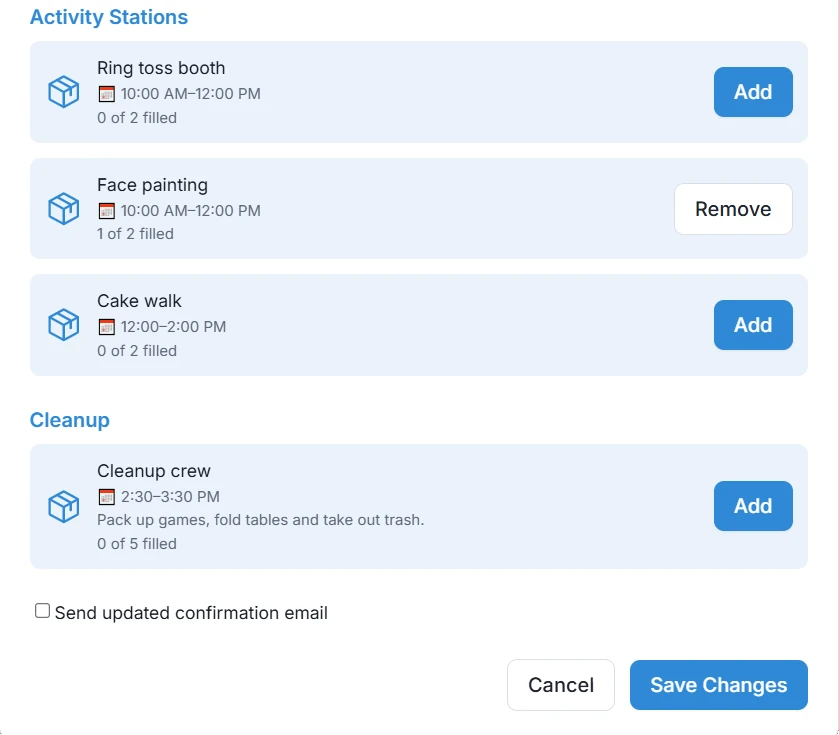
Select Add to sign them up for an item, or Remove to take them off one. Signup changes are saved automatically. Full items show as Full and can’t be added.
4. Select “Save Changes”
To let the guest know, check Send updated confirmation email first. Otherwise they aren’t notified.
Changing an RSVP to No: If the guest has signups, SameTeam asks you to confirm with Confirm and Remove Signups, because changing to No removes their signup assignments.
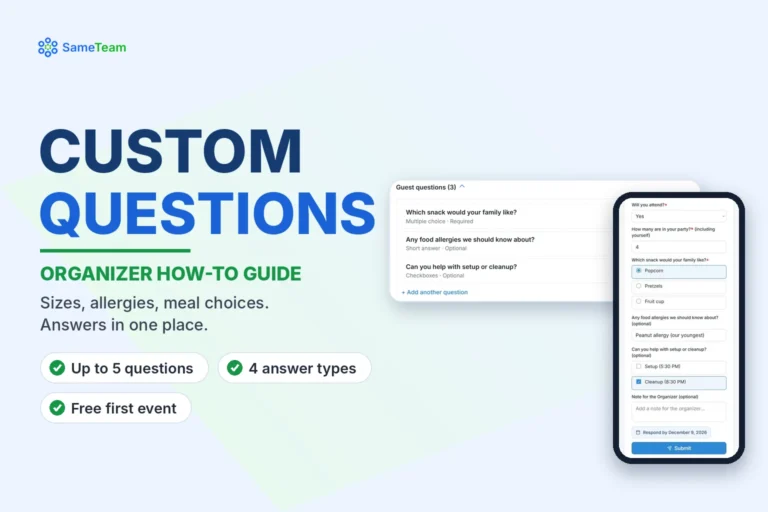
Edit custom question answers
1. Select the eye icon
Guest Details shows the guest’s answers under Custom Questions.
2. Select “Edit answers”
Update the answers. Questions the guest never answered are labeled “Not previously answered — optional to complete.”
3. Select “Save Answers”
You can update answers, but you can’t clear an existing answer to a required question.
Remove a signup vs. remove a response
| Remove a signup | Remove the response | |
|---|---|---|
| How | Pencil → Remove next to the item | Trash can → Remove Response |
| What’s removed | Only that signup item | The guest’s entire response: RSVP, party size, notes, answers and all signups |
| The guest stays on your list? | Yes | No |
| Spot reopens? | Yes, for others to take | Yes, all their spots reopen |
| Can it be undone? | Add the item back anytime | No. This can’t be undone |
When you select the trash can, SameTeam asks “Remove Response?” and explains that this will permanently remove the guest’s response and any associated signup items. Select Remove Response to confirm, or cancel to keep it.
Tip: Use Remove Response for duplicates or test entries. If a guest is just changing plans, edit their response instead so you keep their contact details.
Organizer controls vs. guest self-service
| Organizer (you) | Guest | |
|---|---|---|
| Where | Responses page | Personal link in their confirmation email (or My Signups on Pro) |
| Change RSVP and party size | Yes | Yes, until your response deadline or the event ends |
| Add or remove signups | Yes, anytime | Yes, until your response deadline or the event ends |
| Edit custom question answers | Yes (can’t clear required answers) | Yes, with Save Answers |
| Remove the whole response | Yes | No. They can change their RSVP to No or remove signups |
| Notifications | Optional updated confirmation email | Confirmation of their own changes |
Guests manage their own responses from the personal link in their confirmation email. On Pro, they can also use My Signups to see everything with your organization in one place.
Frequently asked questions
Will the guest know I changed their response?
Only if you check Send updated confirmation email before saving.
What if the guest and I edit the same response at the same time?
The most recent save wins, so check the response afterward if you’re both making changes.
Can I restore a removed response?
No. Removing a response is permanent. Add the guest again with Add Guest if needed.
Can I undo removing a signup?
Yes. Open Edit Guest Response and select Add next to the item again, as long as a spot is still open.
Recording a new offline reply? See how to add guests. Browse more guides in the SameTeam Events Help Center.