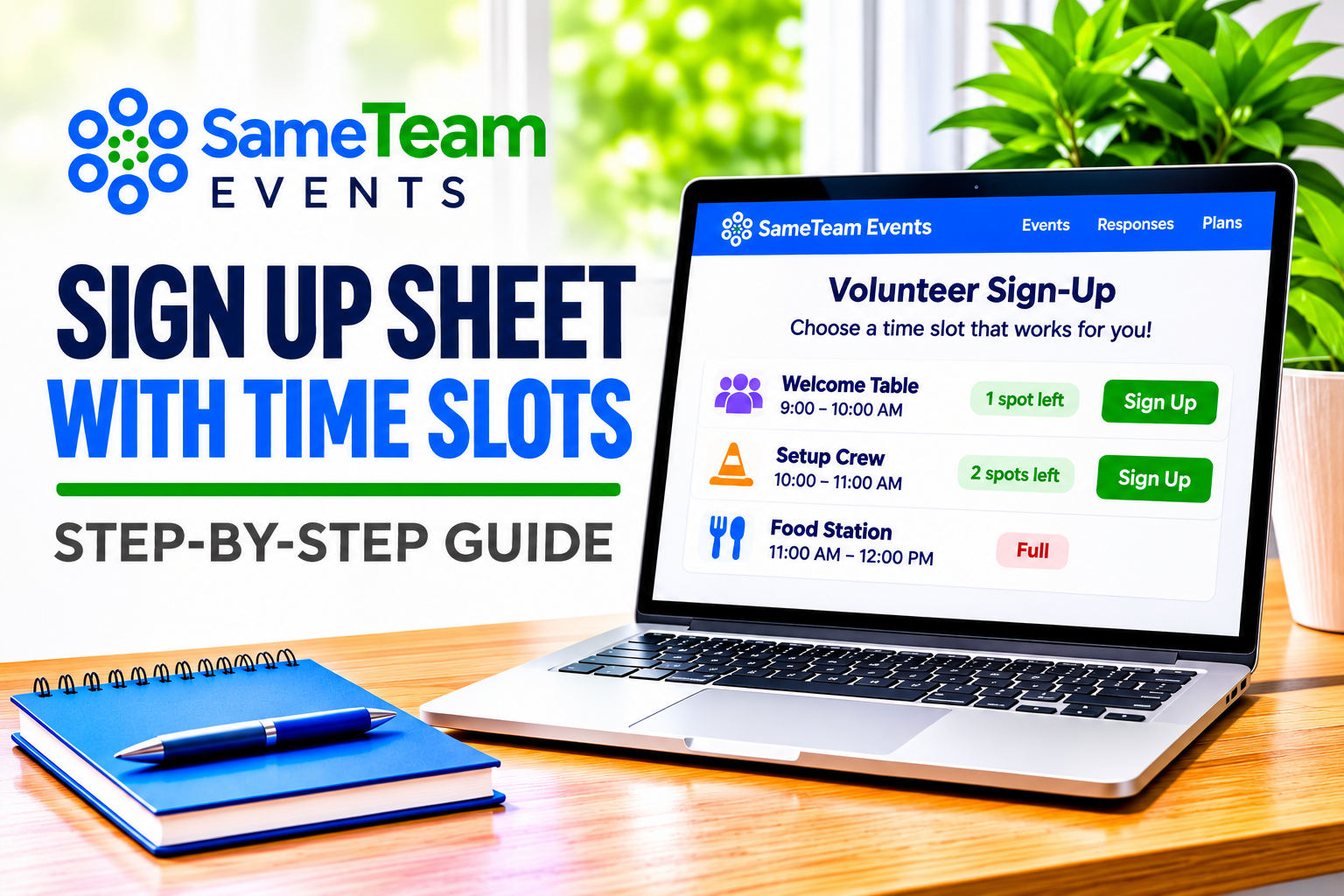
Fill Every Shift Without the Back-and-Forth
Set your time slots, decide how many people each one needs, and share one link. Here’s how to build a time-slot sign up sheet that fills evenly, plus ready-to-copy examples for schools, churches, and nonprofits.
Practical steps · Real examples · Slot-length guide
You need four people at the welcome table from 9 to 11, two for setup the night before, and a few extra hands for cleanup. You send the request, and by lunchtime eight people want the 10 a.m. spot while nobody has claimed setup.
A sign up sheet with time slots fixes that. Instead of asking people when they’re free, you list the exact times you need covered, cap the number of people for each one, and let everyone claim an open spot. When a slot fills, it closes, and the next person picks a time that still needs help.
Quick answer: To make a sign up sheet with time slots, list each shift or appointment as its own spot with a date, start time, and end time. Set how many people each time slot needs, so it closes automatically when full. Then share one link so people can claim open times from their phones. In SameTeam, you add these as signup items with a date and time, then check One person per spot so each volunteer fills one spot.
What is a time-slot sign up sheet?
A time-slot sign up sheet ties each person to a specific window of time. Each slot has three parts:
- A role or task, like Welcome table, Book fair cashier, or Nursery helper
- A date and time, like Saturday, 9:00–11:00 AM
- A limit, like 2 people needed
That last part matters most. Without a limit, a sign up sheet is just a wish list. With one, it becomes a real schedule: popular times fill up and close, and people naturally move to the slots that still need coverage.
Do you need time slots? Use them when when someone helps matters as much as whether they help: volunteer shifts, multi-day events, rotating Sunday teams, or anything with setup and cleanup. For a potluck or supply drive, where people simply bring something, a plain item list is easier. (Our online sign-up sheet guide covers that kind.)
How to make a sign up sheet with time slots in SameTeam (6 steps)
Here’s the setup we used for a sample fall festival: a Friday setup shift, two welcome-table shifts on Saturday, and a cleanup crew. It takes about 10 minutes.
1. Create your event and choose a signup list
Click Create Event and add your title, a short description, and the location. Under What do you need?, check Add a signup list. If you also want a headcount (for example, families attending the festival), check Collect RSVPs too. Click Publish Event (or Save as Draft if you’re not ready to share yet).
2. Add your first time slot
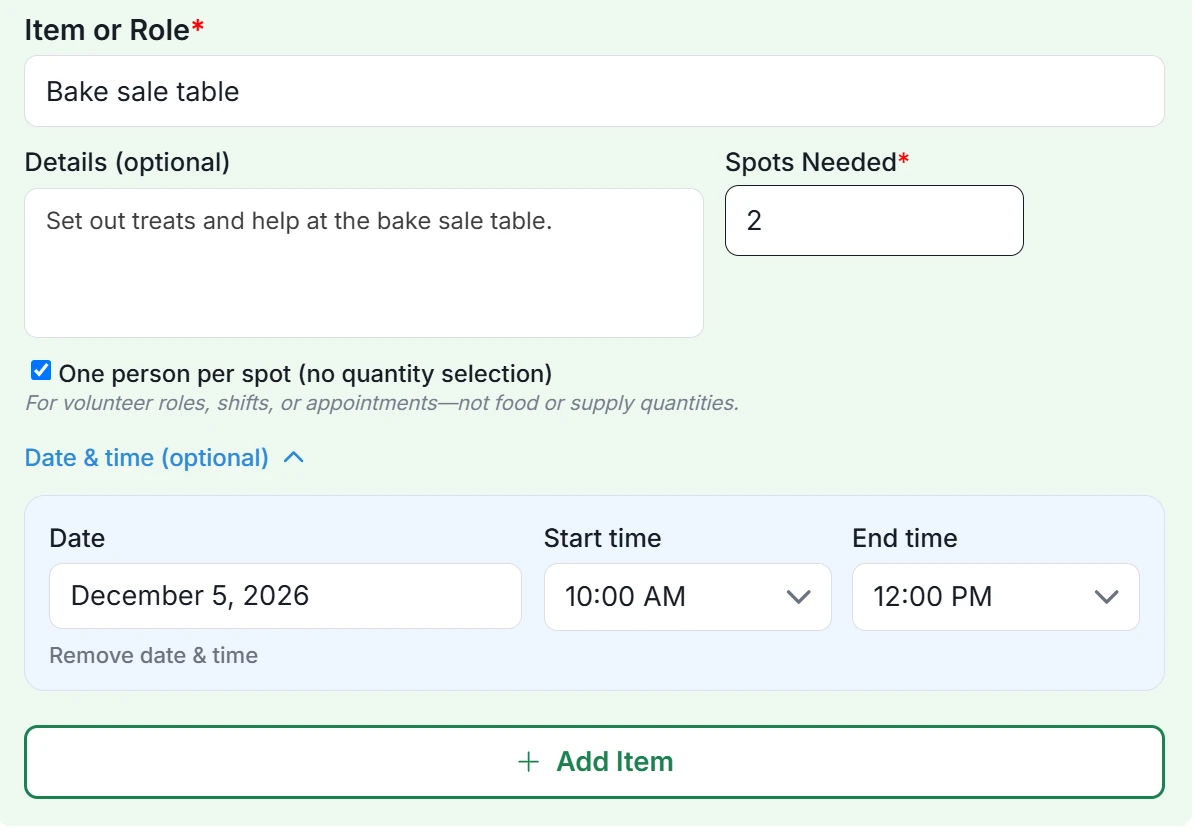
Click Add Signup Items in the window that opens (you can also add items later by editing the event). In Item or Role, enter the job, like “Setup crew.” Use Details (optional) for where to go and what to bring, such as “Meet at the gym doors.”
3. Set how many people each slot needs
Check One person per spot (no quantity selection). This is the right setting for volunteer roles, shifts, and appointments. The Number Needed field becomes Spots Needed. Enter how many people you want in that slot, like 2 for setup or 1 for an appointment.
4. Add the date and time
Open Date & time (optional) and choose the Date, Start time, and End time. Times are set in 15-minute steps, so 15-, 30-, 45-, and 60-minute slots are easy to build. Click + Add Item, and the slot appears in your list, such as “Dec 4 · 4:00–6:00 PM · 2 Needed · one spot each.”
5. Repeat for every shift, then save
Add each time slot as its own item. The same role can appear more than once at different times. For example, “Welcome table, 9:00–11:00 AM (2 needed)” and “Welcome table, 11:00 AM–1:00 PM (1 needed).” Slots can be on different days, so a whole weekend or week fits in one event.
Save time: duplicate a shift instead of retyping it. Click the duplicate icon on any shift in your list. SameTeam copies the role, details, spots needed, the One person per spot setting, and the date and time, then opens the copy so you can change only what’s different, such as the start time, end time, or date. Click Update Item to save it. For example, set up the 9:00–11:00 AM welcome table once, duplicate it for 11:00 AM–1:00 PM and Sunday, and just adjust the times. The copy starts with no signups, so volunteers on the original shift stay right where they are.
For longer schedules, use + Add categories (optional) to group slots, such as by day or station. Click Save Changes when you’re done.
6. Share one link and watch the schedule fill
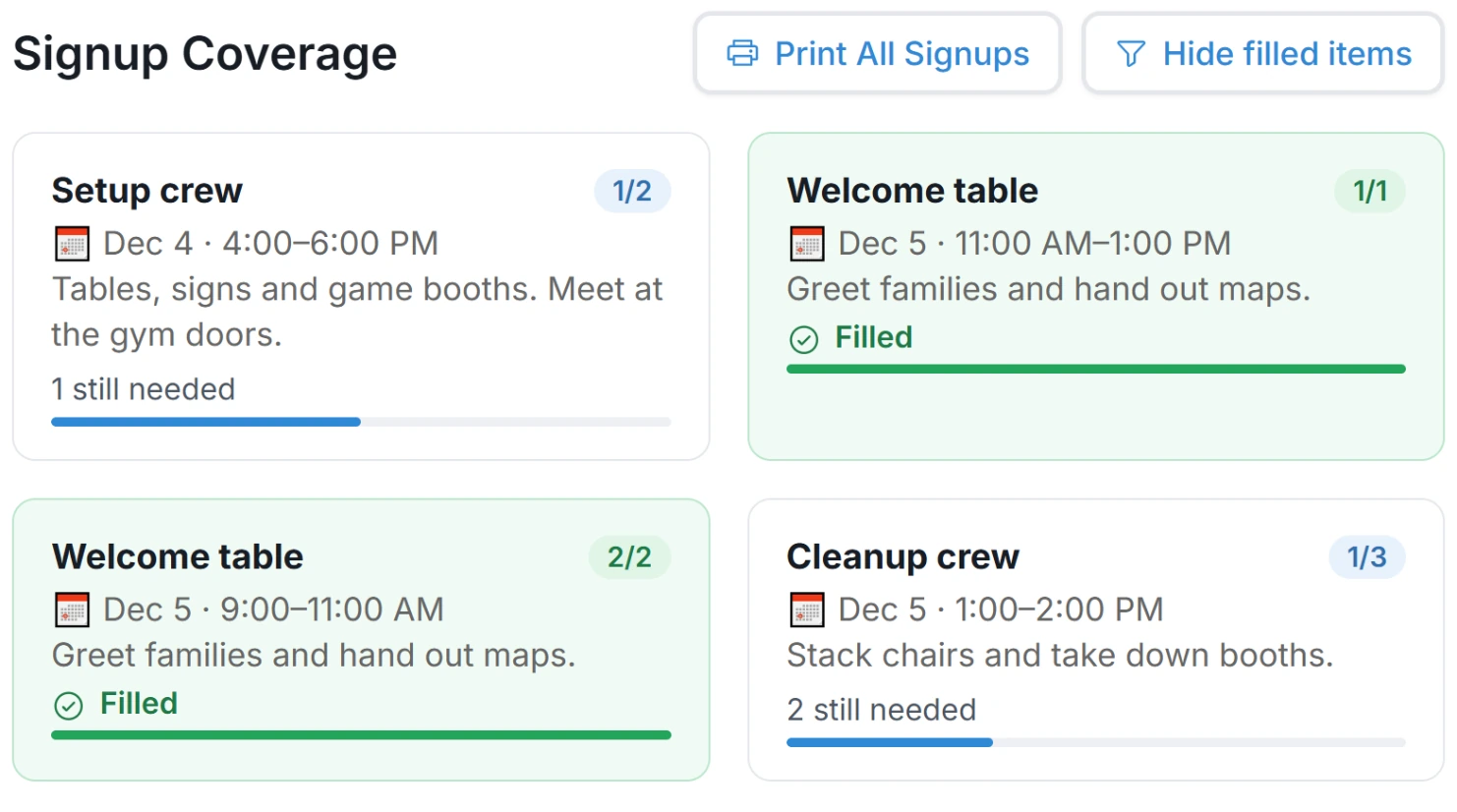
Click Share link to copy your event link, or use the QR code for a flyer, newsletter, or church bulletin. On your Responses page, Signup Coverage shows each slot’s progress (like 1/2) and how many spots are still needed. Turn on Hide filled items to see only the gaps, or use Print All Signups for a printable list on event day. For click-by-click steps, see our Help Center guide: How to Create Volunteer Signups and Time Slots.
What volunteers see when they sign up
Volunteers open your link in any browser. They don’t need an account, an app, or a password, and they won’t see ads.
- The event page lists every time slot with its date, time, details, and a badge such as 2 spots left.
- They enter their name and email, click Continue to Signups, and tap Sign Up on one or more open slots.
- When a slot fills, it shows Full and can’t be claimed. Everyone else sees which times are still open.
- Their personal page lists Your Signups. If plans change, they can remove a slot, which reopens it for someone else.
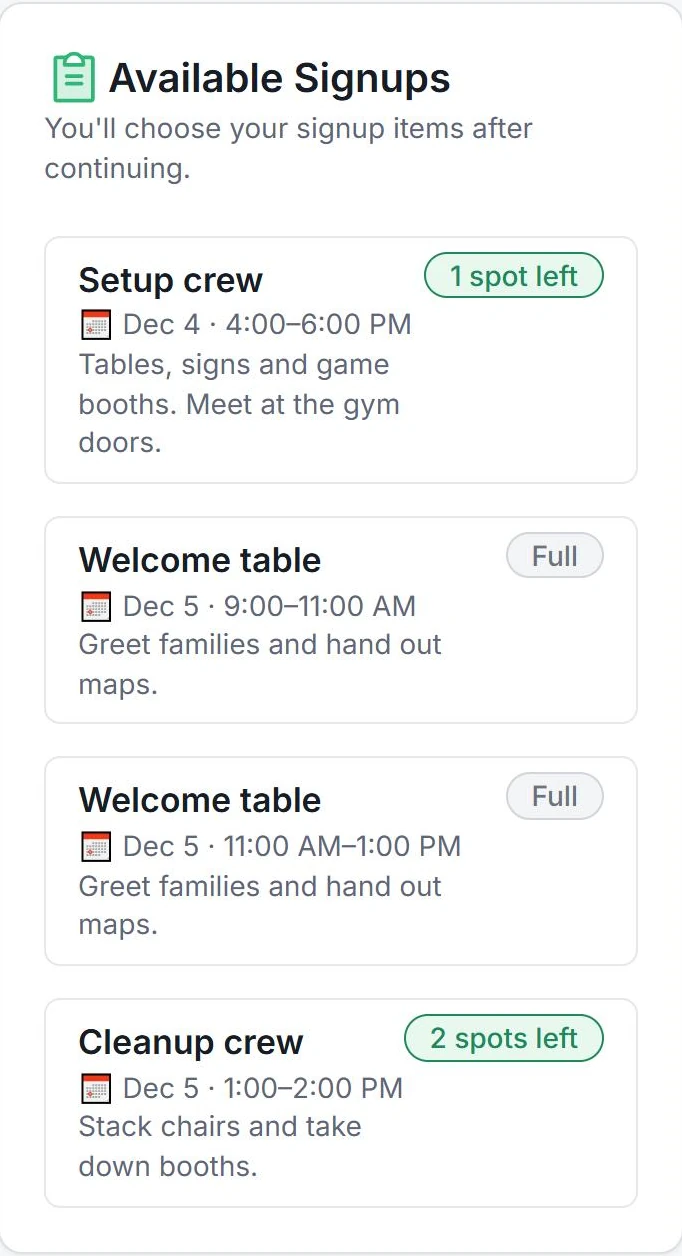
They also receive a link by email, so they can come back later to check their times or make changes.
How long should each time slot be?
Shorter shifts are easier to say yes to, but too many tiny slots make the schedule hard to fill. These lengths work well for most groups:
| Type of signup | Typical slot length | People per slot |
|---|---|---|
| Event volunteer shifts (festival, carnival, fair) | 1–2 hours | 2–6, depending on the station |
| Setup and cleanup | 1–2 hours, before and after | Your largest crews |
| School book fair or store shifts | About 1 hour, matched to the school schedule | 1–3 |
| Sunday teams (greeters, nursery, coffee) | One service | 1–4 |
| Meetings, appointments, or conferences | 15–30 minutes | 1 |
Planning parent-teacher conferences? Our parent-teacher conference sign-up guide walks through a complete 15-minute schedule.
Time-slot sign up sheet examples you can copy
Each example below works as one SameTeam event. Copy the slots, adjust the times, and change the numbers to fit your group.
✓ PTA fall festival or school carnival
Friday 4:00–6:00 PM: Setup crew (4) · Saturday 10:00 AM–12:00 PM: Welcome table (2), Game booths (6), Bake sale table (2) · Saturday 12:00–2:00 PM: same stations · Saturday 2:00–3:00 PM: Cleanup crew (5). Splitting the day into two-hour shifts lets parents help and still enjoy the event with their kids.
✓ School book fair (multi-day)
For each day of the fair: 7:45–8:30 AM Before-school cashier (2) · 11:30 AM–1:00 PM Class visit helper (2) · 2:45–3:45 PM After-school cashier (2). Add a Friday afternoon Pack-up slot (3). With every day in one event, families pick whichever day works and you see the whole week at a glance.
✓ Church greeters and nursery for the month
Add each Sunday as its own slots: 9:00 AM service Greeters (2), Nursery helper (2) · 11:00 AM service Greeters (2), Nursery helper (2). Group the slots with a category for each Sunday. Volunteers can choose one week or several, and you’ll know before Saturday night which Sunday still needs help.
✓ Nonprofit food distribution day
7:30–9:00 AM Unload and sort (6) · 9:00–11:00 AM Packing line (8), Check-in table (2) · 11:00 AM–1:00 PM Packing line (8), Car loading (4) · 1:00–2:00 PM Breakdown (4). Put physical requirements, like “able to lift 25 lbs,” in each slot’s details.
✓ Concession stand or booster shifts
For each home game: Pre-game Setup and grill (3) · First half Register and serving (3) · Second half Register and serving (3) · Post-game Cleanup (2). Put the whole season in one event so families can spread their shifts across games.
For more volunteer ideas, see our guides to VBS volunteer sign-ups and church tech team scheduling.
Tips for time slots that actually fill
Ask for the right number, not the hopeful number
If a station truly needs three people, set the slot to 3. Asking for six “just in case” spreads volunteers thin and leaves other slots empty.
Make the hard shifts smaller
Early setup and late cleanup are always the last to fill. Shorter shifts, or a clear note like “done by 8:00 PM,” make them easier to say yes to.
Keep shift times from overlapping
End one shift when the next one starts, like 9:00–11:00 and 11:00–1:00. Volunteers can then take back-to-back slots without being booked in two places at once.
Put the details where people decide
Use each slot’s details for where to report, what to wear, and any requirements. Volunteers see it right when they choose, which cuts down on day-of questions.
Fill the gaps a few days out
Check Signup Coverage midweek and turn on Hide filled items. Then share the link again with a specific ask: “We still need two people for Saturday cleanup.” On paid plans, you can also send email reminders before the event.
Reuse it next time
Most schedules repeat each season. Use Duplicate on your event to start next year’s festival or next month’s Sunday schedule from the same slots, then update the dates.
Because every slot has a start and end time, paid plans can include scheduled volunteer hours in the responses spreadsheet export (CSV). These hours are based on signup times, not verified attendance. That’s helpful for students, service clubs, and annual reports.
Paper, Google Forms, or a signup tool?
All three can collect names. The difference is whether each time slot stops at the number of people you need.
| Need | Paper sheet | Google Forms | SameTeam |
|---|---|---|---|
| Limit people per time slot | Only by the number of lines | Not built in (add-on or manual edits) | Built in |
| Full slots close | When the lines run out | No | Yes, shown as Full |
| Sign up from anywhere | No | Yes | Yes, with one link or QR code |
| See which slots still need people | By reading the sheet | Count responses yourself | Signup Coverage |
| Volunteers change their own slot | Cross it out in person | If response editing is on | From their personal link |
Google Forms is a good free choice for gathering availability. For step-by-step setup and its limits, see our Google Forms sign up sheet guide.
Build your time-slot schedule in minutes
Add your shifts, set the spots for each one, and share one link. Your first SameTeam event is free.
Create Your First Event Free →
No guest accounts · No app downloads · No ads
Frequently asked questions about time-slot sign up sheets
How do I limit how many people sign up for each time slot?
Give each slot its own spot count. In SameTeam, check One person per spot and enter the number in Spots Needed. Once that many people sign up, the slot shows Full and no one else can claim it.
Can volunteers sign up for more than one time slot?
Yes. Volunteers can tap Sign Up on as many open slots as they’d like, and every slot they choose appears under Your Signups on their personal page. If you’d prefer one shift per person, say so in your event description.
Can people change or cancel their time slot?
Yes. Volunteers use the personal link they receive by email to remove a slot or choose a different open one. A removed slot reopens right away for someone else.
Can I create time slots across several days?
Yes. Each slot has its own date, so one event can hold a two-day festival, a week-long book fair, or a month of Sunday teams. Categories help you group the slots by day.
Do volunteers need an account or an app?
No. Volunteers sign up in their web browser with just their name and email. There’s no account to create, no app to download, and no ads.
Can I add a volunteer who signed up in person?
Yes. On your Responses page, use Add Guest to add someone yourself and assign their time slot, even if they don’t have an email address.
Is there a free online sign up sheet with time slots?
Your first SameTeam event is free, including time slots, spot limits, and sharing. To keep creating events after that, you’ll need a paid plan, starting at $12/month, billed annually. Paid plans also include email reminders and duplicating events.
Bottom line: A good time-slot sign up sheet does three things: lists the exact times you need, stops each slot at the right number of people, and shows you which times still need help. Get those right, and you’ll spend far less time chasing volunteers.
Keep planning with our guides to organizing volunteer signup sheets and creating an online sign-up sheet. Comparing tools? See our roundup of volunteer signup software for schools, churches, and nonprofits, or create your first SameTeam event free →