Pass the Role On Without Starting Over
New PTA president? New children’s ministry coordinator? Hand your events, signups, Event Hubs and Admins to the next organizer in one step, and keep every guest link working.
For outgoing owners · For incoming owners · Tips for PTAs, PTOs & churches
Every spring it happens. The PTO elects a new president, a ministry leader steps back, or the volunteer who has run the fall festival for five years finally passes the clipboard. And the events, signup lists and parent email history are sitting in one person’s account.
Too often, the new leader starts from scratch: rebuilding signups, re-sharing links and asking families to respond again. With SameTeam Events, the outgoing organizer can transfer ownership of everything to the next person instead. The new owner gets the events, responses and settings; guests keep using the same links; and nobody has to rebuild anything.
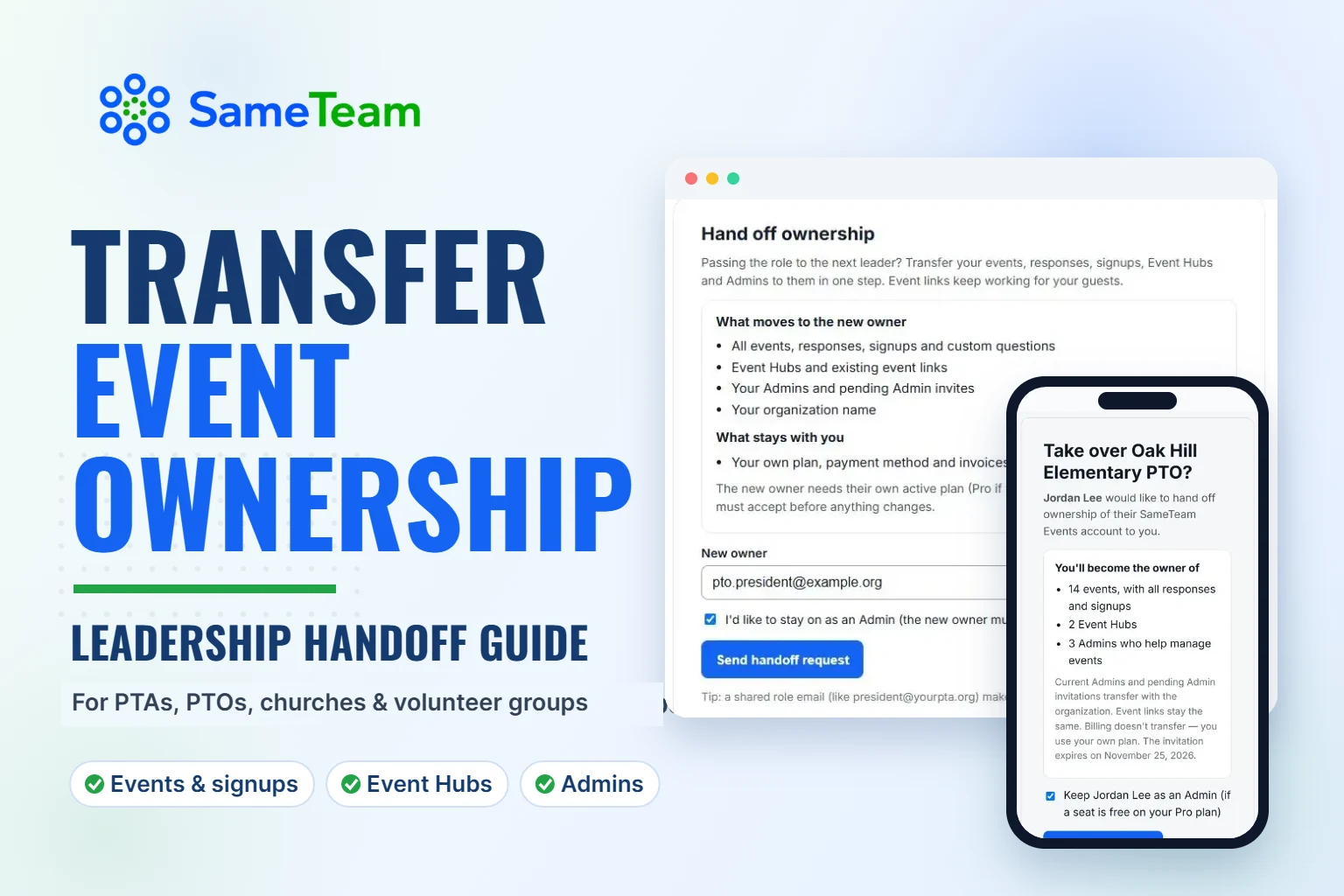
Quick answer: To transfer event ownership in SameTeam Events, go to Settings → Hand off ownership, enter the new organizer’s email and select Send handoff request. Confirm the request from your email. The new owner then accepts the invitation from their own SameTeam Events account, using their own Organizer or Pro plan. Your events, responses, signups, Event Hubs and Admins move to them, and every event link keeps working.
What moves to the new owner (and what stays with you)
A handoff transfers your whole SameTeam Events organization in one step, not one event at a time. That keeps everything together, so the new leader isn’t missing last year’s responses or a Hub link that families have bookmarked.
| Moves to the new owner | Stays with you |
|---|---|
| All events, including drafts and past events | Your own plan and subscription |
| Guest responses, RSVPs, signups and custom questions | Your payment method |
| Event Hubs and every existing event and Hub link | Your invoices and billing history |
| Your Admins and any pending Admin invitations | Your login and email address |
| Your organization name |
Billing never transfers. The new owner uses their own plan, and nothing is charged to anyone as part of the handoff.
Before you start: a 3-minute checklist
- Pick the right email for the new owner. A shared role address, such as president@yourpto.org or events@yourchurch.org, makes next year’s handoff easier because the account stays with the role, not the person.
- Make sure that email isn’t already running its own events. To keep two organizations from being mixed together, a handoff can only go to a SameTeam Events account that doesn’t have its own events, Event Hubs or Admins yet. A new or unused email works best.
- Let the new owner know a plan is needed. They’ll need an active Organizer or Pro plan on their account. If your organization uses Event Hubs or Admins, they’ll need Pro. See plans and pricing.
- Decide whether you’d like to stay involved. On Pro, you can ask to stay on as an Admin so you can help through the transition. The new owner decides.
How to transfer ownership: steps for the outgoing owner
1. Open Settings and find Hand off ownership
Sign in to SameTeam Events, select Settings, and scroll to Hand off ownership. You’ll see a summary of exactly what moves to the new owner and what stays with you.
2. Enter the new owner’s email
Under New owner, type the email address of the person taking over. If they’re already one of your Admins, you can choose them from the list instead. On Pro, check I’d like to stay on as an Admin if you want to keep helping. Then select Send handoff request.

3. Confirm the handoff from your email
For security, we email you a confirmation link first. Select Confirm handoff in that email (the link works once and expires after 24 hours). Only then do we send the invitation to the new owner.
4. Wait for the new owner to accept
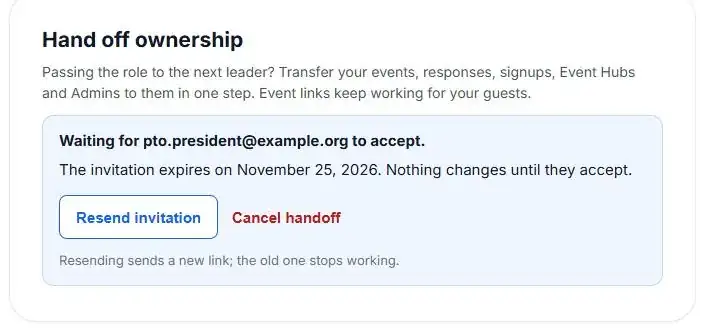
Your Settings page shows who you’re waiting on and when the invitation expires. Invitations last 7 days. Until the new owner accepts, nothing changes, and you can Resend invitation (the old link stops working) or Cancel handoff at any time.
Steps for the incoming owner
If you’re the new PTA president, ministry coordinator or event lead, here’s what to expect.
1. Open the invitation email
Look for an email from SameTeam Events titled “You’re invited to take over an organization on SameTeam Events.” Select Review invitation.
2. Sign in or create your account with the invited email
Use the same email address the invitation was sent to. If you’re new to SameTeam Events, creating an account only takes a minute, and you’ll be asked to verify your email.
3. Make sure you have an active plan
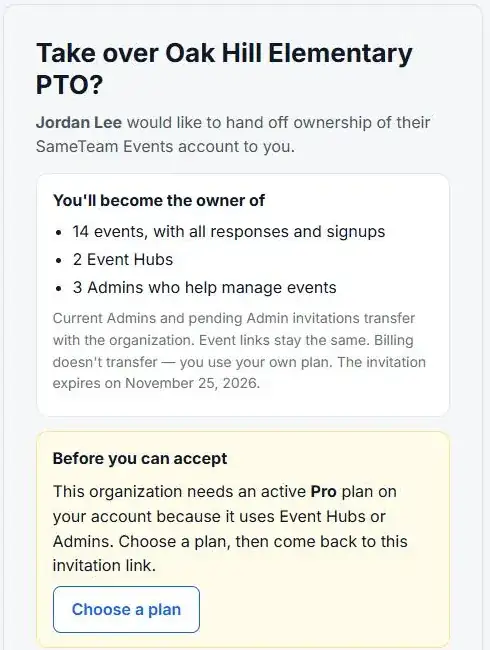
The invitation page tells you if anything is needed first. Usually that’s an active Organizer or Pro plan (Pro if the organization uses Event Hubs or Admins). Choose a plan, then come back to the same invitation link.
4. Review and accept
You’ll see the organization’s name and how many events, Event Hubs and Admins you’ll take over. If the previous owner asked to stay as an Admin, you can keep or uncheck that option. Select Accept ownership. The transfer usually finishes in under a minute, and both of you get an email when it’s done.

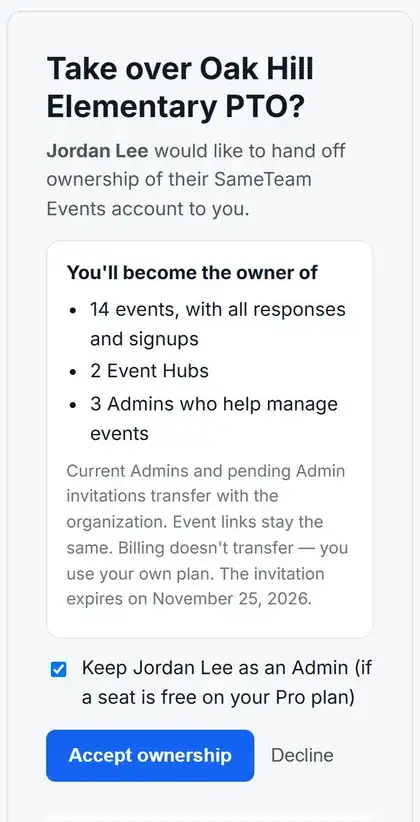
Not the right person, or not ready? Select Decline. Nothing changes, and the current owner is notified.
What happens after the handoff
- Guests don’t need to do anything. Every event link, RSVP link, Event Hub link and My Signups link keeps working. Families and volunteers won’t see any difference.
- The new owner sees everything in their dashboard: events, responses, signups, Signup Coverage, custom questions and spreadsheet downloads (CSV).
- Admins carry over. Your Admins keep helping under the new owner, and pending Admin invitations move too.
- Your own plan keeps running. If you won’t organize events anymore, you can cancel your plan, or pause it if you’re on monthly billing, from Plans & Billing. The new owner’s billing is completely separate.
- Want to keep helping? If you asked to stay on and the new owner agreed, you’ll be added as an Admin, as long as their Pro plan has a free Admin seat.
Handoff tips for PTA and PTO boards
Most PTAs and PTOs change officers every year, often voting in spring and taking office over the summer. A little planning makes the switch painless:
- Hand off after your last spring event. Field day, the end-of-year party or teacher appreciation week usually wraps up the outgoing board’s calendar. Transfer once those responses are in, and before the new board starts planning back-to-school events.
- Use an officer email, not a personal one. An address like president@yourpto.org can simply be passed along each year, so future handoffs are even easier.
- Stay on as an Admin for a season. On Pro, the outgoing president can stay as an Admin to answer questions during the first few fall events, and the new president can remove that access anytime.
- Keep last year’s events as templates. Because past events transfer too, the new board can duplicate last year’s book fair or fall festival and just update the dates.
For more on choosing tools for your board, see how to choose a PTA and PTO signup tool.
Handoff tips for churches and ministries
In churches, the person organizing events is often a volunteer: a children’s ministry coordinator, a hospitality lead or the member who has always run the church picnic. When that role changes hands:
- Hand off to a ministry or staff email such as events@yourchurch.org, so the account belongs to the ministry rather than to one volunteer.
- Keep your Event Hubs. If members bookmark a Hub page for Sunday school or volunteer teams, the link stays the same after the transfer.
- Use Admins for teams, a transfer for leadership changes. If several people help plan events, add them as Admins. Transfer ownership only when the person responsible for the account, and its plan, is changing.
More ideas for planning ministry events are in our church event planning guide.
Planning events your next leader can pick up?
SameTeam Events keeps your RSVPs, volunteer signups and event history together, so this year’s work helps next year’s team. Your first event is free.
Create Your First Event Free →
No guest accounts · No app downloads · No ads
Frequently asked questions about transferring event ownership
Can I transfer just one event instead of my whole account?
Not right now. A handoff moves your whole SameTeam Events organization at once, so nothing gets separated from its responses, Event Hubs or Admins. If you only want help with one event, invite that person as an Admin on Pro instead.
Does the new owner need a paid plan?
Yes. The new owner needs their own active Organizer or Pro plan (Pro if your organization uses Event Hubs or Admins). Billing never transfers between accounts, and the handoff itself doesn’t charge anyone.
Will our families and volunteers notice the change?
No. Every event, RSVP, Event Hub and My Signups link keeps working, and responses stay exactly as they were. There’s nothing to re-share.
What if the new owner already has a SameTeam Events account?
A handoff can go to an existing account as long as it doesn’t have its own events, Event Hubs or Admins. If it does, ask them to use a different email, ideally a shared role email for your organization.
How long does the invitation last?
Your confirmation link works for 24 hours, and the new owner’s invitation lasts 7 days. You can resend it (the old link stops working) or cancel the handoff any time before it’s accepted.
What happens to my own subscription?
It stays active and unchanged. If you won’t be organizing anymore, you can cancel it, or pause it if you’re on monthly billing, from Plans & Billing.
How is a handoff kept secure?
The current owner confirms the request by email, the invitation only works for the email it was sent to, and nothing changes until the new owner accepts. Handoff requests are also limited to 3 per day.
Bottom line: leadership changes are a normal part of PTAs, PTOs, churches and volunteer groups. A handoff lets the next leader start with everything you built, instead of starting over.
Keep planning with our guides to organizing volunteer signup sheets and Event Hubs, or create your first SameTeam event free →