Plan Together With Multiple Admins
Invite your co-chairs, staff or board members to help manage your events, with no shared passwords.
For PTA boards · church teams · nonprofit staff
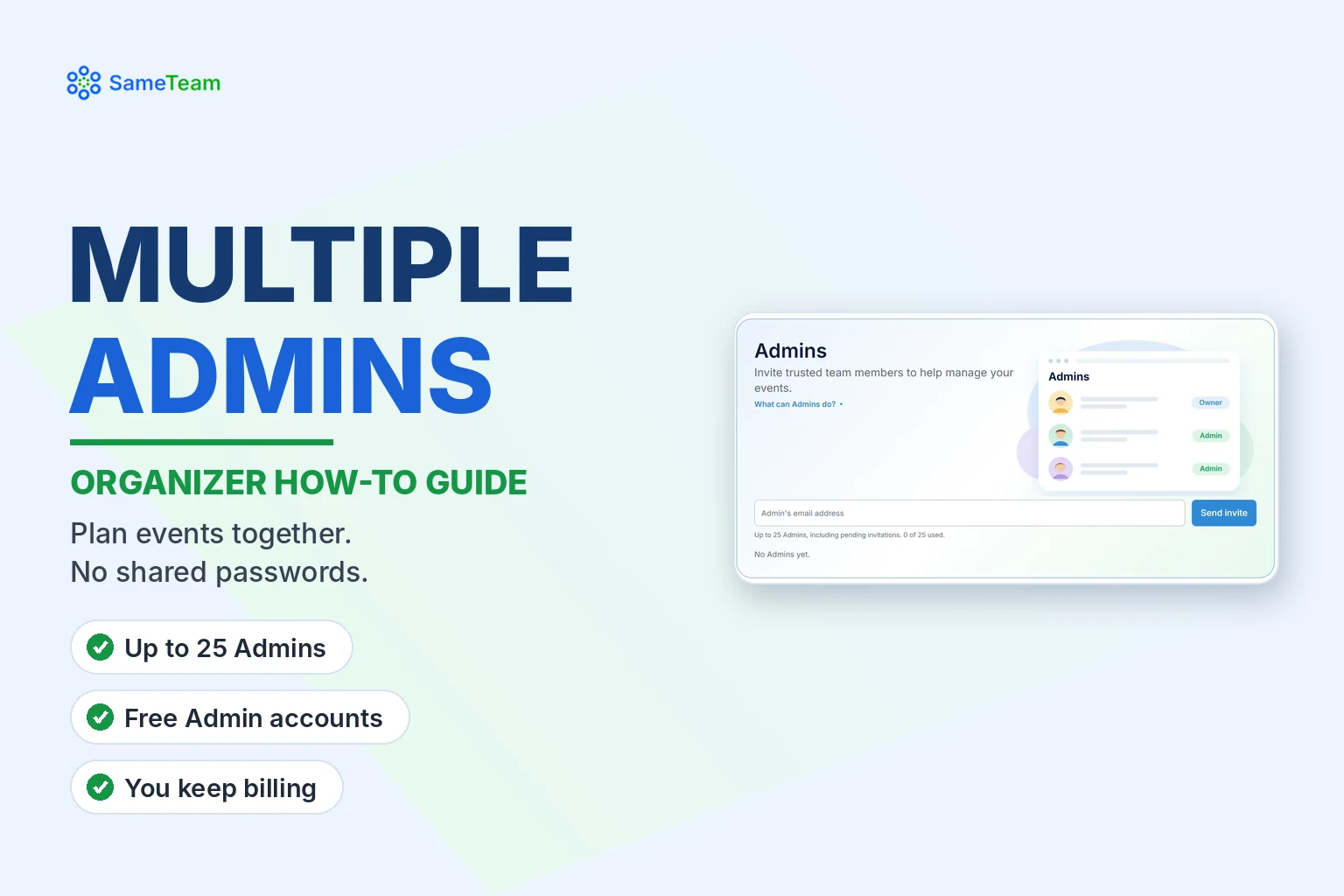
Running events is easier with help. With SameTeam Events Pro, you can invite up to 25 Admins to help manage your events, responses, signups, reminders and Event Hubs. Each Admin signs in with their own free SameTeam account, so nobody has to share a password.
Quick answer: On a Pro plan, go to Settings, find Admins, enter the person’s email address and select Send invite. They open the invitation email, sign in or create a free account, and accept. You can have up to 25 Admins, including pending invitations. Billing and account settings always stay with you, the owner.
What you need
- A Pro plan. Multiple Admins is a Pro feature.
- The email address your Admin will use to sign in to SameTeam.
- Admins don’t need their own paid plan. They use a free SameTeam account.
How to invite an Admin
1. Open Settings
Select Settings in the top menu of your SameTeam dashboard.
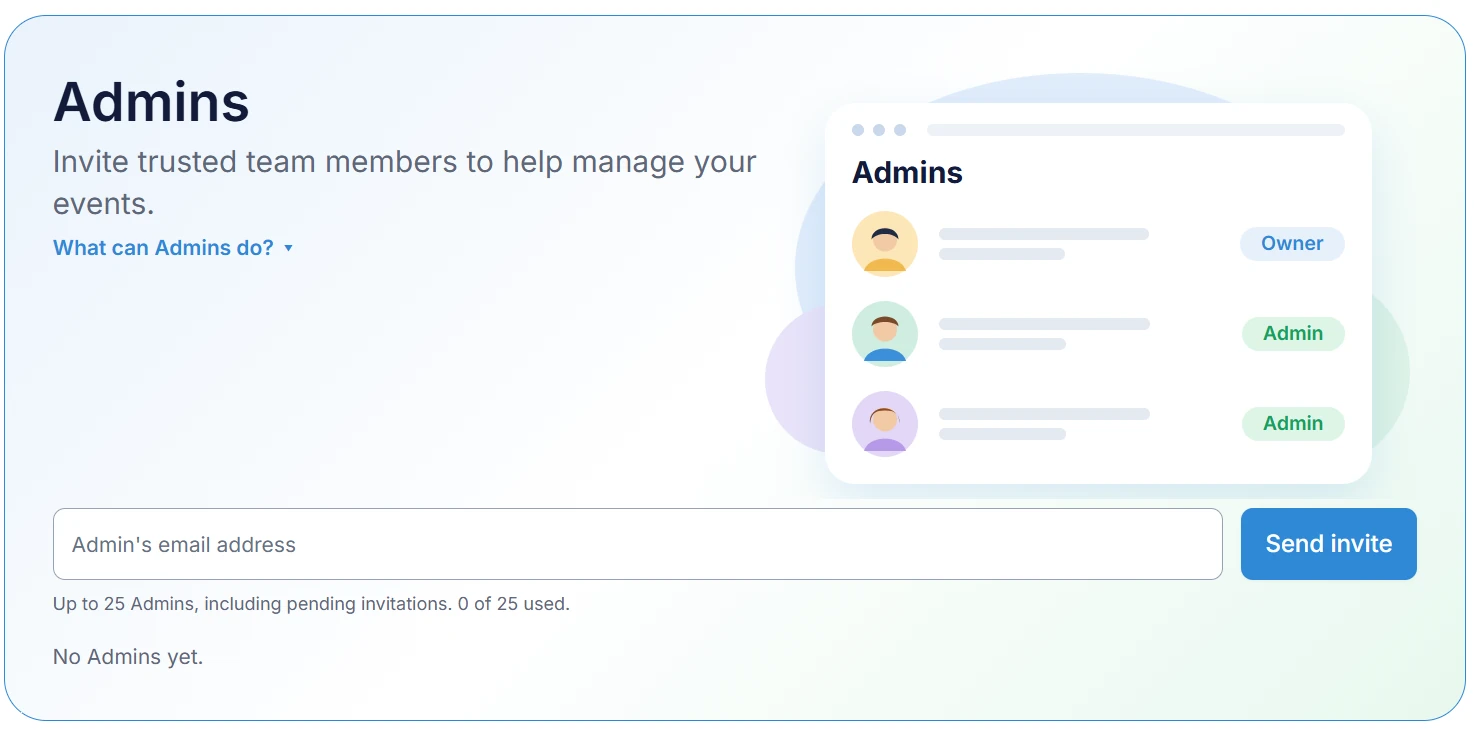
2. Find the Admins section
Select What can Admins do? if you’d like a quick summary first.
3. Enter their email and select “Send invite”
The counter below the field shows how many of your 25 Admin spots you’ve used. Pending invitations count toward the 25.
How your Admin accepts the invitation
1. Open the invitation email
Your Admin receives an email invitation from SameTeam.
2. Select the link to accept
If they already have a SameTeam account, they choose Log in and accept. If they’re new, they choose New to SameTeam? Create a free account.
3. Switch to your organization
Once accepted, they appear under Current Admins in your Settings. To help with your events, your Admin selects Switch at the top of their dashboard and chooses your organization. The banner then reads Managing: [your organization]. They can switch back to My events anytime to see their own events.
Tip: Ask your Admin to accept with the same email address you invited, so the invitation matches their account.
What Admins can and can’t do
| Owner (you) | Admin | |
|---|---|---|
| Create, edit, publish and duplicate events | Yes | Yes (new events belong to your account) |
| Unpublish, cancel, archive or delete events | Yes | Yes |
| View responses, add or edit guests, download spreadsheets | Yes | Yes |
| Send reminders | Yes | Yes |
| Create flyers and manage Event Hubs | Yes | Yes |
| Billing, plan changes and pausing | Yes | No |
| Invite or remove Admins | Yes | No |
| Transfer ownership | Yes | No (but an Admin can be chosen as the new owner) |
| Account settings | Yes | No (they only see their own Settings) |
Good to know: Admins have the same event controls you do, including deleting events. Invite people you trust with your events and guest information.
Managing or removing Admin access
Your Current Admins and Pending invitations are listed in the Admins section of Settings. From there you can resend or cancel a pending invitation, or remove someone’s Admin access. SameTeam asks you to confirm before removing access.
Removing an Admin doesn’t delete any events, responses or signups. Everything stays in your account.
What happens if your Pro plan ends
Admin access requires an active Pro plan. If your Pro plan ends, Admins lose management access but stay connected to your account, so their access comes back automatically when you reactivate Pro.
Admins vs. transferring ownership
Admins help you manage events while you stay in charge. If you’re stepping down and someone else is taking over completely, such as an incoming PTA president, use Transfer Ownership instead. It moves your events, responses, signups, Event Hubs and Admins to the new owner in one step, while billing stays with each person.
| Add an Admin | Transfer ownership | |
|---|---|---|
| Who’s in charge | You stay the owner | The new person becomes the owner |
| Billing | Stays with you | Each person keeps their own plan |
| Best for | Co-chairs, staff and volunteers helping out | Leadership handoffs at the end of a term |
Frequently asked questions
How many Admins can I have?
Up to 25 on a Pro plan, including pending invitations.
Do Admins need to pay?
No. Admins sign in with a free SameTeam account. Their access comes from your Pro plan.
Can an Admin see my billing information?
No. Billing, invitations and account settings stay with the account owner.
Can an Admin delete my events?
Yes. Admins can unpublish, cancel, archive or delete events in your account, just like you can. Only invite people you trust.
Whose account do Admin-created events belong to?
Yours. When an Admin creates an event while managing your organization, the form shows “Creating for [your organization]”, and the event stays in your account even if you later remove that Admin.
Can I invite someone who already uses SameTeam?
Yes. They can accept with their existing account by choosing “Log in and accept.”
Managing several groups? Learn how to create an Event Hub so families and volunteers can find all your events with one link. Browse more guides in the SameTeam Events Help Center.