Event Images and Flyers in Minutes
Pick a ready-made image, upload your own or create one with AI, then turn it into a printable flyer with a QR code.
For PTAs · churches · nonprofits · community groups
A great image makes your event easier to notice when you share it. SameTeam Events helps with two connected tools: event images for the banner at the top of your event page, and flyers you can print or share on social media, with a QR code that takes people straight to your event.
Quick answer: In Create Event or Edit Event, choose Gallery, Upload or Create with AI under Event Image. To make a flyer, publish your event and select Create Flyer in the share popup. Choose Print flyer or Social post, keep your event image or create AI artwork, and download. Any organizer can make a flyer from their event image. AI images and flyer artwork are included with Organizer (20 per month) and Pro (60 per month).
Part 1: Event images
Your event image appears as the banner on your event page. You have three options:
| Option | What it is | Available on |
|---|---|---|
| Gallery | Ready-made images for school, church, volunteer, potluck, holiday and other events | All plans, including the free first event |
| Upload | Your own photo or graphic (JPG or PNG; best results at 1600 × 600 px) | All plans |
| Create with AI | A custom banner created from your description | Organizer and Pro |
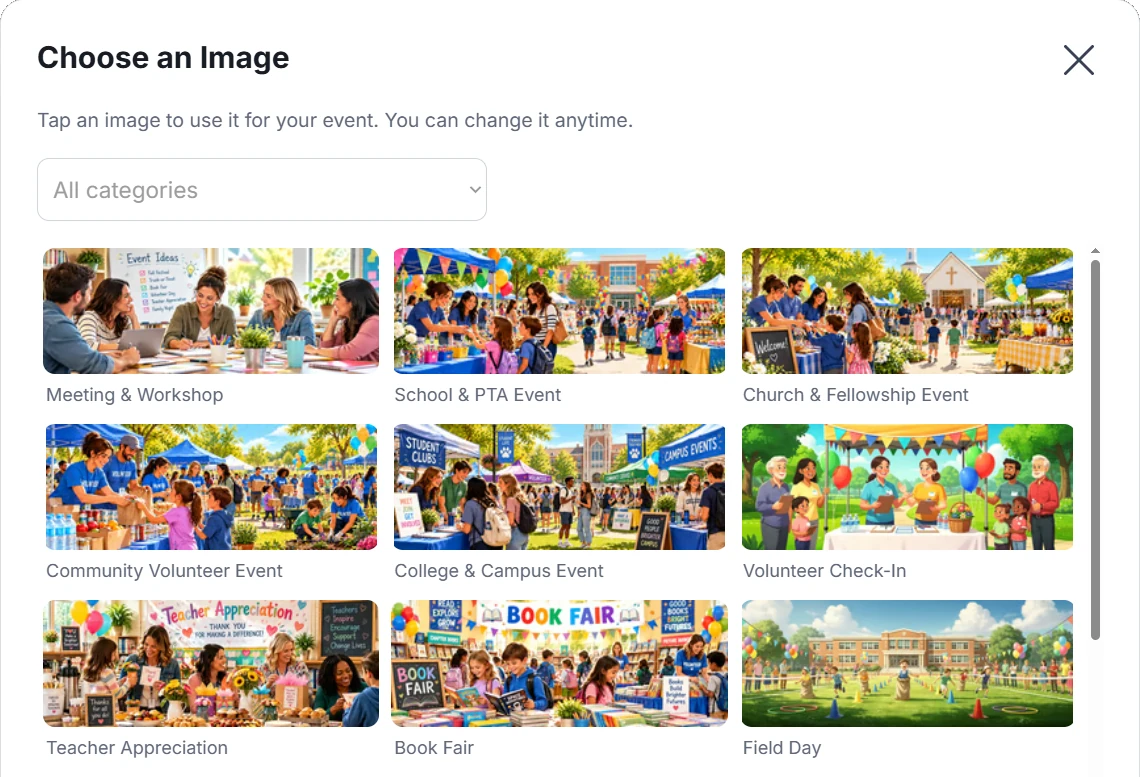
Choose a gallery image
1. Select “Gallery”
It’s under Event Image (optional) in Create Event or Edit Event.
2. Filter by category (optional)
Choose a category such as School & PTA, Church or Potlucks & Food.
3. Tap an image
It’s added to your event right away. You can change it anytime.
Create an event image with AI
1. Select “Create with AI”
Under Event Image, select Create with AI.
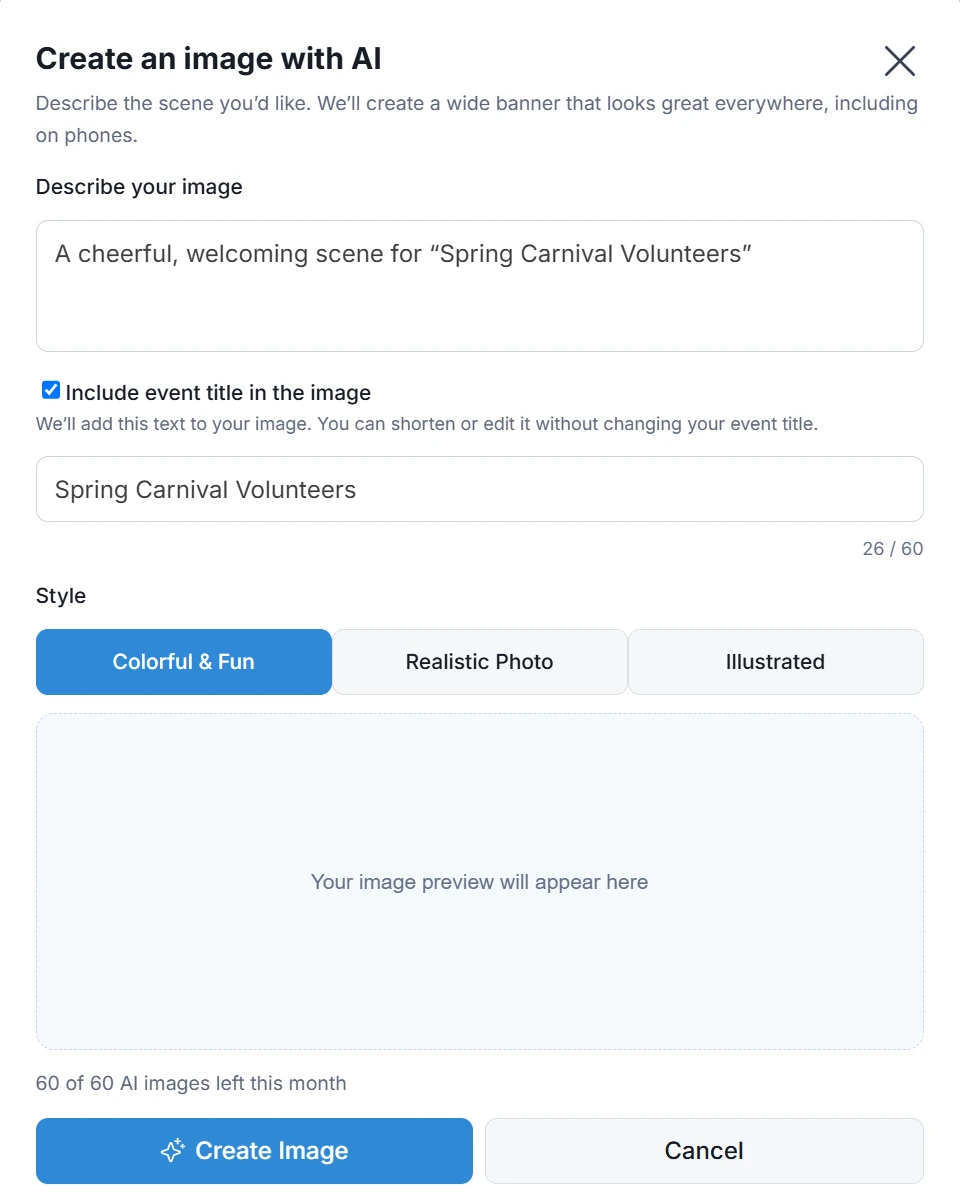
2. Describe the scene
SameTeam suggests a starting description you can edit, such as “A cheerful, welcoming scene for Spring Carnival Volunteers.”
3. Decide about the title
Leave Include event title in the image checked to add your title to the artwork. You can shorten the title for the image without changing your event’s title. Dates, times and locations are never drawn into AI images. If you’d like them on the banner, check Show event title, date and place on the banner instead.
4. Pick a style and create
Choose Colorful & Fun, Realistic Photo or Illustrated, then select Create Image. Review the preview before you use it.
Good to know: AI-generated images may contain mistakes. Check your image before using it, and don’t include personal information in your description.
Part 2: Event flyers
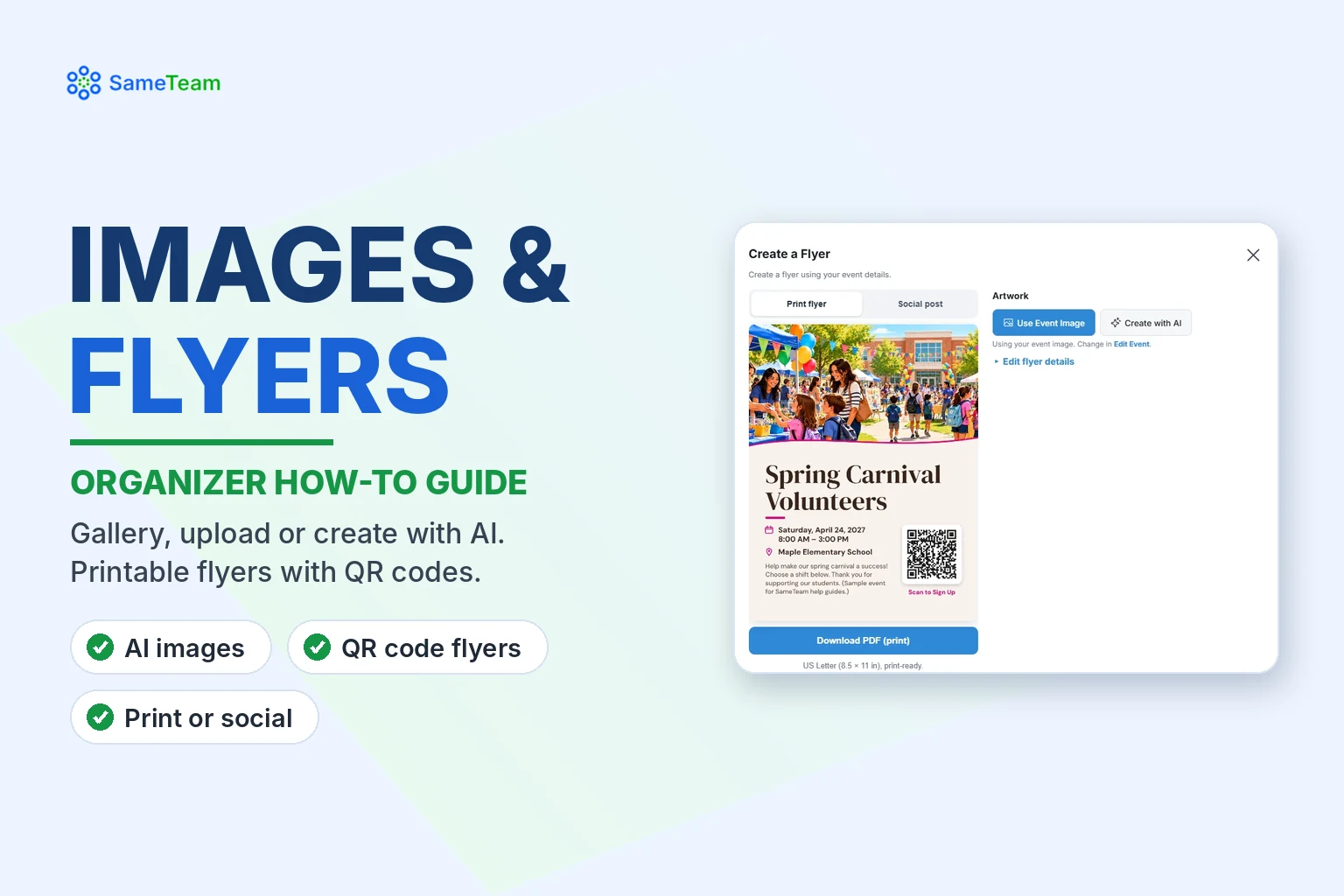
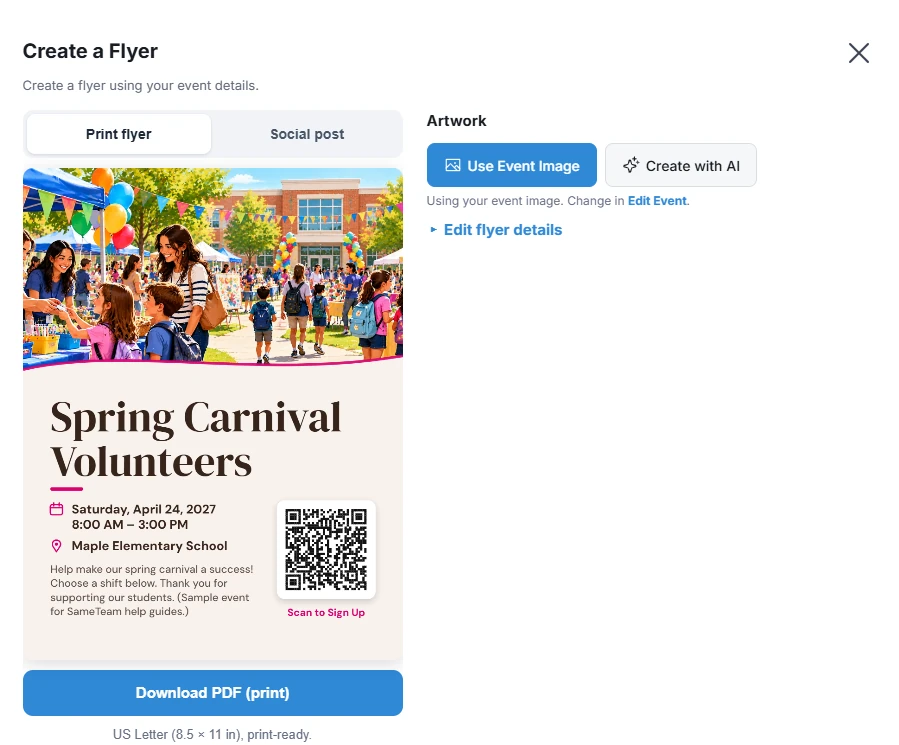
Flyers turn your event details into something you can post on a bulletin board, send home in backpacks or share online. Every flyer includes a QR code that opens your event.
1. Publish your event
You can start a flyer on a draft, but the QR code and downloads turn on once the event is published.
2. Select “Create Flyer”
You’ll find it in the share popup after you publish, or select Share link next to your event.
3. Choose Print flyer or Social post
Print flyer downloads a print-ready US Letter (8.5 × 11 in) PDF. Social post creates a square image for social media.
4. Choose your artwork
Use Event Image uses your current event image. Create with AI creates new flyer artwork from your description (Organizer and Pro). AI creates the artwork only, and your title, date, location and QR code are added separately, exactly as you entered them.
5. Edit the details (optional)
Open Edit flyer details to adjust the flyer title and text. Changes here only affect your flyer, not your event.
6. Download
Select the download button, then print it or share it.
Plans and monthly AI limits
| Free first event | Organizer | Pro | |
|---|---|---|---|
| Gallery and uploaded images | Yes | Yes | Yes |
| Flyers from your event image | Yes | Yes | Yes |
| AI event images and flyer artwork | No | 20 per month | 60 per month |
- The monthly allowance is shared between AI event images and AI flyer artwork.
- Each new version counts as one generation, including when you try again.
- Your allowance resets monthly, and unused generations don’t roll over.
- The popup always shows how many you have left this month.
Frequently asked questions
Can I make a flyer on the free first event?
Yes. Any organizer can create and download a flyer from their event image. AI artwork is included with Organizer and Pro.
Why can’t I download my flyer yet?
Publish your event first. The QR code and downloads activate once your event is published.
Does the AI write my event date on the image?
No. AI images can include your title. Dates, times and locations come from your event details, either on the banner overlay or added to the flyer separately, so they’re always accurate.
Can I change my event image later?
Yes. Open Edit Event and choose a different image anytime.
Ready to share? Learn how to list all your events on one Event Hub. Browse more guides in the SameTeam Events Help Center.