Automatic and Manual Reminders, Explained
Send a friendly email nudge right when guests need it, or schedule one ahead of time so you don’t have to remember.
For PTA leaders · church coordinators · nonprofit organizers
Reminders help busy families and volunteers actually show up. SameTeam Events gives you two ways to send them: an automatic reminder you schedule once when you set up your event, and a manual reminder you send yourself from the Responses page whenever you need it.
Quick answer: An automatic reminder is a setting on your event. Check Send an automatic email reminder, choose 1, 2, 3 or 7 days before, and SameTeam emails your guests at that time. A manual reminder goes out right away when you select Send Reminder on the Responses page. Both go only to guests who have already RSVP’d or signed up with an email address, and they share a 12-hour limit. Reminders are included with Organizer and Pro plans.
Automatic vs. manual reminders at a glance
| Automatic reminder | Manual reminder | |
|---|---|---|
| Where you set it up | Create Event or Edit Event, under “What do you need?” | The Responses page, with the Send Reminder button |
| When it’s sent | 1, 2, 3 or 7 days before the event starts (you choose) | Right away, when you select Send Reminder Now |
| Who receives it | Guests who RSVP’d or signed up with an email address | The same guests |
| Best for | Set-it-and-forget-it reminders before every event | Last-minute updates, changes or an extra nudge |
| Limit | Shares one send every 12 hours with manual reminders | One send every 12 hours per event, including automatic |
Both kinds of reminder use the same friendly email, with the event details and each guest’s personal link so they can check or change their RSVP and signups.
How to schedule an automatic reminder
1. Open Create Event or Edit Event
Start a new event, or on Your Events select the pencil icon next to an existing event.
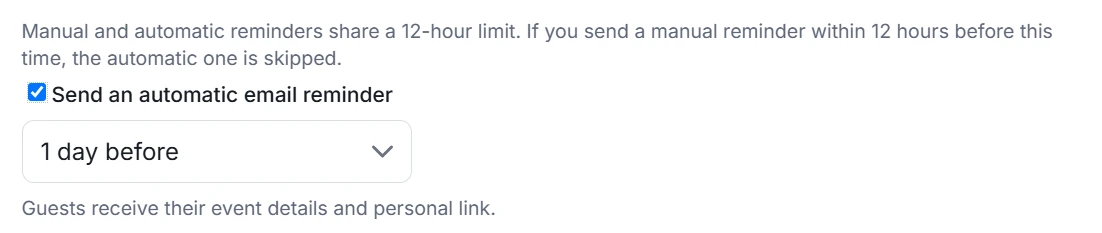
2. Check “Send an automatic email reminder”
You’ll find it under What do you need?, below the RSVP and signup options.
3. Choose when it goes out
Pick 1 day before, 2 days before, 3 days before or 7 days before. The timing is based on your event’s start date and time, so make sure your event has a date.
4. Publish or save your event
That’s it. SameTeam sends the reminder for you at the scheduled time.
How to send a manual reminder
1. Go to the Responses page
Select Responses next to your event, or choose Responses in the top menu and pick the event.
2. Select “Send Reminder”
It’s the first button above your guest list.
3. Select “Send Reminder Now”
The popup reminds you who will receive the email and shows any automatic reminder that’s already scheduled.

Where to see your scheduled reminder
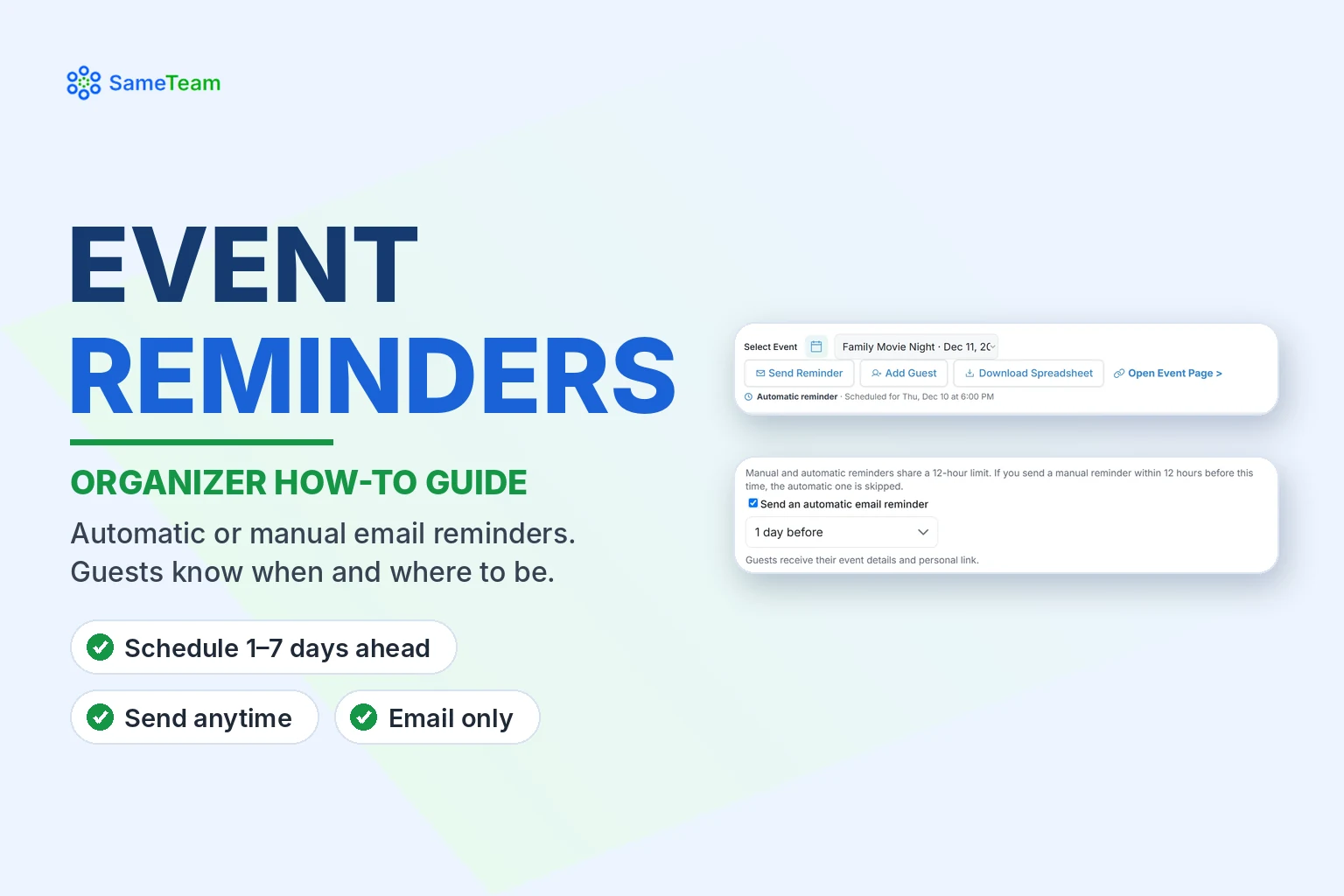
When an automatic reminder is turned on, the Responses page shows a short note under Send Reminder, such as “Automatic reminder · Scheduled for Thu, Dec 10 at 6:00 PM.” The Send Email Reminder popup shows the same information.
The 12-hour limit (and why it helps)
To keep your guests’ inboxes friendly, each event can send one reminder every 12 hours. That limit is shared: if you send a manual reminder within the 12 hours before your automatic reminder is scheduled, the automatic one is skipped, so guests don’t get two emails back to back.
Tip: If you change your event’s details after sending a reminder, wait until the 12 hours have passed and then send a manual reminder so guests see the update.
Who gets reminders and who doesn’t
- Included: guests who have already RSVP’d or signed up and gave an email address.
- Not included: guests you added yourself without an email address, and people who haven’t responded yet. SameTeam can only email people who have already RSVP’d or signed up, so re-share your event link the same way you sent it originally to reach anyone else.
- Text messages: reminders are sent by email only.
What happens after a reminder is sent
Guests receive an email with your event details and their personal link. From that link they can update their RSVP or signups until your response deadline or the event ends, and any changes show up on your Responses page right away.
Frequently asked questions
Are reminders included with the free first event?
No. Email reminders, both manual and automatic, are included with Organizer and Pro plans. Your free first event includes RSVPs, signups and custom questions.
Can I send more than one automatic reminder?
Each event has one automatic reminder at the time you choose. SameTeam may send a second one only if you make a real change to the event’s date or time. You can also send manual reminders, one every 12 hours.
Can I change or turn off the automatic reminder?
Yes. Open Edit Event to choose a different timing, or uncheck “Send an automatic email reminder” before it’s sent.
Do reminders go to people who haven’t responded?
No. SameTeam only emails guests who have already RSVP’d or signed up. To reach others, share your event link again.
Want to keep everyone’s responses up to date? Learn how to add guests yourself or edit guest responses. Browse more guides in the SameTeam Events Help Center.