Add Guests Who Reply Offline
Record RSVPs and signups for people who answer by phone, text or in person, so your list is always complete.
For organizers of every kind of event
Not everyone responds through your link. Some families tell you at pickup, some volunteers text you, and some members call the church office. Add Guest lets you record their response yourself so your head count, signups and reports stay accurate.
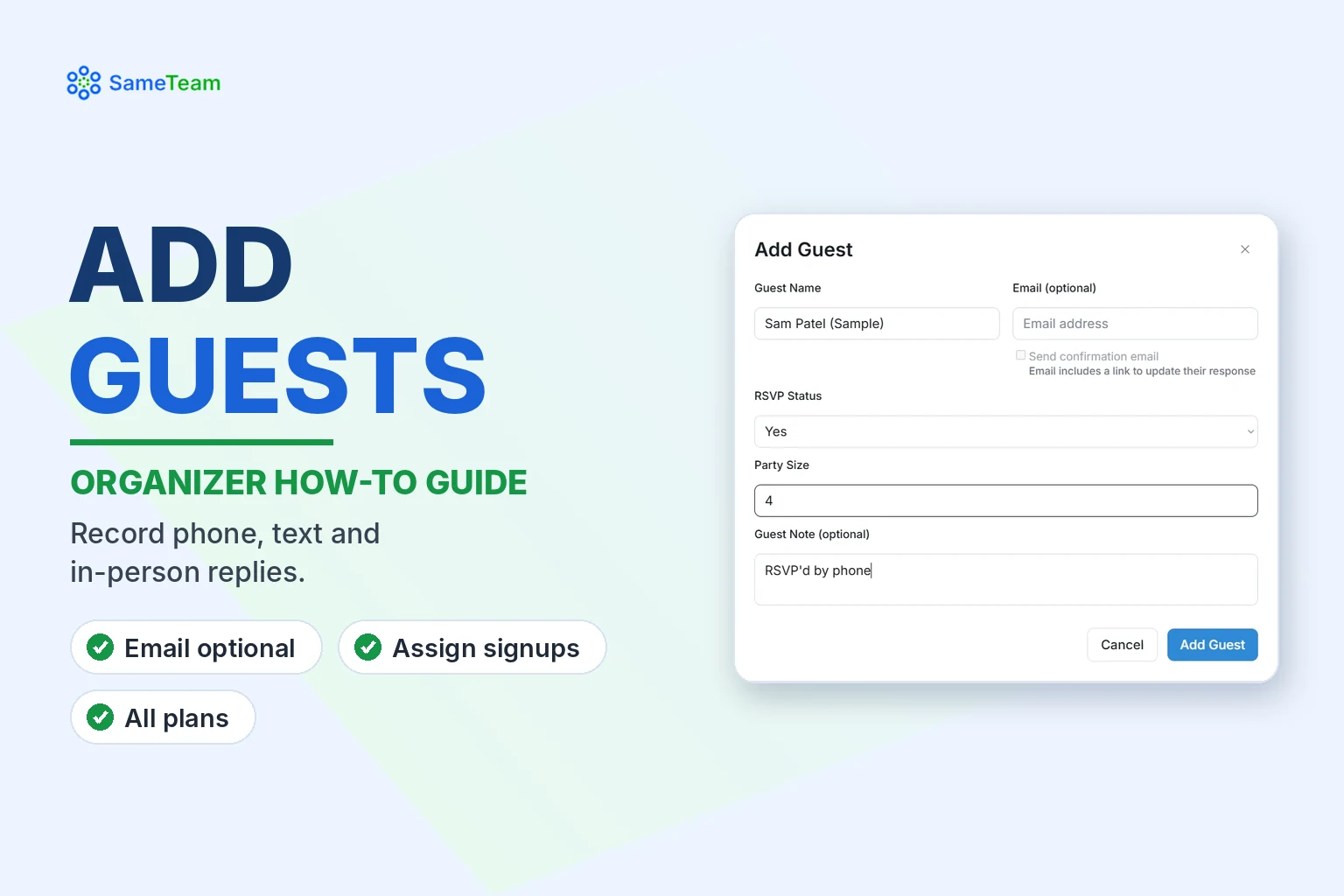
Quick answer: On the Responses page, select Add Guest. Enter the guest’s name. Add their email if you have it (optional). Choose an RSVP status and party size if your event collects RSVPs, add a note if you like, and select Add Guest. For events with signup items, you can then assign their signups. Add Guest is available to all organizers, including on the free first event.
How to add a guest
1. Open the Responses page
Select Responses next to your event.
2. Select “Add Guest”
It’s next to Send Reminder above your guest list.
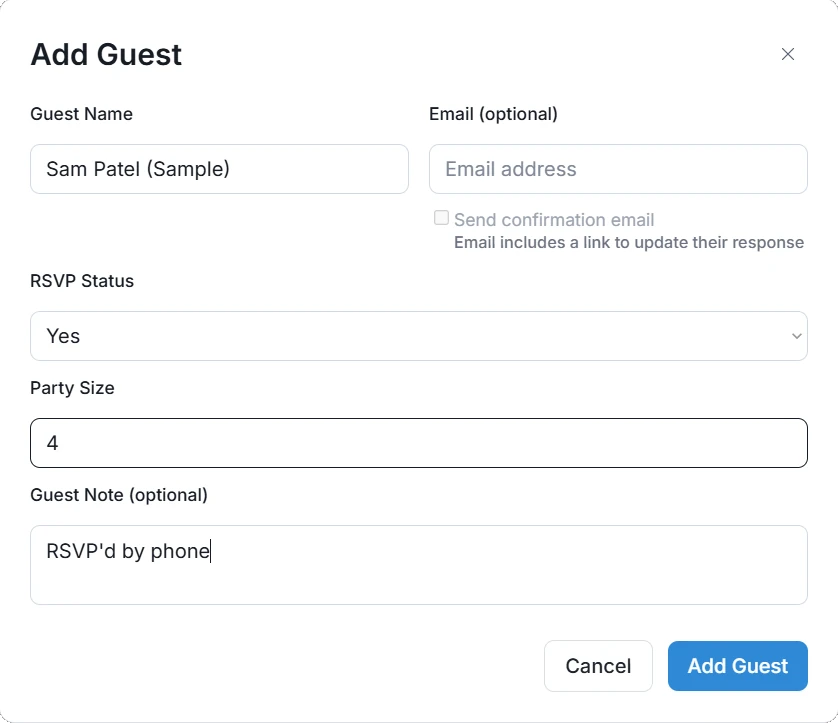
3. Enter their name
Email is optional. Adding one helps prevent duplicate responses and lets the guest receive reminders.
4. Choose whether to send a confirmation email
If you enter an email, you can check Send confirmation email. The email includes a link the guest can use to update their response. Leave it unchecked and no email is sent.
5. Set their RSVP and party size
For RSVP events, choose Yes or No and enter the party size. SameTeam checks your attendance limit, just like it does for guests who respond through your link.
6. Add a note (optional), then select “Add Guest”
For example, “RSVP’d by phone.” The guest appears in your list right away.
Assigning signups for a guest
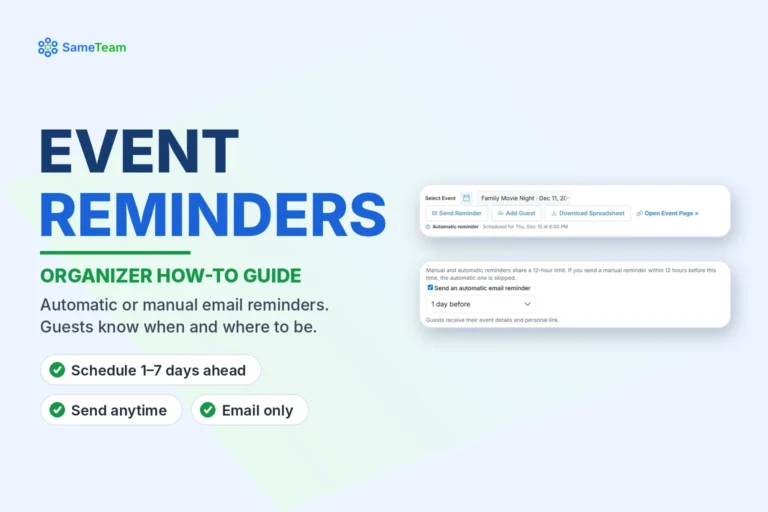
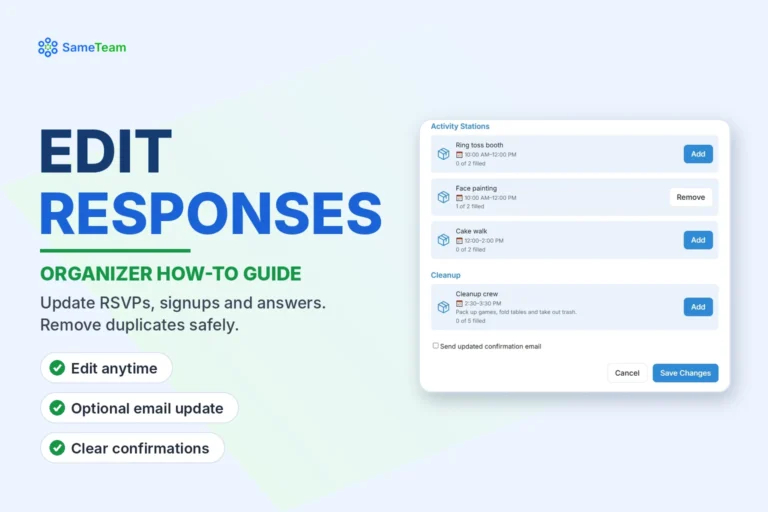
For events with signup items, open the guest’s Edit Guest Response (the pencil icon) and select Add next to each item they’re taking. Signup changes are saved automatically. Items that are already full show as Full, so you can’t overbook a shift or dish.
Good to know: Guests aren’t automatically notified of changes you make on their behalf. To send them an updated confirmation, check Send updated confirmation email before you select Save Changes.
Reviewing the results
- The guest appears in your Guest Responses or Signups list with their RSVP, party size and signups.
- Your counts, such as People Attending and Signups Filled, update right away.
- Signup Coverage and Print All Signups include organizer-added guests.
- Download Spreadsheet includes them too.

Things to know
- Reminders: guests added without an email are skipped when you send reminders.
- Duplicates: if the email you enter already belongs to a response for this event, SameTeam asks you to edit the existing guest instead.
- Cancelled events: you can’t add new guests to a cancelled event.
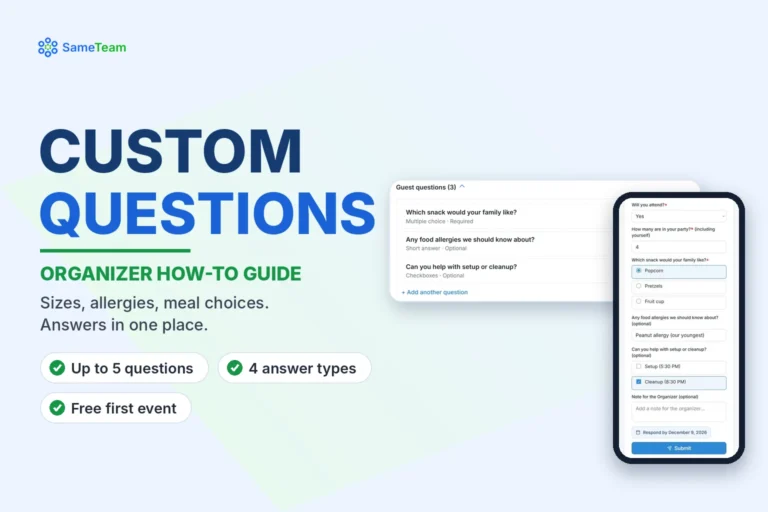
- Custom questions: after adding a guest, record their answers in Guest Details with Edit answers.
Frequently asked questions
Is Add Guest available on the free first event?
Yes. Add Guest and Edit Guest Response are available to all organizers.
Will the guest get an email?
Only if you enter their email and check Send confirmation email.
Can I add a guest after the RSVP deadline?
Yes. Organizers can add guests to past-deadline and past events to keep records accurate. Only cancelled events are closed to new guests.
Can the guest change their own response later?
Yes, if they have an email on file and receive a confirmation email with their personal link. Otherwise, you can update their response anytime.
Need to change or remove a response? See how to edit or remove guest responses. Browse more guides in the SameTeam Events Help Center.