Run It Again in Minutes
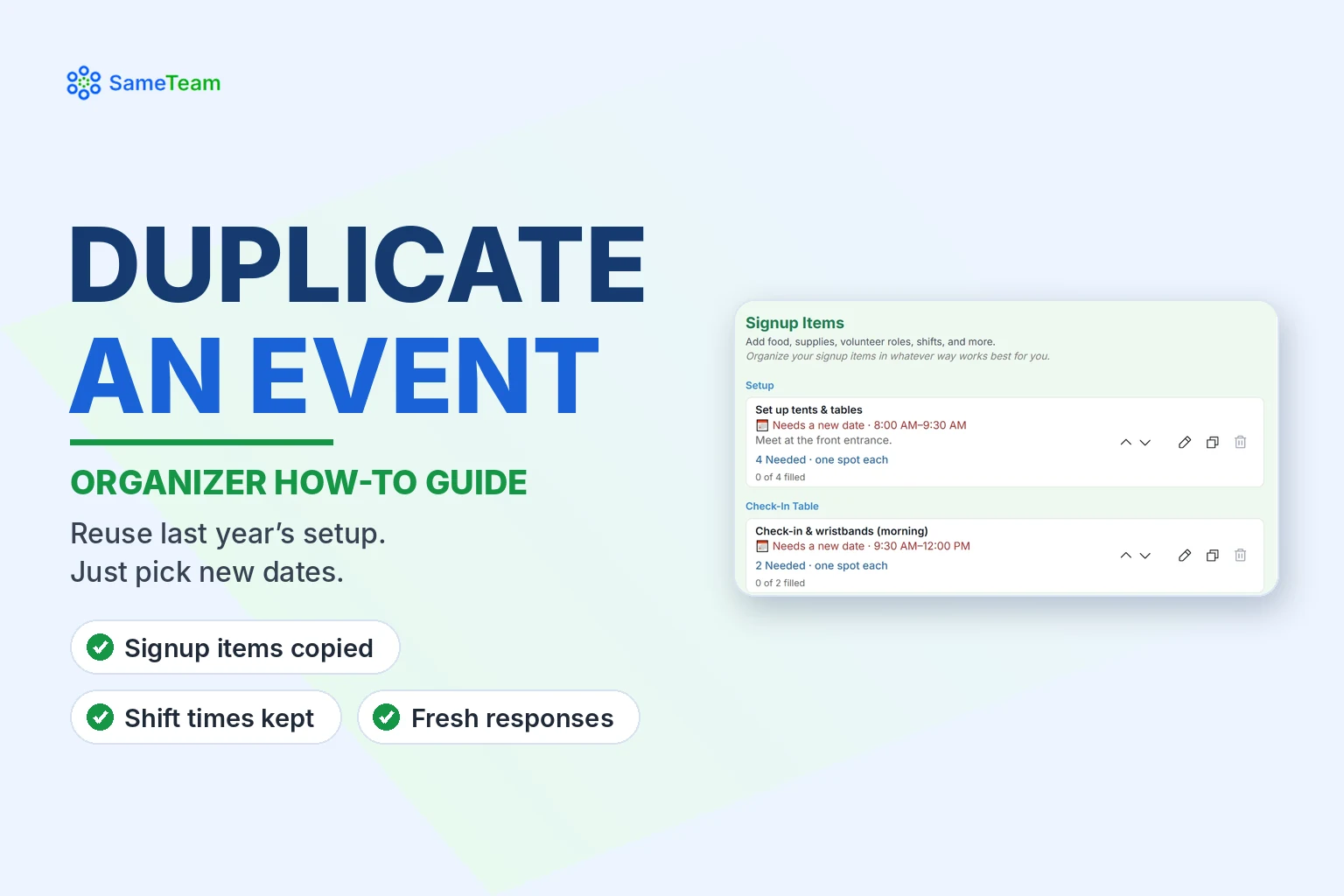
Copy last year’s event, including its signup items, shift times and questions, then just pick new dates.
For recurring PTA events · church ministries · nonprofit programs
Many events happen every year, every season or every month: the fall festival, VBS, the food pantry shift, the class party. Instead of starting over, Duplicate Event copies your setup into a new draft so you only have to update what changed.
Quick answer: On Your Events, select Duplicate next to the event you want to reuse. SameTeam creates a new draft and opens it. Choose new dates (including a new date for any shift marked “Needs a new date”), make any other changes, and publish. RSVPs, signups and answers from the original aren’t copied.
How to duplicate an event
1. Go to Your Events
Find the event you want to reuse. Past and archived events work too. Select Show Archived Events to see archived ones.
2. Select “Duplicate”
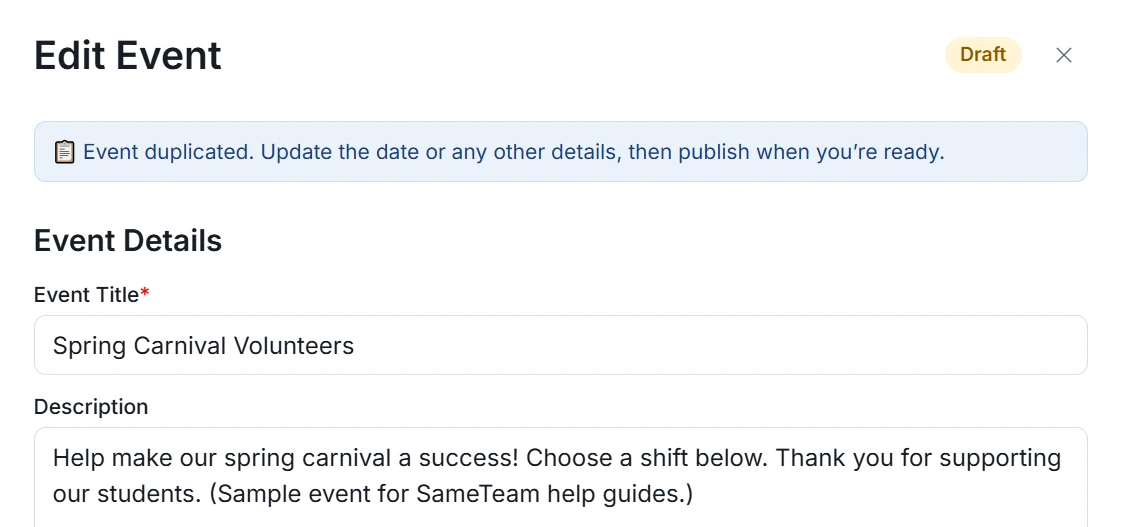
SameTeam creates a copy as a Draft and opens it in Edit Event with the message “Event duplicated. Update the date or any other details, then publish when you’re ready.”
3. Choose new dates
Set the event’s new start and end dates and times, and a new Respond By date if you use one.
4. Give dated shifts a new date
Shifts copied from the original keep their start and end times but are marked Needs a new date. Select the pencil on each one, choose a date and select Update Item.
5. Review and publish
Update anything else that changed, then select Publish Event. Your duplicate gets its own new link to share.
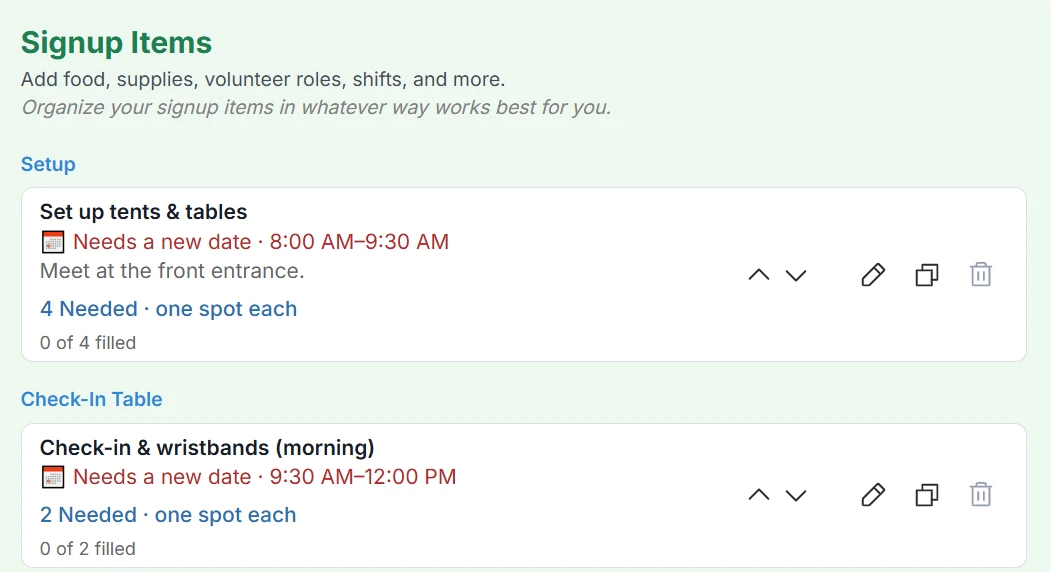
Good to know: SameTeam won’t publish a duplicate until every shift marked “Needs a new date” has a date, so nothing goes out with last year’s schedule.
What carries over and what doesn’t
| Copied to the new draft | Not copied |
|---|---|
| Title, description and location | Event dates and the Respond By date |
| Event image | Dates on signup items (shift times are kept) |
| Signup items, categories, details and spot counts | RSVPs and signups |
| Shift start and end times | Custom question answers and guest notes |
| RSVP settings, the automatic reminder setting and custom questions | The original event’s link (the duplicate gets a new one) |
The original event isn’t changed. Its responses stay with it, and you can still view or export them anytime.
Ideas for recurring events
- PTAs and PTOs: duplicate the fall festival, book fair or teacher appreciation week from last year.
- Churches: reuse your VBS volunteer schedule, monthly fellowship meal or nursery rotation.
- Nonprofits: copy a recurring food pantry or cleanup shift and change only the date.
Tip: SameTeam doesn’t create repeating events automatically. Duplicate Event is the quick way to set up each new date, with its own responses.
Frequently asked questions
Is Duplicate Event available on every plan?
Duplicate Event is included with Organizer and Pro plans, which also let you create more events after your free first one.
Will guests from the original event be notified?
No. The duplicate starts with no responses, and nobody is emailed until you share the new link.
Can I duplicate a past or archived event?
Yes. Duplicating creates a new draft without changing the original.
Why can’t I publish my duplicate?
Check for shifts marked “Needs a new date.” Edit each one, choose a date and select Update Item, then publish.
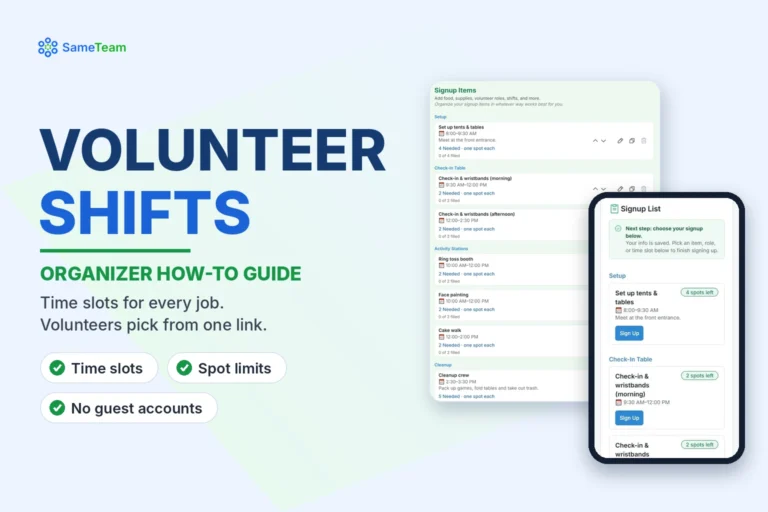
Building a schedule of shifts? See how to create volunteer signups and time slots. Browse more guides in the SameTeam Events Help Center.