How to Create an Online Sign-Up Sheet (Free & Easy Guide)
Learn how to create an online sign-up sheet for volunteers, events, potlucks, supplies, school activities, church events, and more — without juggling paper lists, spreadsheets, or endless group messages.
Quick answer: If you’re wondering how to create an online sign-up sheet, start with your event details, decide what people need to sign up for, add the available items or roles and quantities, then share one link with your group. A dedicated signup tool like SameTeam online sign-up sheet can keep RSVPs, volunteer roles, potluck items, supplies, and other event needs together while letting participants see what is still available.
Whether you’re organizing a volunteer day, church picnic, school event, neighborhood gathering, team activity, or family potluck, there’s usually one deceptively difficult question:
How do you keep track of who is coming — and who is bringing or doing what?
Paper signup sheets work when everyone is standing in the same room. Spreadsheets can work, but they may require manual updates or give participants access to a document they can accidentally change. Group texts and email chains get even harder to follow as responses pile up.
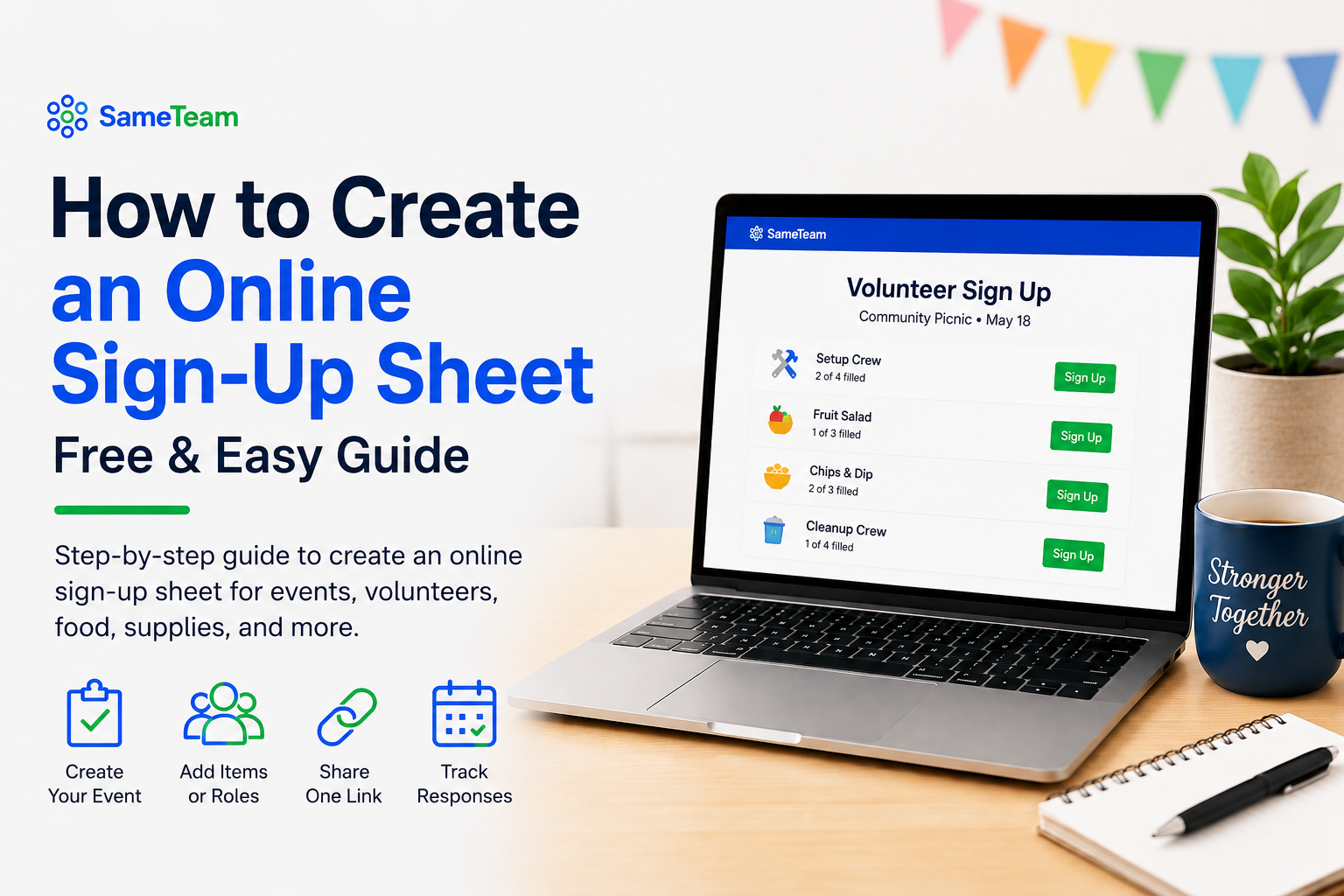
An online sign-up sheet gives everyone one place to respond. Participants can open a shared link, see what is needed, choose an available item or role, and submit their information. The organizer can then track responses without piecing together information from several different places.
What Is an Online Sign-Up Sheet?
An online sign-up sheet is a digital way to organize people, items, roles, shifts, supplies, or other needs for an event or group activity.
Instead of passing around a clipboard or asking everyone to reply to a long email thread, the organizer shares a link. Participants open the signup from their phone or computer and choose what they want to sign up for.
A good online signup should make two things immediately clear:
- What is still needed? Participants should be able to see available items, roles, or spots.
- What have I already signed up for? Participants should be able to review their own selections and make updates when allowed.
For an organizer, the goal is just as simple: spend less time manually tracking responses and more time actually preparing for the event.
What Can You Use an Online Sign-Up Sheet For?
Online sign-up sheets can work for almost any group event where several people need to claim different needs or responsibilities.
- Setup and cleanup volunteers
- Check-in or registration helpers
- Event stations or activity leaders
- Concessions and hospitality roles
- Volunteer shifts
- Potluck dishes and desserts
- Drinks, paper goods, or serving supplies
- Classroom or event supplies
- Equipment and tools
- Requested donations or needed items
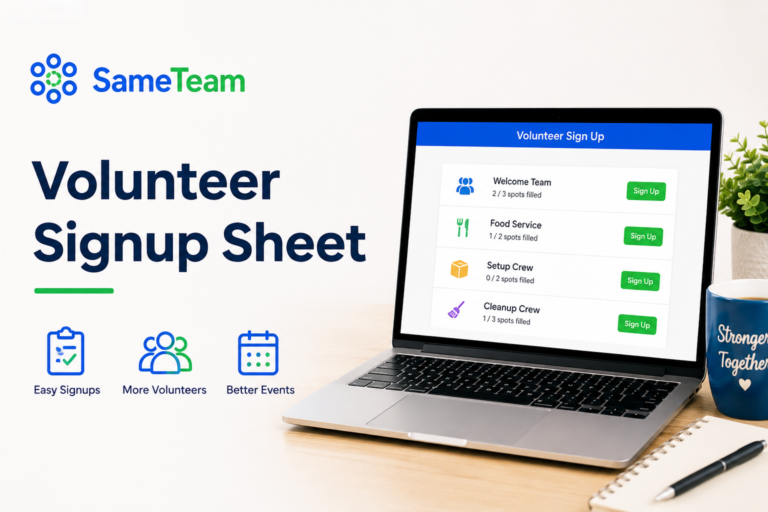
You can also combine several types of needs in one event. A church picnic, for example, might need RSVPs, side dishes, desserts, bottled water, setup volunteers, and cleanup volunteers.
What Should an Online Sign-Up Sheet Include?
The best signup sheet is not necessarily the one with the most fields. It is the one that gives participants enough information to confidently respond without making the process feel like work.
Depending on your event, consider including:
- Event name — make it immediately clear what people are signing up for.
- Date and time — especially important for volunteer roles or event attendance.
- Location — include enough detail for participants to know where to go.
- Event description or instructions — explain anything participants should know before responding.
- RSVP options — if you need to know who is attending, not attending, or still deciding.
- Signup items or roles — clearly label each volunteer job, food category, supply, or other need.
- Quantities or number of spots — specify how many people or items you need.
- Response deadline — tell participants when you need their answer.
- Organizer notes — include any special directions for individual roles or items.
Most importantly, don’t make participants hunt for the signup itself. The path from opening the link to choosing a spot should be obvious.
How to Create an Online Sign-Up Sheet: 7 Easy Steps
You don’t need a complicated system to create an effective signup. Here’s a simple process you can use for most events.
Start With Your Event Details
Add the basic information participants need before they decide whether to respond: the event name, date, time, location, and a short description.
Keep the description useful and scannable. If you’re organizing a school carnival, for example, participants probably need to know what the event is, when to arrive, where it takes place, and whether there are any special instructions.
Decide Whether You Need RSVPs, Signups, or Both
Not every event needs the same type of response.
| Event Need | Best Setup | Example |
|---|---|---|
| Only need attendance | RSVP only | Neighborhood meeting |
| Only need people to claim needs | Signup only | Volunteer shift signup |
| Need attendance plus specific help | RSVP + signup | Church picnic with food and volunteers |
Thinking about this before you build the signup keeps you from collecting information you don’t actually need.
Add the Items, Roles, or Volunteer Spots You Need
Now list the things participants can claim.
Be specific enough that people understand exactly what they’re volunteering for. Instead of one broad item called Volunteers, you might create:
- 3 setup volunteers
- 2 check-in volunteers
- 4 activity station volunteers
- 3 cleanup volunteers
For a potluck, the same idea might look like 5 side dishes, 4 desserts, 3 cases of water, and 2 packages of plates.
Make It Easy to Sign Up Without Creating an Account
Every extra step creates another opportunity for someone to stop before completing the signup.
When selecting or building your signup, eliminate friction by choosing a tool that doesn’t force participants to create a new account or download an app just to respond. They should be able to open the event link, enter the information you actually need, and make their selections right away.
That’s how SameTeam’s participant experience works: organizers create the event and share one link, and guests can RSVP and/or sign up without creating a SameTeam account or downloading an app.
After responding, each participant gets access to a personal event page where they can review or update their response and signups while the event is open.
Create your first SameTeam event free. No guest accounts, no app downloads, and no ads.
Set a Deadline or Capacity if Your Event Needs One
A response deadline gives your group a clear date to act and gives you enough time to fill any remaining gaps.
You may also need an overall event capacity. If the venue only holds a certain number of attendees, for example, your signup process should help you avoid accepting more people than the event can accommodate.
SameTeam allows organizers to set a response deadline and an event capacity when needed.
Share One Simple Link
Once your signup is ready, share the event link wherever your group already communicates.
That might include:
- Group text or messaging app
- Church or school newsletter
- Social media group
- Website or event page
- Flyer, bulletin, or sign using a QR code
A single public event link is easier to manage than sending different forms for RSVPs, volunteers, and supplies.
Track Responses and Follow Up on What’s Still Needed
Creating the signup is only half the job. As the event gets closer, check your responses and look for gaps.
You might discover that attendance is strong but you still need two setup volunteers, or that every dessert spot is full while several supply items remain open.
A central organizer dashboard makes those gaps much easier to spot than searching through emails or comparing multiple lists.
SameTeam organizers can also send email reminders to participating guests directly from the event dashboard. The reminder includes the participant’s personal event link so they can review or update their response and signups.
Online Sign-Up Sheet Examples
The structure of your signup should match the event you’re actually planning. Here are a few common examples.
| Event | What the Sign-Up Sheet Might Include |
|---|---|
| Volunteer event | Setup, check-in, activity stations, food service, cleanup, or time-based volunteer roles |
| Potluck | RSVPs, main dishes, side dishes, desserts, drinks, serving supplies, and cleanup help |
| Church event | Attendance, hospitality volunteers, food, supplies, children’s ministry helpers, setup, and cleanup |
| PTA or school event | Book fair shifts, carnival stations, classroom supplies, teacher appreciation food, concessions, or event volunteers |
| Community event | RSVPs, donated items, volunteer jobs, equipment, setup, and cleanup |
The important part isn’t following a particular template. It’s making sure participants can quickly understand what you need and what is still available.
Complete potluck signup guide →
Church event planning checklist →
Online Sign-Up Sheet vs. Spreadsheet: What’s the Difference?
A shared spreadsheet, such as Google Sheets, can absolutely work for a simple signup, especially for a small group that is already comfortable using one. But a spreadsheet and a dedicated signup tool solve the problem differently.
| Feature | Shared Spreadsheet | Dedicated Online Signup Tool |
|---|---|---|
| Participants can see what’s needed | Yes, depending on setup | Generally yes |
| Built specifically for claiming items or roles | No | Yes |
| Protects the underlying organizer data from participant edits | Depends on sharing permissions and setup | Typically yes |
| Tracks remaining quantities / full spots | Usually requires manual setup or formulas | Can be automatic |
| Combines RSVPs and signup needs | Possible with manual setup | Available in tools designed for it |
| Participant can manage their own response | Usually by editing the shared sheet | Can be handled through a personal response page |
If your signup is tiny and everyone knows how to use the spreadsheet, that may be all you need. But once you’re coordinating multiple roles, quantities, RSVPs, or a larger group, a purpose-built online signup can reduce the amount of manual work for the organizer.
Can You Create an Online Sign-Up Sheet Without Requiring a Login?
Yes. Some online signup tools allow participants to respond without creating their own account.
This can be especially useful for community events, churches, schools, PTAs, volunteer groups, neighborhoods, clubs, and other groups where participants may only interact with the organizer’s signup once or twice.
With SameTeam, the organizer has an account to create and manage events, but participants do not need a SameTeam account. They open the shared event link, enter their information, respond, and choose available signup needs.
They also don’t need to download an app.
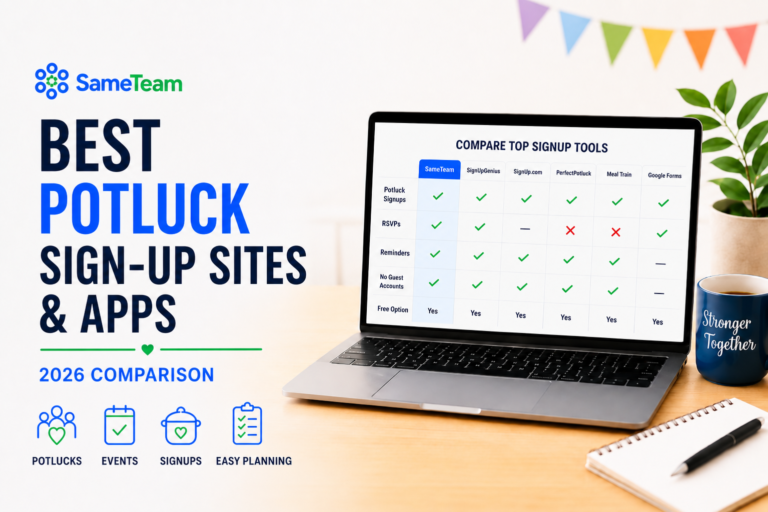
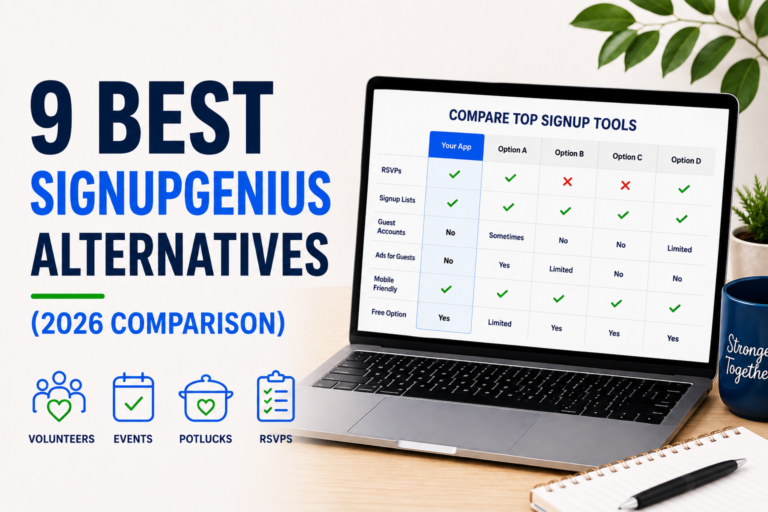
If you’re comparing different signup platforms, see our guide to the best SignUpGenius alternatives for churches, schools, PTAs, nonprofits, volunteers, potlucks, and community events.
What Makes a Good Online Sign-Up Sheet?
Regardless of which tool you choose, the best online signup experience should be easy for both sides of the event.
- One obvious link to open
- Clear event details
- Easy-to-understand signup choices
- Visible availability
- As few unnecessary steps as possible
- An easy way to review or update selections
- Simple event setup
- Flexible items, roles, and quantities
- Clear response tracking
- Easy visibility into what’s still needed
- One place to manage the event
- A straightforward way to follow up
Fancy features matter much less if the organizer has trouble setting up the event or participants have trouble figuring out how to respond.
Frequently Asked Questions About Online Sign-Up Sheets
How to create an online sign-up sheet?
Start by adding your event details, decide whether you need RSVPs, signup items, or both, then list the volunteer roles, food, supplies, shifts, or other needs people can claim. Set quantities or available spots when needed and share the finished signup with your group using one link.
Can I create a free online sign-up sheet?
Yes. SameTeam lets organizers create their first event free. You can use RSVPs, signup items or roles, quantities, response deadlines, event capacity, email reminders, QR-code sharing, and other available SameTeam event features without ads.
Can people sign up without creating an account?
Yes. SameTeam participants do not need to create a SameTeam account or download an app. They can open the organizer’s shared event link, enter their information, RSVP and/or choose available signup items or roles.
Can an online sign-up sheet include both RSVPs and volunteer signups?
Yes. SameTeam events can be RSVP only, signup only, or RSVP + signup. That means an organizer can track attendance while also coordinating volunteer roles, potluck items, supplies, or other needs in the same event.
What should I put on a volunteer sign-up sheet?
Include the event details, each volunteer role or shift, how many people are needed, and any instructions volunteers need before choosing a spot. If attendance matters separately from volunteering, you may also want to collect RSVPs.
How do I make a potluck sign-up sheet online?
Create your event, then add the food and supply categories you need, such as main dishes, sides, desserts, drinks, plates, or serving supplies. Set quantities so participants can see which needs are still available. If you also need an attendance count, collect RSVPs in the same event. See our complete potluck signup guide for more ideas.
Can participants change what they signed up for?
With SameTeam, participants receive access to their personal event page after responding. They can use it to review or update their response and signup selections while the event remains open.
Can I send reminders for an online sign-up sheet?
Yes. SameTeam organizers can send email reminders to participating guests from the event dashboard. Each reminder includes the participant’s personal event link so they can review or update their response and signups.
Create an Online Sign-Up Sheet Without the Signup Chaos
An online sign-up sheet doesn’t need to be complicated. At its core, it should help your group answer a few simple questions: What’s happening? Who’s coming? What do we still need? And who’s helping with what? Once you know how to create an online sign-up sheet, the same basic process can work for volunteer events, potlucks, church gatherings, school activities, and many other group events.
Start with clear event details. Add only the roles, items, or information you actually need. Make remaining availability easy to understand. Then give everyone one link where they can respond.
For organizers who want RSVPs and signups together, SameTeam’s online sign-up sheet is designed around exactly that workflow. Create an RSVP-only, signup-only, or combined event; add volunteer roles, potluck items, supplies, or other needs; set quantities; and share one simple link.
Participants can respond without creating a SameTeam account or downloading an app, and the experience is ad-free for both organizers and guests.
Create your first SameTeam event free. Every feature is included, with no guest accounts, no app downloads, and no ads.
Disclosure: SameTeam is founded by the author and is featured throughout this guide. Product details reflect SameTeam’s available features as of August 2026 and may change over time. This article is intended for general informational purposes and reflects the author’s experience and product knowledge.