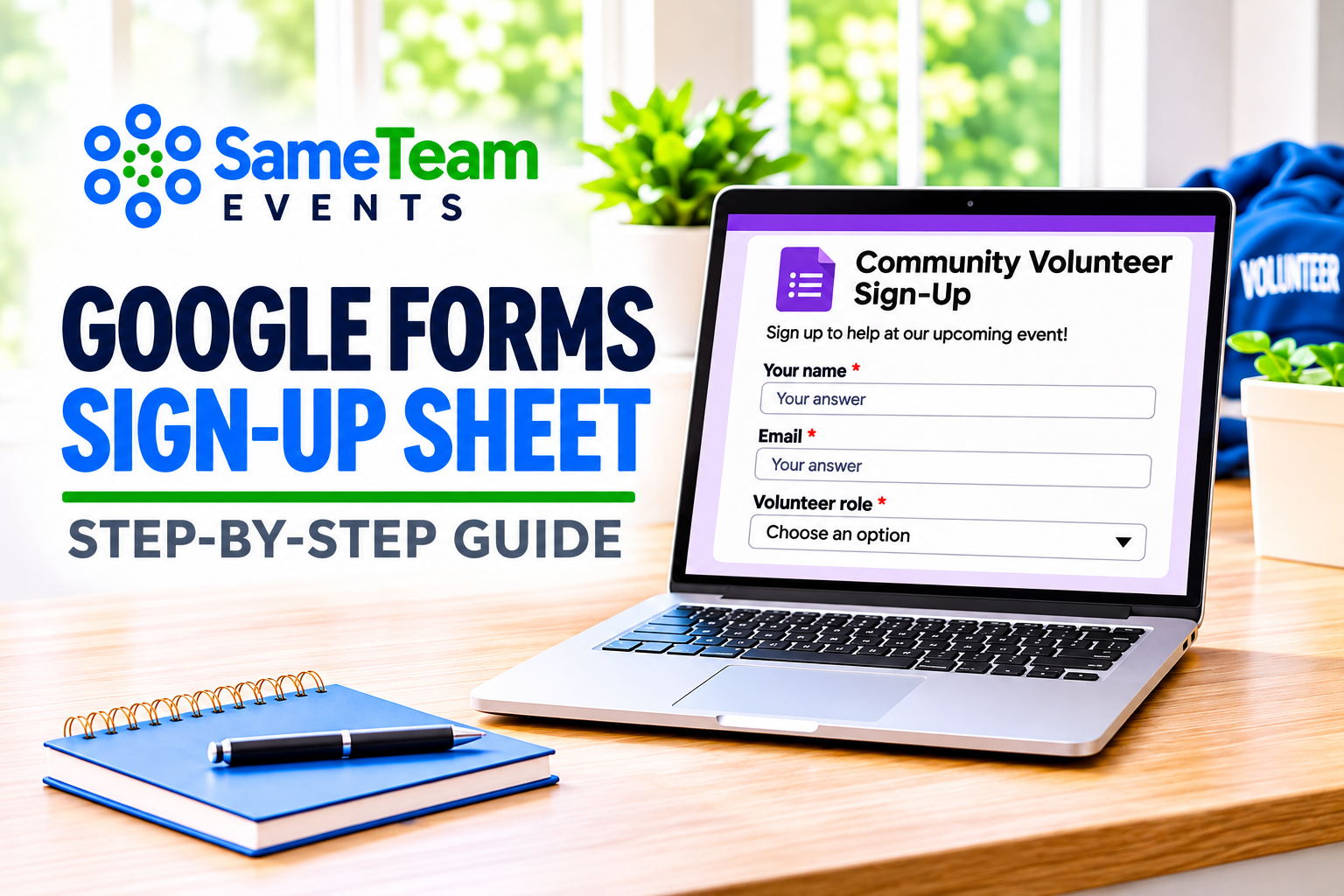
Google Forms Sign Up Sheet: How to Create One (and When to Use Something Else)
Build a free Google Forms sign up sheet for volunteers, events, and potlucks in about 15 minutes, using Google’s current Publish and Responses tools. Then see what it can’t do, like capping each volunteer shift.
Real Google Forms screenshots · Current settings · Honest limitations
Need a simple way to collect names for a school event, church activity, volunteer shift, or potluck? A Google Forms sign up sheet is a practical place to start. It’s free with a Google account, easy to share with one link, and can send every response to a Google Sheet.
But there’s an important difference between collecting someone’s preferred shift and reserving an available spot. Google Forms is excellent at the first job. For the second, you’ll need manual checking, an add-on, or a purpose-built signup tool. This guide covers both, so you can decide what fits your group.
Quick answer: To make a sign up sheet in Google Forms, create a blank form at forms.google.com, turn on email collection in Settings, add questions for name and the role or time slot, then click Publish and share the responder link. Track signups in the Responses tab or a linked Google Sheet. Google Forms can close the whole form on a date or after a set number of responses, but it can’t limit how many people choose each individual shift or item.
How to create a sign up sheet in Google Forms (7 steps)
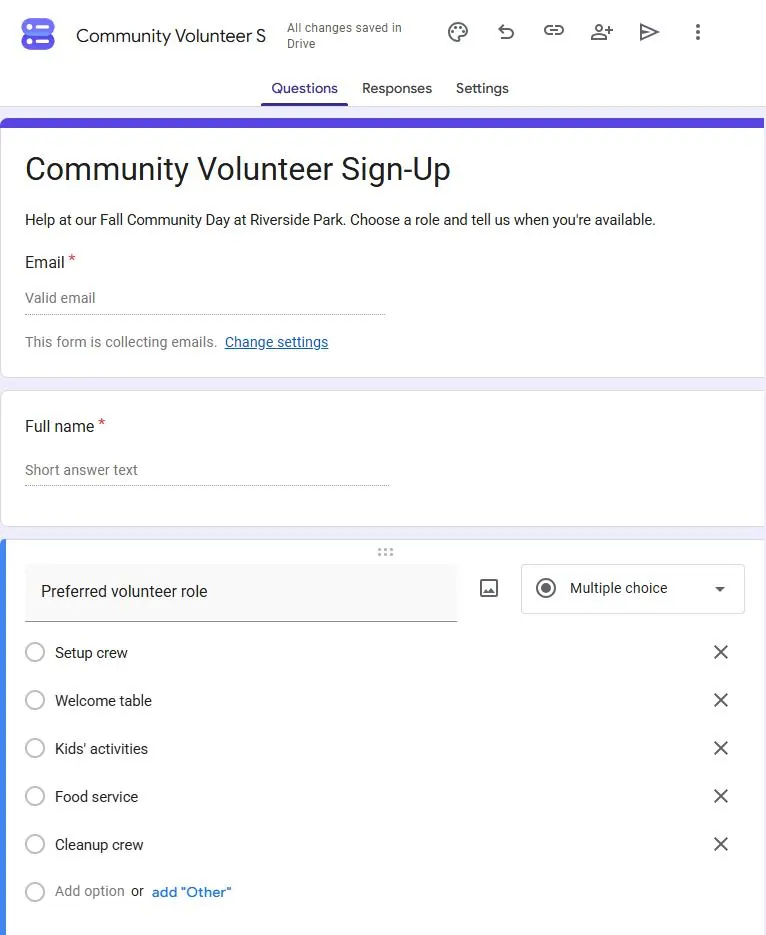
We built a sample Community Volunteer Sign-Up form while writing this guide. The screenshots below come from that form, filled with fictional test responses.
1. Create a blank form and add event details
Go to Google Forms and choose Blank form. Click the title and give it a clear name, such as “Community Volunteer Sign-Up.” In the description, add the event date, location, arrival instructions, and what volunteers will do.
2. Collect email addresses and names
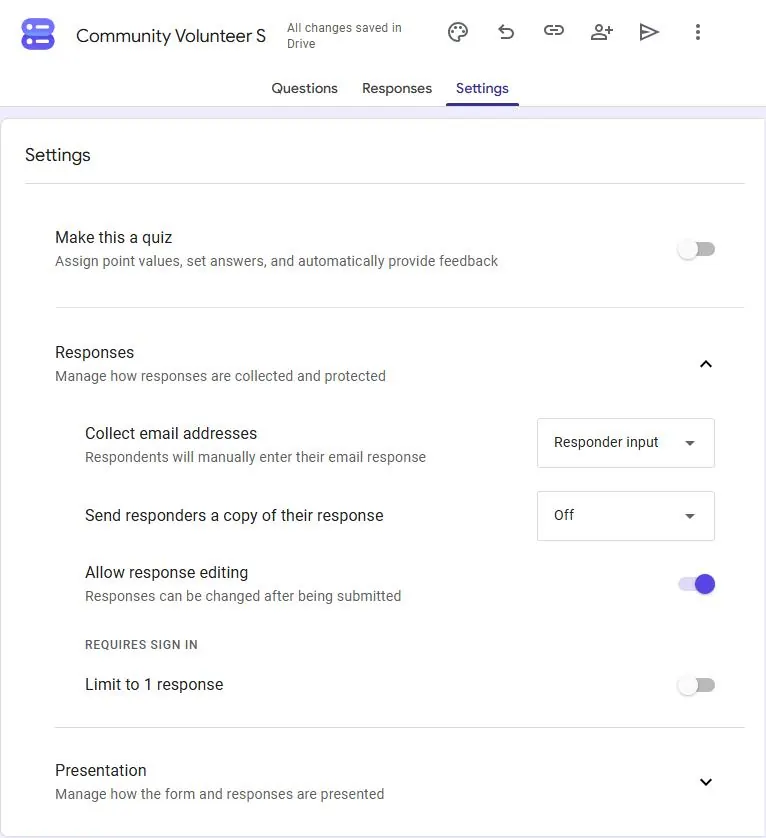
Open the Settings tab, expand Responses, and set Collect email addresses to Responder input. Google adds a required Email field to the top of your form, and people can type any address without signing in. (Choosing Verified instead requires a Google sign-in.)
Back on the Questions tab, change the first question to “Full name,” set the type to Short answer, and turn on Required. Skip phone numbers or other details you won’t actually use.
3. Add the volunteer roles, time slots, or items
Click the + (Add question) button. Use Multiple choice or Dropdown when each person should pick one role or item, and Checkboxes when they can choose several time slots. Type each choice and press Enter to add the next.
For shifts, a Multiple choice grid (roles as rows, times as columns) works too. If each role has a target number, put it in the label, like “Setup crew (need 4)”, so people can see what’s needed.
4. Choose your response settings
In Settings → Responses, a few options matter for signups:
- Allow response editing lets people change their answers after submitting.
- Send responders a copy of their response emails a confirmation (it requires email collection).
- Limit to 1 response blocks repeat submissions, but Google lists it under “Requires sign in,” so everyone must use a Google account.
5. Preview, publish, and share the responder link
Use the Preview (eye) icon to test the form on a phone and submit a test response. Then click Publish. In the publish window, check that Responders is set to Anyone with the link (use Manage to change it; school and work accounts may default to your organization). After publishing, click Copy responder link (the link icon) and share it by email, newsletter, group text, or a QR code. Share the responder link, not the editor link from your address bar.
6. Track signups in the Responses tab or Google Sheets
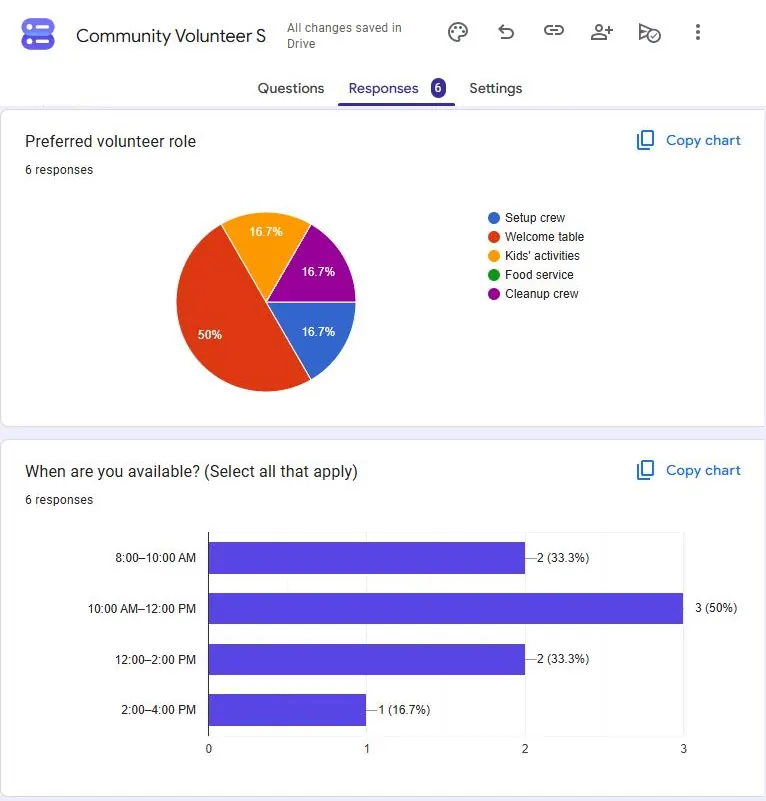
The Responses tab shows a summary chart for every question, plus a list of individual responses. Click Link to Sheets to send each signup to a spreadsheet row you can sort, filter, and count. To hear about new signups, open the Responses tab, click the three-dot More menu, and choose Get email notifications for new responses.
7. Close the form when signups are full
Click Published at the top right and turn off Accepting responses to close it manually. Or choose Set close date or response limit to close the whole form at a specific date and time or after a total number of responses (a feature Google added in early 2026). Neither option closes individual choices as they fill, so you’ll still need to watch each role yourself.
Google Forms signup sheet template: questions to copy
Google’s template gallery includes general options like Event Registration and RSVP, but not a dedicated volunteer signup template. Starting from a blank form is usually faster. Here’s a simple setup you can recreate in a few minutes:
| Question | Question type | Required? |
|---|---|---|
| Settings → Collect email addresses → Responder input | Yes (automatic) | |
| Full name | Short answer | Yes |
| Preferred volunteer role (or item to bring) | Multiple choice or Dropdown | Yes |
| When are you available? | Checkboxes (one per time slot) | Yes |
| Notes or questions | Paragraph | No |
Once it’s set up, you can reuse it: open the form’s three-dot More menu and choose Make a copy for your next event. The copy starts with no responses.
Google Forms sign up sheet examples
The same basic form works for different activities. The best question format depends on whether people are volunteering for a role, bringing an item, or simply registering.
✓ Google Forms volunteer sign up
Ask for name, email, preferred role, and availability. Great for collecting volunteer interest and preferences; less ideal when each shift has a strict maximum.
✓ Church or community potluck
Ask which dish or supply each guest plans to bring. It works for informal meals, but you’ll need to watch the responses to avoid ten desserts and no drinks.
✓ Google Forms event registration
Collect attendee names, headcount, and simple preferences for a workshop or meeting. With the response limit setting, you can close registration automatically when the event reaches its total capacity.
✓ Nonprofit volunteer interest list
Gather contact details, skills, and general availability to build a volunteer list for future events. This is one of Google Forms’ strongest uses.
Google Forms signup limitations to know
Google Forms is a survey tool, so it records answers rather than managing spots. Here’s what’s built in, what needs a workaround, and what it doesn’t do.
Signup limits for each shift or item
Not built in. Google Forms can limit the total number of responses to the whole form, but it doesn’t reserve a fixed number of spots for each answer choice. If your cleanup crew needs four people, a fifth person can still choose it. In our test form, three of six volunteers picked the Welcome table, and nothing stopped them.
A limit of 30 total form responses is not the same as “4 volunteers for setup, 6 for registration, and 3 for cleanup.” If exact capacity matters, plan how you’ll handle a full role before you share the link.
Common workarounds include deleting or renaming a choice once it fills, making a separate form for each shift, or installing a third-party add-on from the Google Workspace Marketplace that removes options after a set number of selections. Add-ons aren’t made by Google, so review the permissions they ask for, and test the form after installing one.
Volunteer shifts and duplicate signups
Google Forms doesn’t know two time slots overlap, and it doesn’t flag the same person signing up twice. Limit to 1 response prevents repeat submissions only when everyone signs in with a Google account. Otherwise, check your linked spreadsheet for duplicate names or emails.
Tracking who still needs to fill a spot
The Responses tab shows how many people chose each option, but not how many spots remain against your goal. Most organizers add a column to the linked sheet comparing signups to the number needed.
Reminders
Google Forms doesn’t send event reminders. It can email people a copy of their own response and notify you about new responses, but reminding volunteers the day before is up to you, using your own email or a separate add-on or tool.
| Need | In Google Forms |
|---|---|
| Close the whole form on a date or after a total count | Built in |
| Let people edit their response | Built in (Allow response editing) |
| Email a copy of the response | Built in (requires email collection) |
| Cap spots for each shift or item | Manual edits or third-party add-on |
| Prevent duplicate signups | Only with Google sign-in (Limit to 1 response) |
| Event reminders to volunteers | Not built in |
When is Google Forms enough, and when should you use something else?
Google Forms is a good free choice when…
You’re running a one-time event, collecting volunteer interest or preferences, have flexible numbers for each role, and don’t mind checking a spreadsheet.
A dedicated signup tool helps when…
You need spot limits for each role, several volunteer shifts, RSVPs and signups together, automatic reminders, or a setup you can reuse for events throughout the year.
Google Forms vs. SameTeam Events for recurring signups
Google Forms and SameTeam Events solve different problems. Google Forms gathers answers. SameTeam is built for organizers who run events again and again, and need to know who’s coming, who’s helping, and which spots are still open.
| Feature | Google Forms | SameTeam Events |
|---|---|---|
| Share one link | Yes | Yes |
| Signup limits for each item or shift | Workaround or add-on | Built in |
| RSVPs and signups in one event | Custom questions; manual tracking | Built in |
| Volunteer shifts | Choices or grids, no caps | Built in, with spots per shift |
| Guest reminders | Not built in | Built in |
| Reuse for the next event | Make a copy of the form | Duplicate the event |
| Guest accounts, app downloads, or ads | No guest account needed unless sign-in settings are on | None required, no ads |
| Cost | Free with a Google account | First event free; plans start at $12/month, billed annually |
For example, a PTA organizing a school carnival may need four volunteers at the welcome table, two at each game, and six for cleanup. In SameTeam, the organizer sets those spots once, shares one link, and sees which spots are still needed instead of counting choices in a spreadsheet.
How to create a signup sheet in SameTeam instead
Use Signup Only for volunteer roles or potluck items, or RSVP + Signup if you also need a headcount.
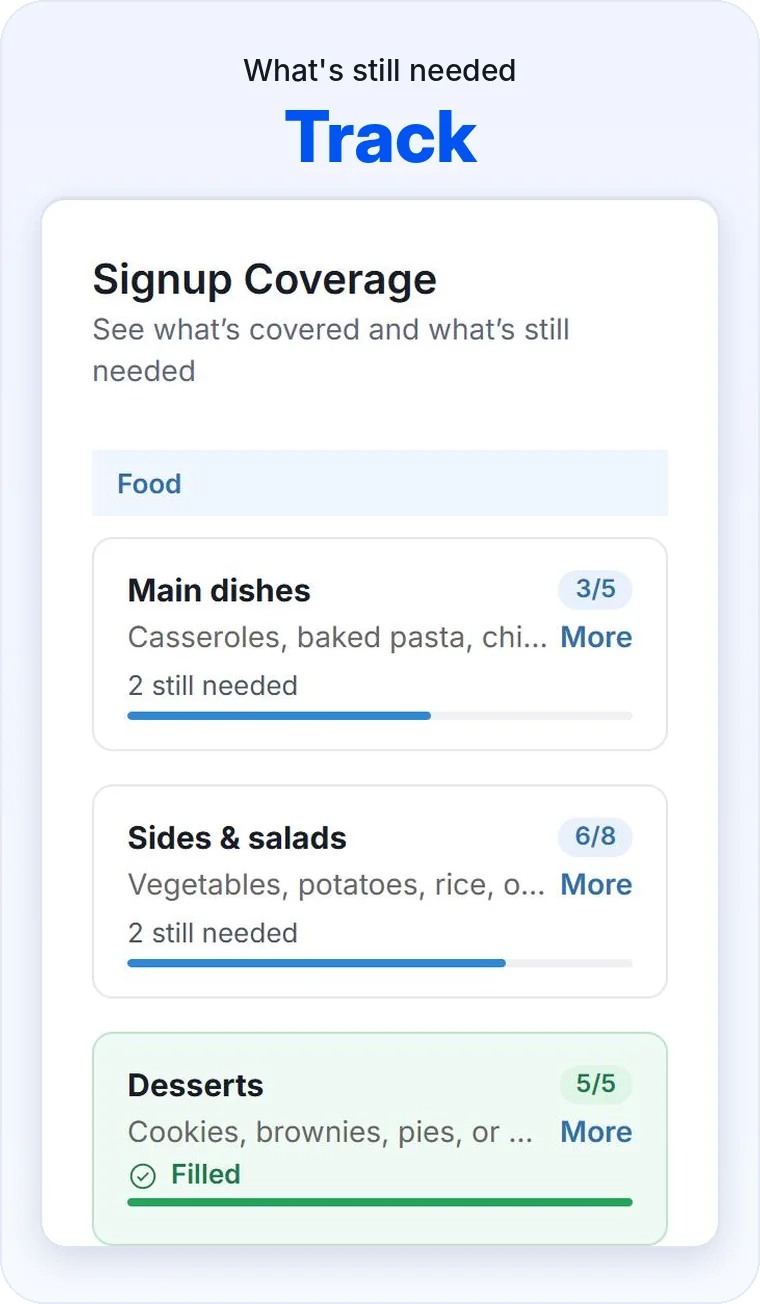
Create items such as Setup, Games, Cleanup, Food, or Supplies, and set how many people you need for each one, so guests can see what’s still needed.
Guests sign up in their browser without creating an account, downloading an app, or seeing ads.
Track coverage, send reminders, and duplicate the event for next month’s gathering. Your first event is free; ongoing events need a paid plan, starting at $12/month, billed annually.
Running signups every month?
Coordinate volunteer shifts, potluck items, and RSVPs with one simple link, signup limits, and reminders. Your first SameTeam event is free.
Create Your First Event Free →
No guest accounts · No app downloads · No ads
Frequently asked questions about Google Forms sign up sheets
Is Google Forms free for a sign up sheet?
Yes. You need a free Google account to create the form. People filling it out don’t need one unless you turn on settings that require sign-in.
Can people sign up without a Google account?
Yes, as long as responders are set to “Anyone with the link” and you avoid settings that require sign-in, such as Limit to 1 response, Verified email collection, and file upload questions. Test the responder link in a private browser window before sharing.
How do I make a sign up sheet with time slots in Google Forms?
List each time slot as a choice in a Checkboxes or Multiple choice question, or use a Multiple choice grid for roles and times. Google Forms won’t cap how many people pick each slot, so watch your responses or use an add-on.
Can Google Forms limit the number of signups?
For the whole form, yes. Click Published, then Set close date or response limit. For individual shifts or items, no; that requires manual changes or a third-party add-on.
Can someone change their Google Forms signup?
Yes, if you turn on Allow response editing in Settings. Editing an answer doesn’t check whether the new choice is already full.
Can Google Forms send reminders to volunteers?
No. It can email a copy of each person’s response and notify you about new responses, but event reminders need your own email or a separate tool.
What’s a good alternative to Google Forms for recurring volunteer signups?
SameTeam Events is built for schools, churches, nonprofits, and community groups that need RSVPs, signup limits, volunteer shifts, reminders, and events they can duplicate. Your first event is free; plans start at $12/month, billed annually.
Bottom line: A Google Forms sign up sheet is a smart free starting point when you simply need to gather names and preferences. When you’re regularly coordinating volunteers, limited spots, and event attendance, a dedicated signup tool can save you hours of spreadsheet checking.
Keep planning with our guides to creating an online sign-up sheet, organizing volunteer signup sheets, and planning a church potluck sign-up sheet. Comparing options? See our roundup of volunteer signup software for schools, churches, and nonprofits, or create your first SameTeam event free →
Google Forms steps reflect the interface as of November 2026 and may change. For Google’s official instructions, see Publish & share your form with responders and View & manage form responses. SameTeam Events is not affiliated with Google.